Generate probation reviews
Quick answer
- Go to System Administration ▸ Batch Processes ▸ Generate Probation Reviews.
- Set the Probation Horizon Days to control how far ahead to look.
- Click Run — the batch creates review records and routes them into the workflow.
The Generate Probation Reviews batch process scans employee records for upcoming probation dates and creates the review records, routing them into the approval workflow for the assigned manager.
Navigate to the batch process
In D365, go to System Administration ▸ Periodic tasks ▸ Batch and select Generate probation review.
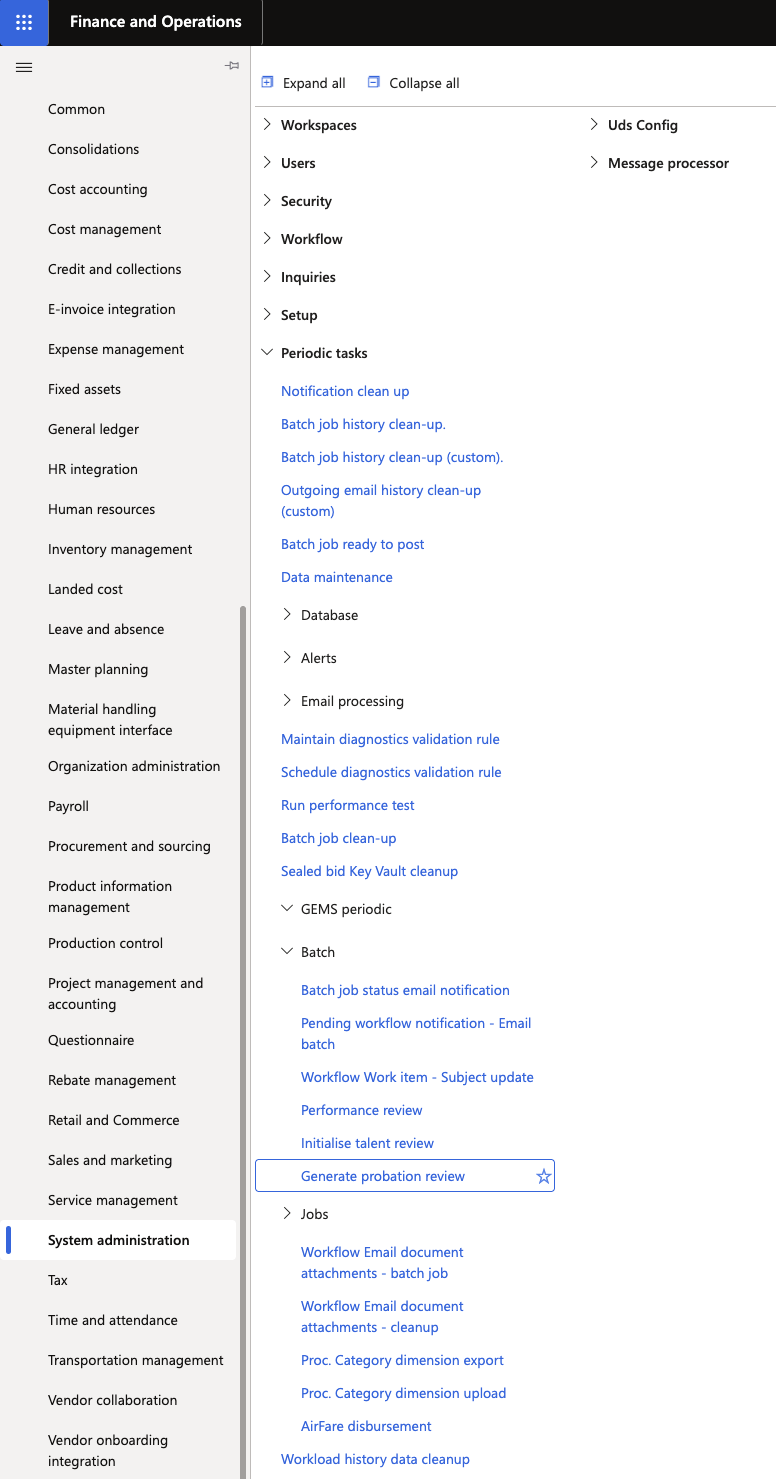
Set the horizon
Enter a value in the Probation Horizon Days parameter. The batch generates reviews for any employee whose Stage 1 or Stage 2 probation date falls within this many days from today.
For example, setting the horizon to 10 days will capture any review date falling within the next 10 days. If a probation date has already passed, no review is generated for it.
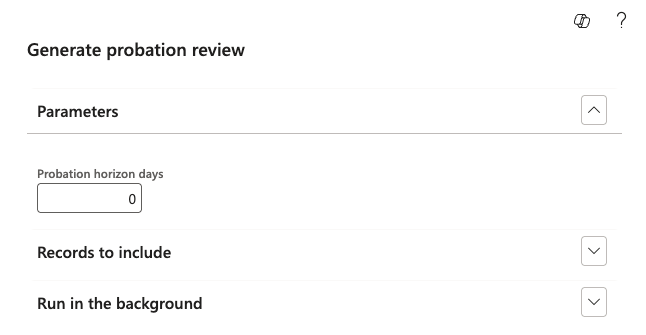
Run the batch
Click Run to execute the batch manually. Alternatively, schedule the batch to run nightly so no manual action is required on an ongoing basis.
Confirm the outcome
After the batch runs:
- The Review 1 Generated or Final Review Generated flag on the employee record is set to Yes.
- A probation review record is created and submitted to the workflow.
- The review appears in the manager's ESS queue under Team Probation Review Requests.