Configure probation settings
Quick answer
- Open the probation configuration form (Gems Custom Form) in D365.
- For each staff level and category combination, set the review days for Stage 1 and Stage 2.
- Select the review Template and click Save.
Probation review settings are configured by staff level and category, controlling when Stage 1 and Stage 2 reviews are triggered for different employee types.
Open the probation configuration form
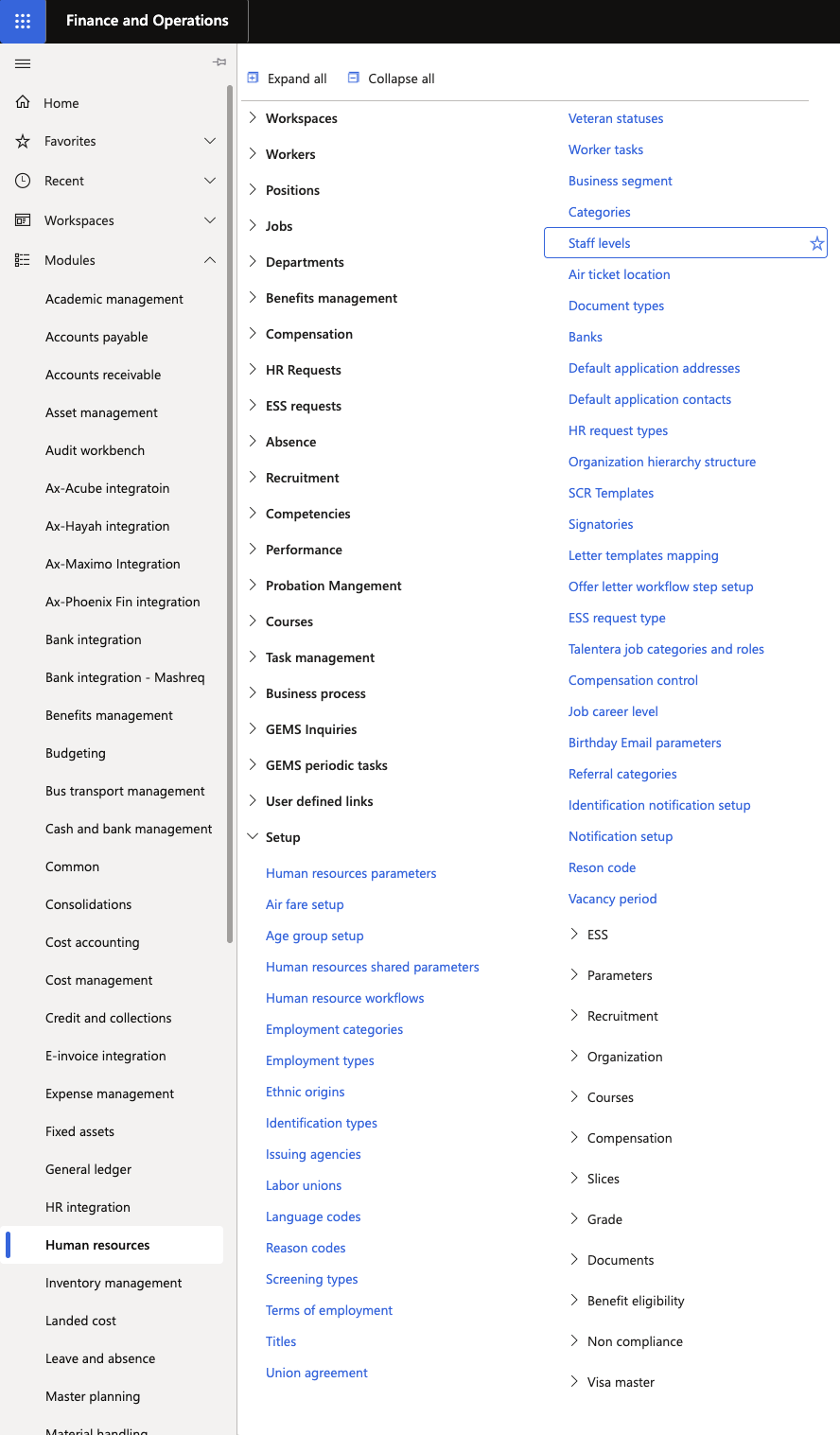
In D365, navigate to the Staff Levels for probation configuration (accessible from the Human Resources module setup area).
Select a staff level and category combination
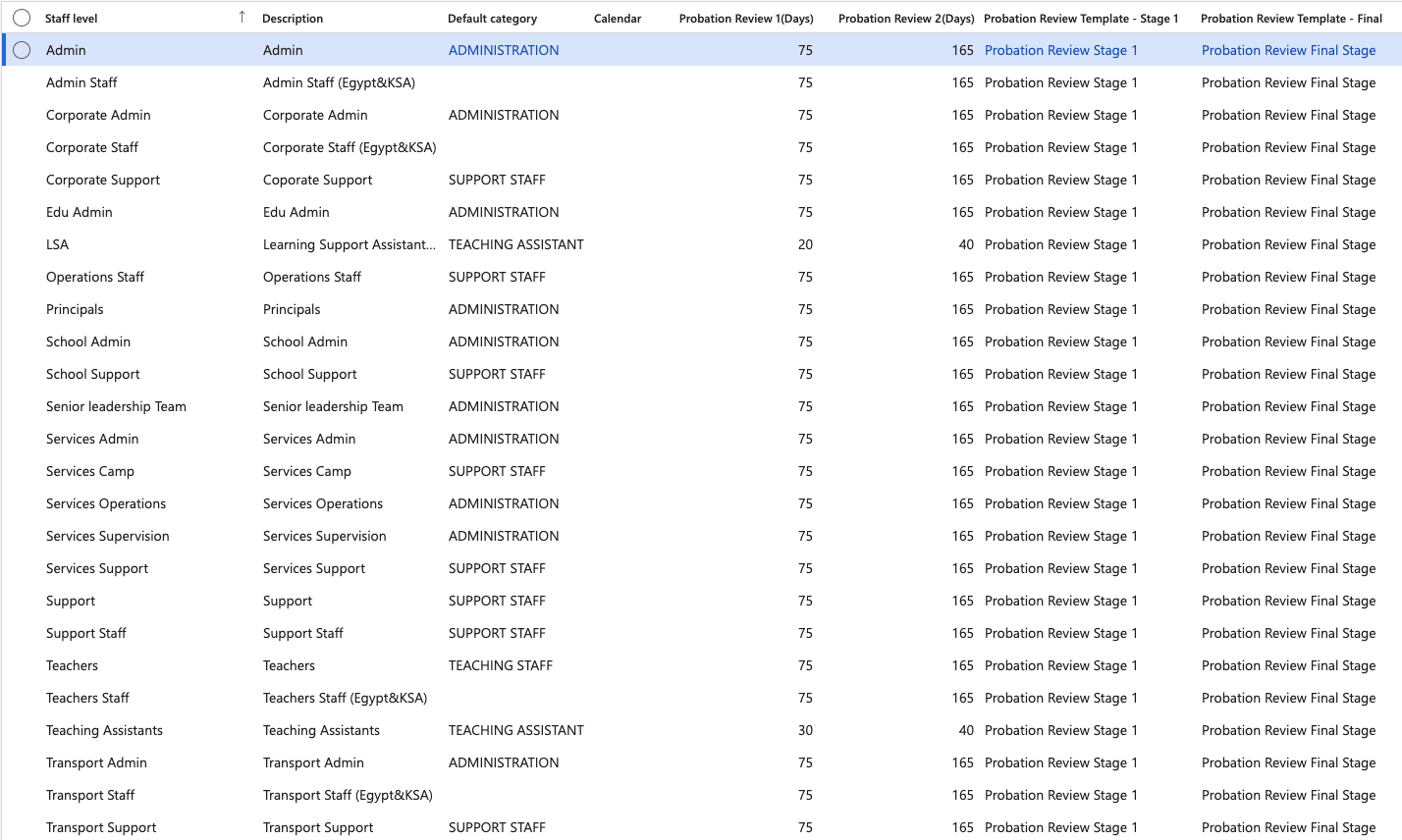
Each row in the form represents a unique combination of Staff Level and Default category (for example, Teacher + Grade 1). Probation parameters differ per combination.
Set the review days
For the selected combination, configure:
- Probation Review Days — Stage 1: the number of days from the employee's start date when the Stage 1 review should be generated
- Probation Review Days — Stage 2: the number of days from the employee's start date when the Stage 2 review should be generated
Select the review template
In the Template field, select the review template to apply to this combination. The template defines which competencies are included and what rating model (e.g., Meets Expectations, Concerns, Needs Improvement) is used.
Save
Click Save to apply the configuration.