Set up performance periods
Quick answer
- In D365, create a Performance period for each stage of the cycle — goal setting, mid-year review and end-of-year review.
- Give each period its own start and end dates.
- Attach the performance year to every period — a period without its year will not work.
Performance periods divide the performance year into the stages you actually run. You select a period when you generate reviews, and the period dates control when you can create those reviews.
Open the performance period form
In D365, go to the Performance period setup under Human Resources ▸ Performance ▸ Setup ▸ Performance period.
Create a period for each stage
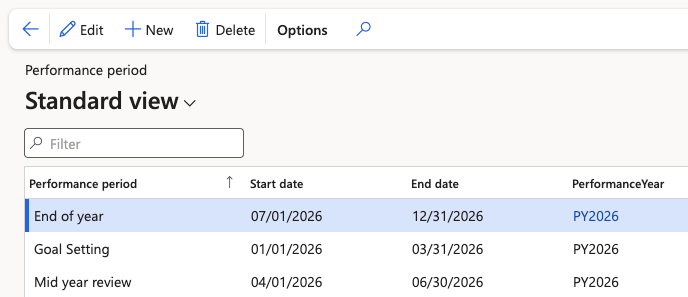
Create three records — goal setting, mid-year review, and end-of-year review — and set the Start date and End date for each. For example, a goal-setting period might run 1 January to 31 March.
The dates matter beyond record-keeping: when you generate reviews, the creation date you enter must fall inside the period's date range. See Generate performance reviews.
Attach the performance year
Set the Performance year on every period. This is the step most easily missed, and a period without its year attached does not function — link each one before you save.
Note: Like the performance year itself, periods are set up once when the year starts and then left alone until the following year.