Set up goal templates
Quick answer
- In D365, go to Human Resources ▸ Performance ▸ Setup ▸ Goal templates — this is the library every review draws its goals from.
- Give each goal a name, level, goal category, status and goal classification.
- Create as many goals as you need; they are picked up later when you build your review templates.
Goal templates are the library of goals available to your organisation. Nothing in the performance cycle works until this library exists — review templates pull their goals from here, and those goals are then copied onto every review the batch job generates.
This setup is for HR, HR administrators, and IT only. Employees never see these forms.
Open the goal templates form
In D365, go to Human Resources ▸ Performance ▸ Setup ▸ Goal templates.
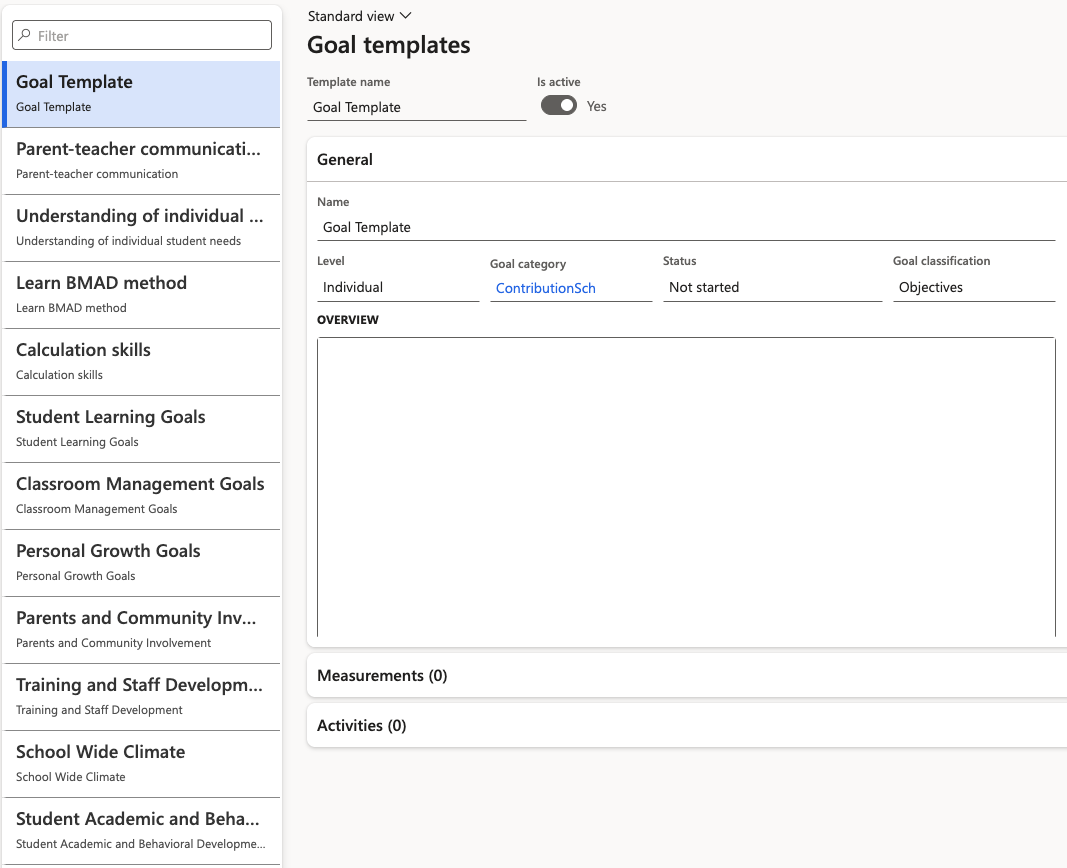
Create a goal
Add a record for each goal you want available. Complete:
Field What it holds Name The goal as it will appear to employees and managers Level The level the goal applies at Goal category The grouping the goal belongs to Status Whether the goal is currently available for use Goal classification The type of goal — see the next step Set the goal classification
Goal classification is what separates the different kinds of goals your reviews carry — objectives, competencies, PIP and PDP goals all sit here. The classifications available come from the goal types already defined in the existing system, so the list mirrors what your organisation uses today.
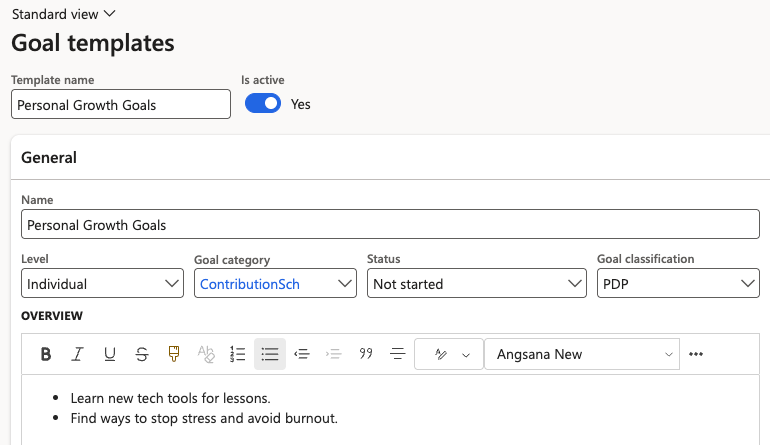
Add as many goals as you need
There is no practical limit. Build out the full library before moving on — you can add more later, but doing it up front means your review templates are complete the first time.
Once your library is in place, group the goals into the reviews that use them — see Set up review templates.