Generate performance reviews
Quick answer
- In D365, go to System administration ▸ Periodic tasks ▸ GEMS periodic ▸ Batch and open the performance review.
- Select the performance period, its start and end dates, and the matching review template.
- Set a creation date that falls inside the period, then run the job — leave the personnel number blank to generate for everyone.
Employees don't create reviews —HR or IT releases them across the organisation by running a batch job. You run it once per stage: once to release goal setting, again for the mid-year review, and again for the end-of-year review.
Find the batch job
In D365, go to System administration ▸ Periodic tasks ▸ GEMS periodic ▸ Batch and open the Performance review job.
All custom batch jobs—probation, performance, talent review—are grouped here, so this is the one place to look rather than searching for each job by name.
Select the performance period
Choose the period you are releasing — goal setting, mid-year review, or end-of-year review — and enter its Start date and End date. For a goal-setting run, these would be the period dates you configured, for example, 1 January to 31 March.
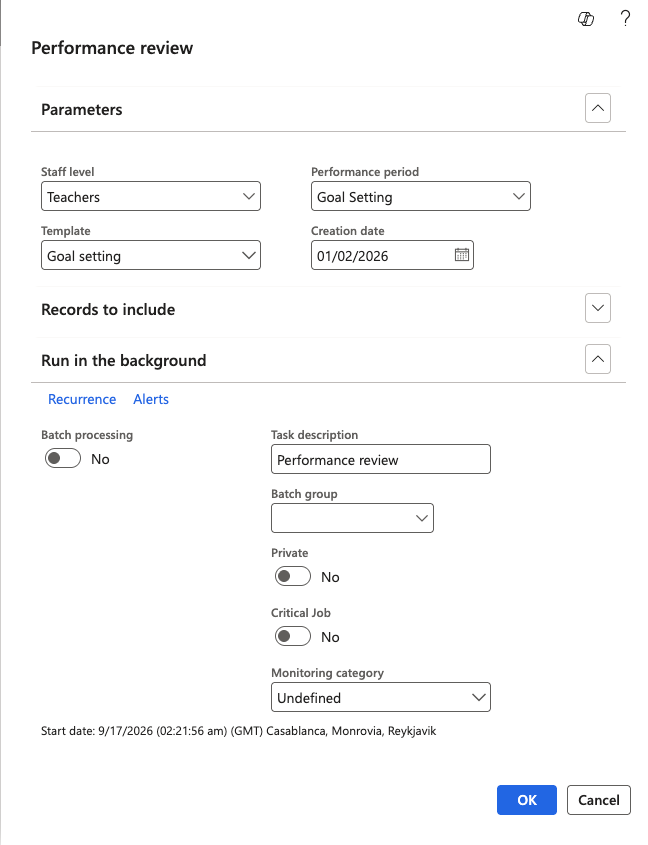
Set the creation date
The Creation date must fall inside the date range of the performance period you selected. A creation date outside the period will not produce reviews, so check this before running the job — it is the most common reason a run comes back empty.
Select the review template
Choose the review Template that matches the period. Releasing the goal-setting period with the mid-year template attached produces reviews with the wrong goals, and the mismatch isn't obvious until employees open them.
Choose who the reviews are generated for
To generate for a single employee, expand Records to include and enter their Personnel number. This is useful for testing or for catching up one person.
Leave the personnel number blank to generate reviews for everyone in the legal entity. This is the normal run at the start of a stage.
Run the job
Click OK. The job creates one review per employee in scope, with the goals from the review template already copied onto each one.
Check the results
Go to Human Resources ▸ Performance ▸ Reviews and refresh. Your generated reviews appear in the list. Open one and check that the goals have copied across — a template with seven goals should produce a review with those seven goals populated.
Once generated, the reviews appear in ESS for employees to complete. You can follow their progress from the same Reviews list — see Track performance reviews in D365.