Configure an onboarding checklist
Quick answer
- Go to Modules ▸ Human Resources ▸ Task Management ▸ Onboarding checklists.
- Select a checklist, click Edit, and configure tasks with owners and offset dates.
- Click Save to apply.
Onboarding checklists define the tasks assigned to a new employee and their supporting teams upon joining the organisation. Tasks can be assigned to a specific person, a user group, or left for manual assignment at the time of hire.
Open Onboarding checklists
From the D365 navigation pane, go to Modules ▸ Human Resources ▸ Task Management ▸ Onboarding checklists.
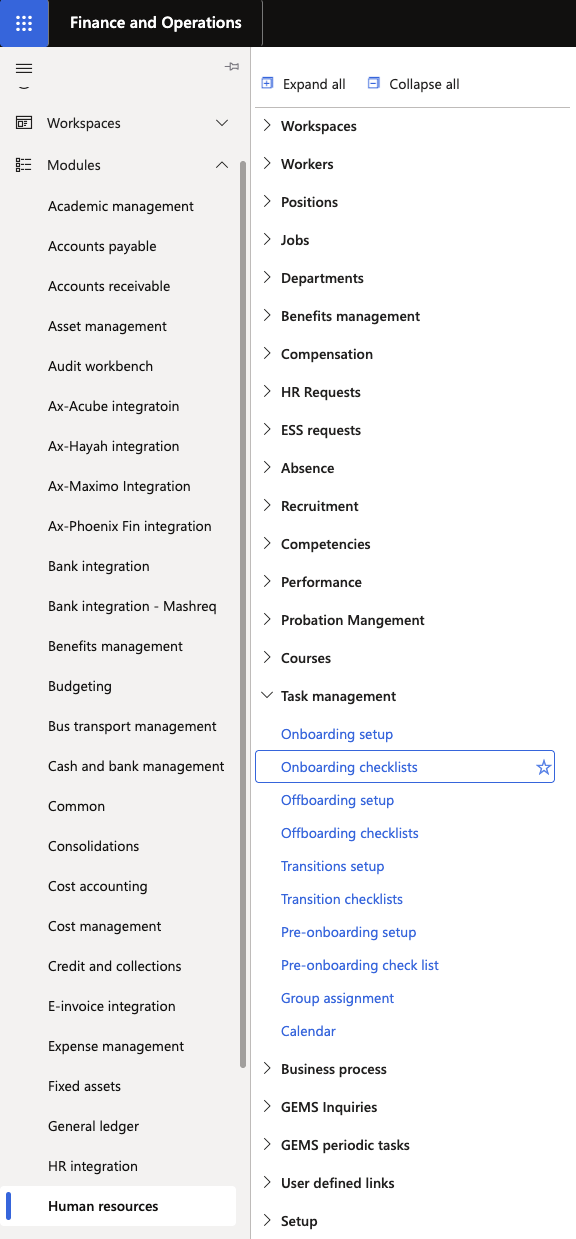
Select or create a checklist
Select an existing checklist to modify, or click New to create one.
Edit the checklist
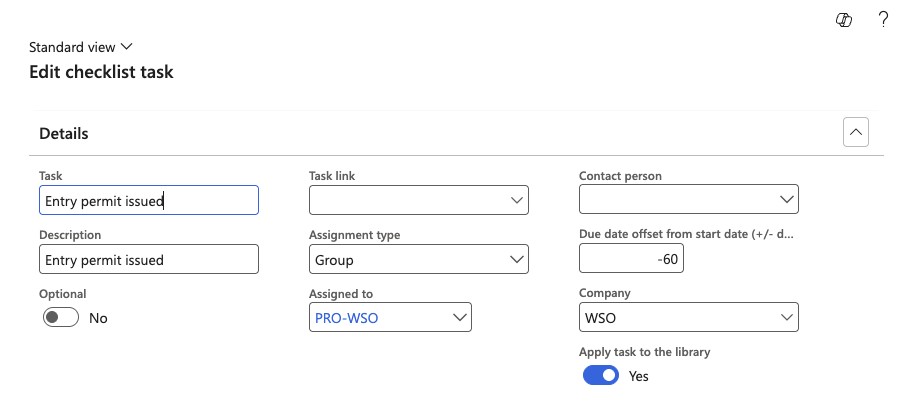
Click Edit to enter edit mode. For each task, configure:
- Task name and description
- Assigned to — a specific person, a user group, or left blank for manual assignment at hire
- Due date offset from start date — the due date, calculated as a number of days relative to the employee's start date
Assign to a group
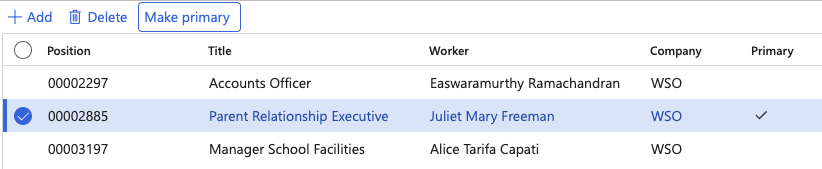
If using a group assignment, right-click to View Details to see its members filtered by legal entity. Select one member and click Make Primary — tasks route to the primary only, not all group members. If the primary has an active delegation configured, the delegated person automatically receives the task.
Save
Click Save to apply the configuration.