Configure an Offboarding Checklist
Quick answer
- Go to to Modules ▸ Human Resources ▸ Task Management ▸ Offboarding checklists.
- Select a checklist, click Edit, and configure tasks with owners and offset dates.
- Click Save to apply.
Prepare the offboarding checklist for staff members who are leaving the company. Assign the primary user who will follow up on the offboarding process and identify who the task can be delegated to.
Navigate to the Offboarding checklist
In D365, navigate to Modules ▸ Human Resources ▸ Task Management ▸ Offboarding checklists.
Select or create a checklist
On the left, there is a list of checklists. Select the appropriate checklist. Or, if it's missing, create a new checklist. Once created, the checklist will be saved in the system and can be reused.
Assign users or user groups
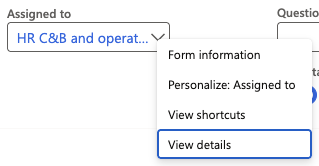
Click Edit in the navigation bar above the checklist items. From the Assigned to dropdown, select the group that will monitor the offboarding process. You can check the group details by right-clicking and selecting View details. Here, you can add names or selected roles to the list by using the filter function. Then click Add and close.
Assign the primary task owner
Select the user from the list, then click the Make Primary button in the task bar above.

Save the changes
Click Save to apply the changes.