Assign the Offboarding Checklist to Offboarding Employees
Quick answer
- Go to Modules ▸ Human Resources ▸ Workers ▸ Employees.
- Identify and select offboarding employees.
- Add the end date and complete the Personnel action type.
- Submit and apply the checklist.
Send out the offboarding checklist to employees who are leaving the company.
Note: Before starting this task, ensure that the offboarding checklist is ready and that the primary task owner has been assigned.
Navigate to the Employee section
In D365, navigate to Modules ▸ Human Resources ▸ Workers ▸ Employees
Identify and select the offboarding employees
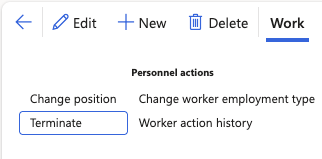
Select the relevant employee, then click Work from the Action Pane. Under Personnel Actions, click Terminate.
Update the Termination reason, end date and status
Select the correct status from the Gemsstatus dropdown. Update the Termination reason. Fill in the Termination date and the Last day worked. Complete the Personnel action type from the dropdown. Click Continue.
Assign a checklist for the employee
- Select Actions from the Action pane. Under Action, click Checklists.
- Click Apply checklist. In the pop-up, update the Process type to Offboarding.
- Select the Target date from the dropdown. The target date should match the selected end date from the previous step.
- Select the checklist and press the right-facing arrow. Click OK.