Navigate Dynamics 365 HR
Quick answer
- Click the ☰ menu to open the navigation pane, then select Modules.
- Drill into the relevant module and submenu to find the page you need.
- Use the Action Pane at the top of any record to save, edit, or create.
Open the navigation pane
Click the hamburger menu (☰) at the top-left of the screen to expand the full navigation menu.

Go to a module
Click Modules to see all available functional areas — including Human Resources, Employee Self Service, and others relevant to your role. Click into a module, then expand its submenus to find the page you need.
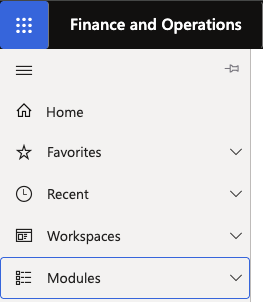
Note: You can search for any module, form, or page directly using the search bar at the top of the screen. To return to your home page at any time, click the Home icon in the navigation pane.
Use the Action Pane
When you open a record — such as an employee profile, a visa record, or a questionnaire — a toolbar called the Action Pane appears at the top of the page. Three buttons are always present regardless of which record you are viewing:
Button What it does Back Returns you to the previous page or list view Save / Edit Toggles between edit mode and saving your changes New Creates a new record 
These buttons stay anchored in place as you move through tabs and sections within a form.