Submit leave requests in bulk
Quick answer
- Go to Bulk request time off and select the leave plan, leave type, reason code and dates.
- Filter the worker list by position type, department or staff category, then select the workers.
- Click Assign leave — the requests are created as system-generated and approved automatically.
When a whole group needs the same leave booked—for example, a scheduled closure for teaching staff—HR can submit requests in one pass rather than asking each employee to raise their own.
Open the bulk request form
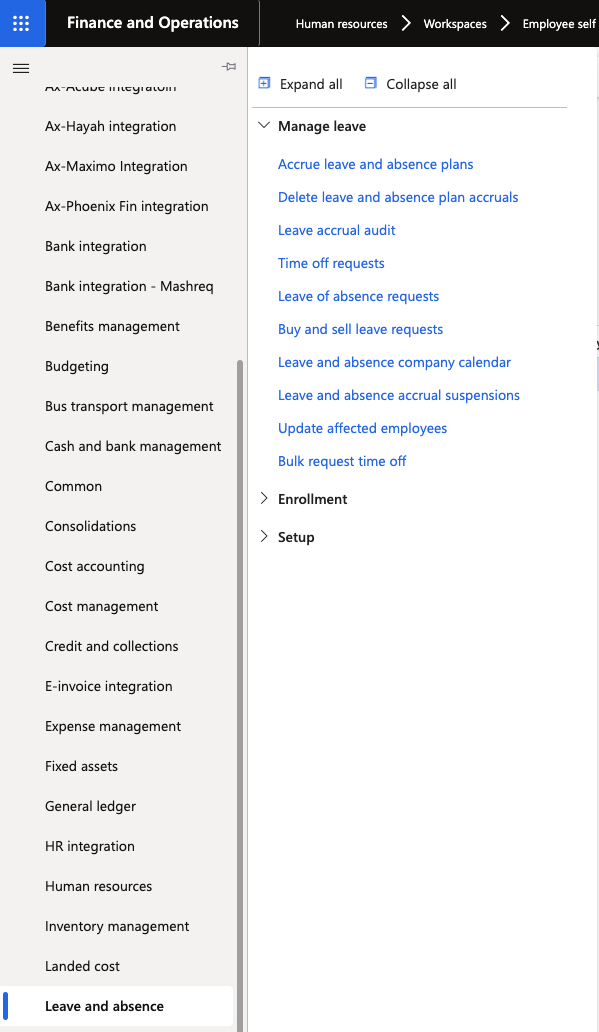
In D365, go to Leave and absence ▸ Manage leave ▸ Bulk request time off.
Select the leave details
Choose the Leave plan and Leave type that can be booked, and select the Reason code if the type requires one.
Set the dates
Enter the Start date and End date of the period to be booked. The same dates apply to everyone included in the run.
Filter the worker list
Narrow the list to the group you are booking for. Filters are available for Position type, Department and Staff category — for example, filtering department to all stages, or staff category to admin support.
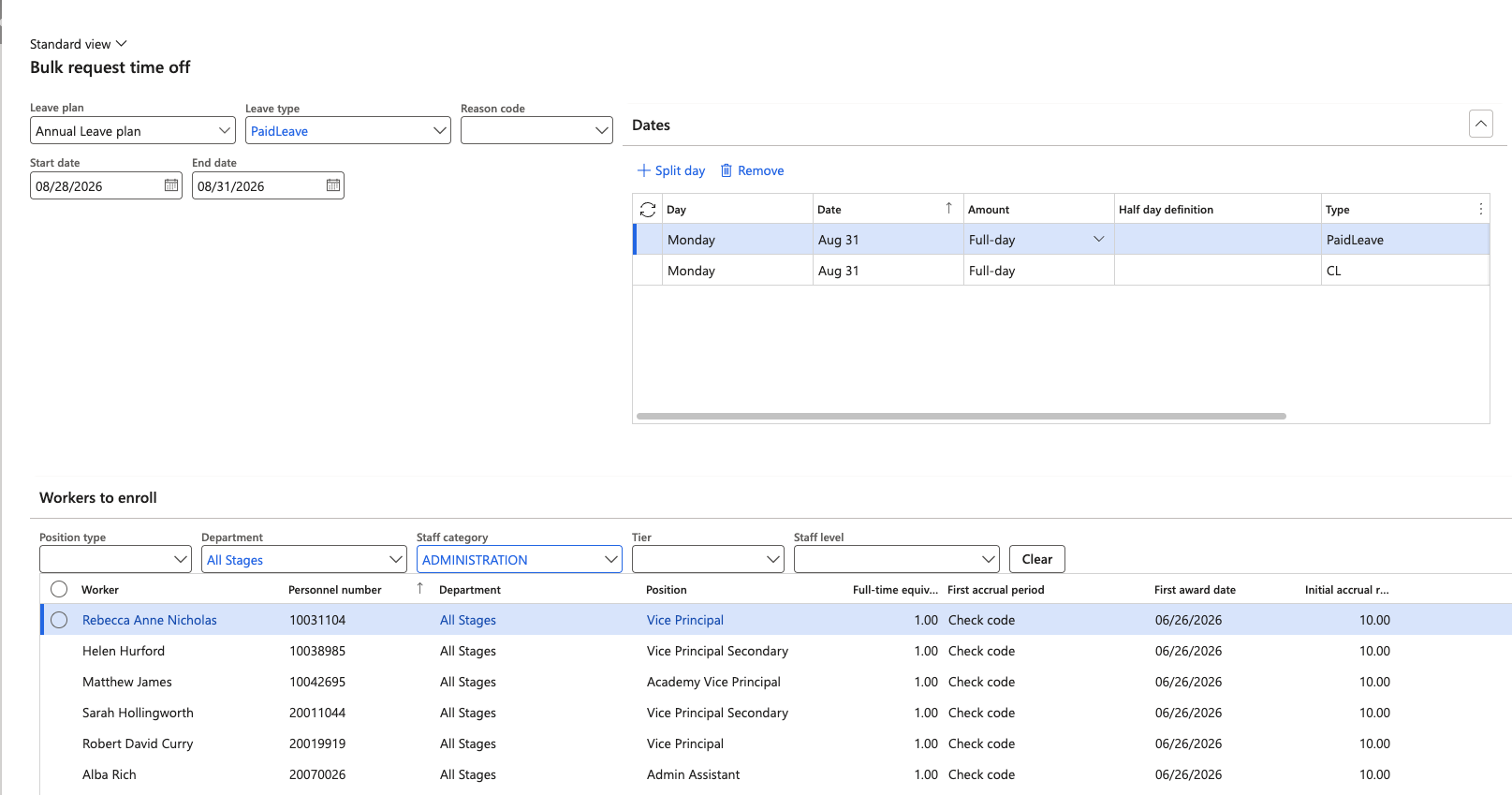
Use Clear to reset the filters and start again.
Select the workers
Tick the individual workers to include, or use select all to take everyone left after filtering. Check the selection before continuing — the requests are created immediately and approved without review.
Assign the leave
Click Assign leave. A leave request is created for every selected worker.
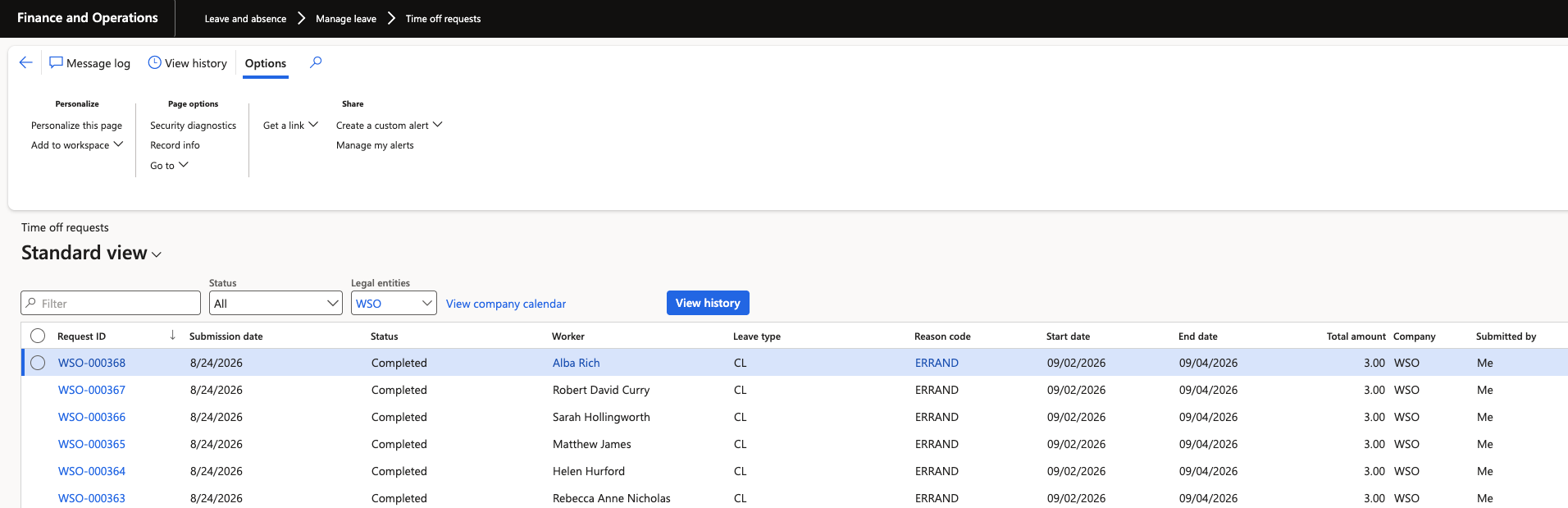
Confirm the requests are completed
The requests are created as system-generated, so the workflow condition approves them automatically rather than routing them to managers. Give the process a moment, then check the results either on an individual employee's time off requests or on the main time off requests list, where all of them are visible together.
If the requests stay in review, the Leave and absence request workflow for that legal entity is missing the condition that auto-approves requests where system generated leave is Yes.