Move a public holiday and manage the impact on leave
Quick answer
- In Leave and absence ▸ Setup ▸ Calendars ▸ Calendars, move the holiday to its new date and record a reason.
- The system checks every affected leave request for that legal entity and adjusts it automatically.
- Adjustments are raised as system-generated requests and auto-approved, and balances update with them.
Public holidays are frequently announced or moved after employees have already booked leave around them. Moving the date in the calendar is all HR needs to do—the system finds the affected requests and corrects them in both directions.
Open the calendar
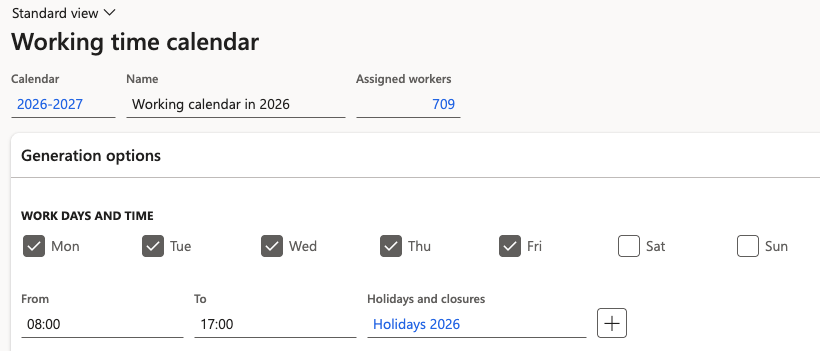
In D365, go to Leave and absence ▸ Setup ▸ Calendars ▸ Calendars and open the calendar for the legal entity.
Open holidays and closures
Open the Holidays and closures for that calendar. This is where you record announced holidays.
Move the holiday and record a reason
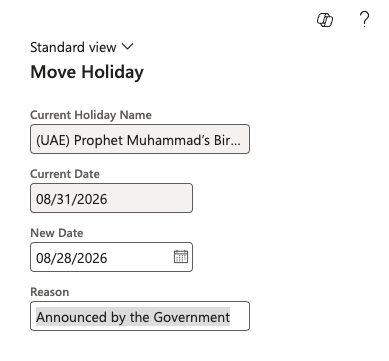
Select the holiday, then click Move holiday to move it to its new date. Enter a reason for the change — for example, Holiday moved due to announcement — then click OK.
Let the system adjust the affected requests
On confirmation, the system checks every leave request for that legal entity against the change and adjusts them. A message confirms the holiday was moved. The behaviour depends on the direction of the change and the status of the request:
Change Approved leave Leave in review A day inside the leave becomes a holiday The day is cancelled and returned to the employee's balance The day is removed from the request, and the day count reduces — a five-day request becomes four A day inside the leave becomes a working day Leave is submitted for that day automatically, keeping the leave continuous Leave is submitted for that day automatically, and the request is extended Confirm the system-generated requests are completed
Each adjustment is raised as its own request with the System generated leave request flag set to Yes. Because the workflow condition auto-approves that flag, they complete without going to an approver. Give the process a few minutes, then refresh the time off requests to confirm the status has moved to completed.
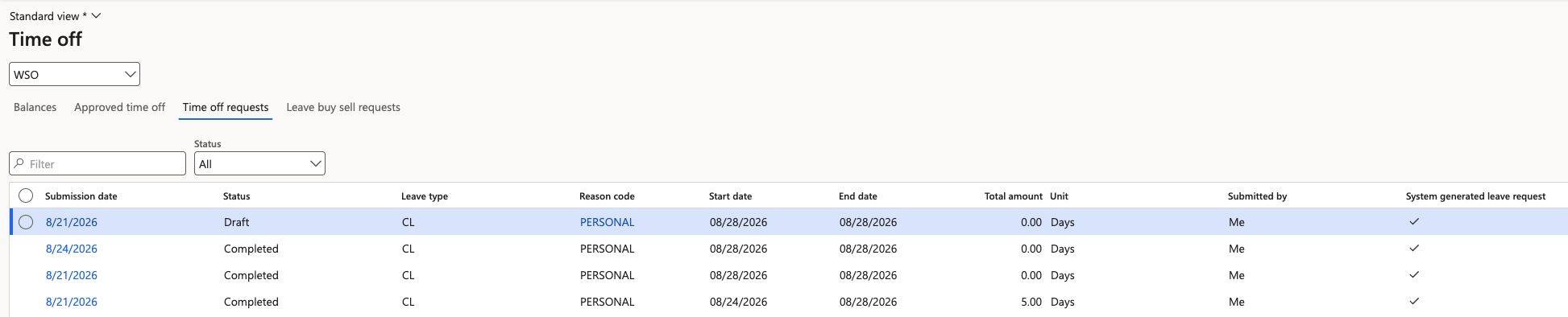
If these requests stay in review instead of completing, the Leave and absence request workflow for that legal entity is missing the condition that auto-approves requests where system generated leave is Yes.
Verify the balances
Check the employee's balance (Human resources ▸ Workspaces ▸ Employee self service ▸ Time-off requests) as of a date after the change to confirm it reflects the adjustment. Balances are recalculated once the system-generated request completes, not when the holiday is moved.