Configure advance notice rules for long leave
Quick answer
- On the leave type, set the number of consecutive days that trigger the rule and the days of notice required.
- ESS blocks any request that meets the day count but is submitted inside the notice period.
- The rule can be set against any leave type.
Long absences usually need warning. An advance notice rule makes ESS refuse a request when the period is long enough to matter, but the employee hasn't given enough notice.
Open the leave type
In D365, go to Leave and absence ▸ Setup ▸ Leave and absence types and open the type you are configuring — for example, casual leave.
Set the trigger and the notice period
Complete the two values that make up the rule:
- The number of consecutive days at which the rule starts applying — 14 days, for example
- The number of days of advance notice required for a request of that length — 40 days, for example
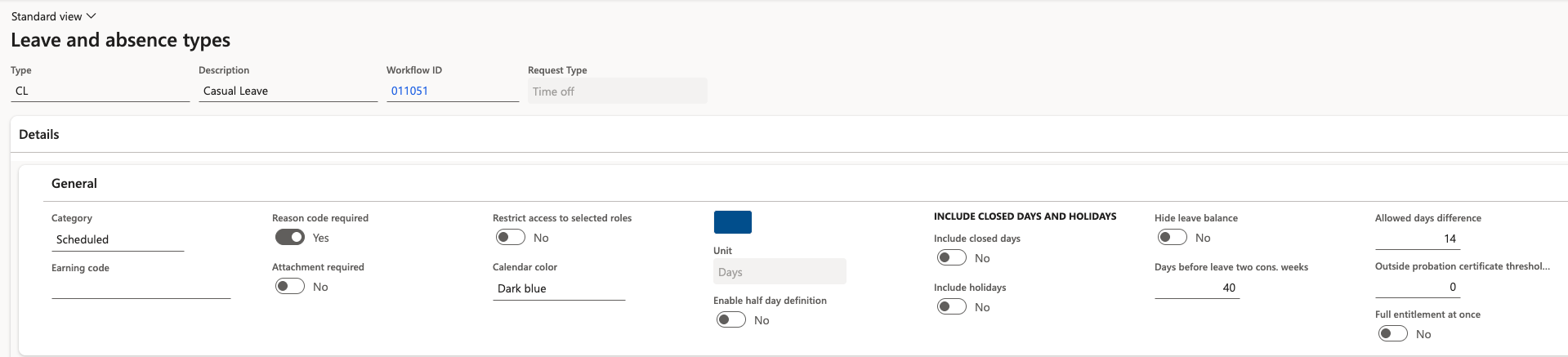
Together, these read: a request for 14 or more consecutive days of this type must be submitted at least 40 days before it starts.
Save
Click Save. The validation applies to new ESS submissions immediately.
Check the employee experience
An employee whose request meets the day count but falls within the notice period sees the submission rejected with a message naming both values — Leave requests of 14 days or more for this type must be submitted at least 40 days in advance — and the request is not created.
You can apply the rule to any leave type. Leave the values blank for types where no notice period applies.