Assign leave plans through the hire worker action
Quick answer
- On the Staff levels form, select the calendar and the leave plans for each legal entity.
- On the personnel action type, set Update leave and absence plan to Yes.
- Complete the hire worker action — the employee is enrolled in the plans automatically once the workflow finishes.
Employees are not enrolled in leave plans by hand. Enrolment is driven by the position they are hired into: the staff level attached to that position carries the leave plans, and the worker action applies them.
Set the calendar and leave plans on the staff level
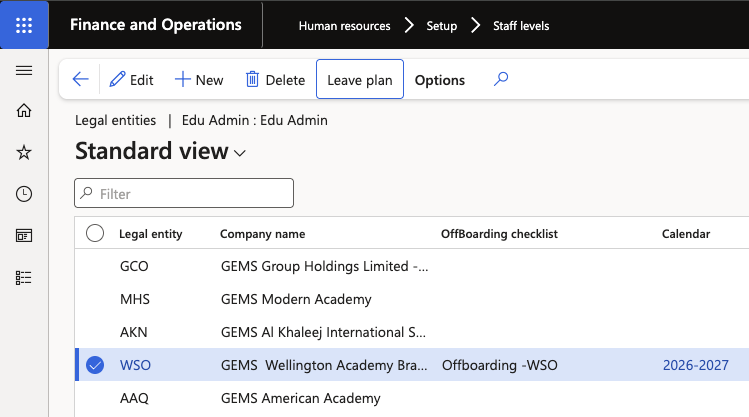
Open the Staff levels form (Human resources ▸ Setup ▸ Staff levels) and select the record you are configuring. Against each legal entity, select the Calendar and the Leave plans that employees at that staff level should be enrolled in. You can assign multiple plans.
Enable the flag on the personnel action type
Open Personnel action types, Human resources ▸ Setup ▸ Personnel action types. Select the worker action needed for the incoming staff member and set Update leave and absence plan to Yes.
Only worker actions using an action type with this flag switched on will enrol employees or update their existing enrolments. The same flag drives transfers and promotions.

Complete the worker action
Create the hire worker action for the new employee and complete the position assignment. Human resources ▸ Recruitment ▸ Recruitment projects ▸ Recruitment projects. The position determines the staff level and staff category, which link the employee to the leave plans configured in step 1.
Submit and approve the workflow
Submit the action to the workflow and approve it. The action stays Pending until the workflow completes — wait for the status to move to completed before checking the enrolment.
Confirm the enrolment
Open the employee record and go to Leave and absence. The plans configured for their staff level are listed.
If the plans are missing, check that the action type had the flag set before you submitted the action— enabling it afterwards does not retrospectively enrol the employee.