Configure mandatory attachments and fields for identification
Quick answer
- Go to Identification Types setup in D365.
- Select a document type and configure its mandatory fields and attachment requirement.
- Scope rules by company and worker country/region as needed, then Save.
Each identification document type can have its own set of required fields and attachment rules. When an attachment is made mandatory, the Submit button in ESS is disabled until the employee uploads a file — preventing incomplete submissions.
Navigate to the Identification types setup
In D365, go to the Identification types setup form within the Human Resources configuration area.
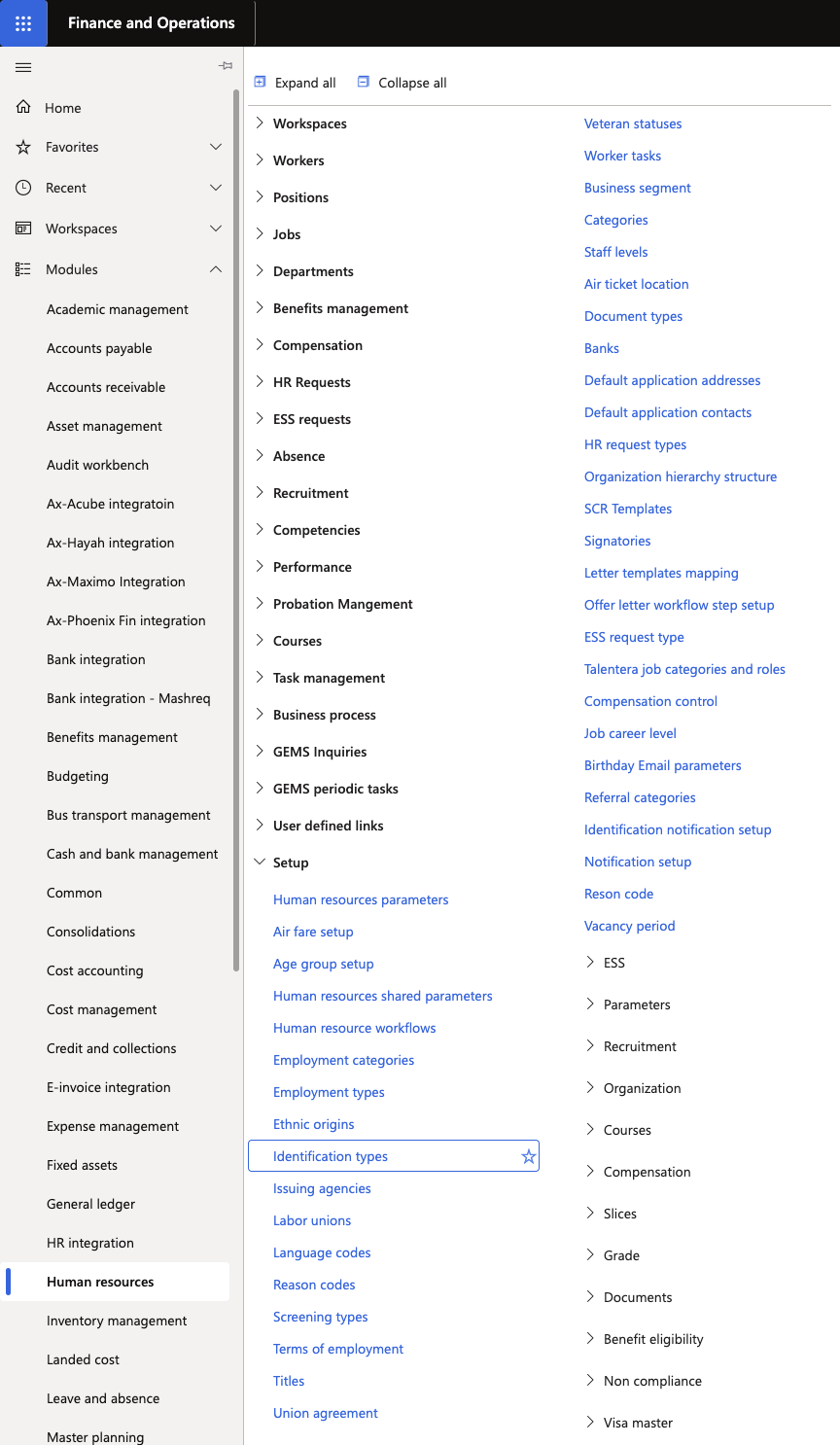
Select a document type
Choose the identification type to configure — for example, Passport, Emirates ID, Labour Card, or Medical Insurance.
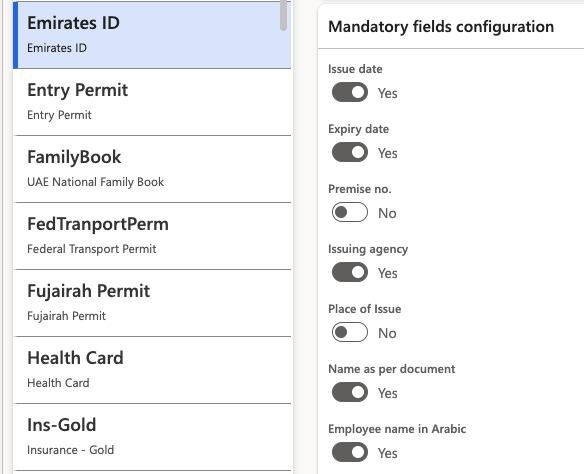
Configure mandatory fields
For each document type, specify which fields must be completed before submission. Different document types display different field sets — for example:
- Passport: issue date, end date, place of issue
- Khamra: agency field instead of country
- Medical Insurance: no issuing agency required
Set the attachment requirement
In the Identification type details, update the Attachment mandatory for company where needed, and add the company details where an attachment is required. When enabled, employees cannot submit the identification record without uploading a supporting file. If no attachment is needed, leave the field blank.
Scope by company and worker country/region
Rules can be scoped per legal entity (company) and per Worker region, allowing different requirements for employees across different schools or locations.
Save
Click Save to apply the configuration. The rules take effect immediately for all new identification submissions in ESS.