Set up airfare rates
Quick answer
- In D365, go to Human Resources ▸ Setup ▸ Airfare setup and create a record per legal entity, route, ticket class and ticket type.
- Set the amount for adult, child and infant, and the period the rate applies to.
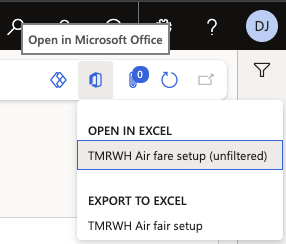
- Use Open in Microsoft Office and the airfare data entity to load the year's rates in bulk instead of keying them in.
The airfare setup table holds the fare the calculation draws on: an amount per passenger category, for a route, for a legal entity, over a period. Travel releases the year's fares, and those fares are uploaded here — usually as a single bulk upload rather than record by record.
Open the airfare setup
In D365, go to Human Resources ▸ Setup ▸ Airfare setup.
Create the fare record
Click New and complete the header:
Field What it controls Legal entity The company the fare applies to. Each school holds its own rates From city The origin of the ticket To city The destination Ticket class Economy, premium economy, business class or first class Ticket type Return or one way From date / To date The airfare period the rate is valid for — this is the period the calculation pro-rates against From city and To city hold the same values as the employee's air ticket location fields. They have to match for the calculation to find a fare — see Set employee and dependent airfare details.

Enter the amount per age group
Against the record, set the fare for each age group configured in Set up airfare age groups — adult, child and infant. These are the full-period amounts; the calculation reduces them where someone is entitled to less than the full period.
Add a record per ticket class and ticket type
Create a separate record for each combination you need. A route travelled in economy and in business is two records; the same route as a return and as a one-way is two more. The calculation picks the record matching the class and type the employee or dependent is entitled to.

Save
Click Save.
A duplicate check applies across the whole key — from city to city, legal entity, start date, end date, ticket class, age group and ticket type. Only one record may exist for a given combination, so you are blocked on save rather than ending up with two competing fares.
Load the year's rates in bulk instead
Rates do not have to be created by hand. A data entity is provided for the airfare setup table, so once Travel releases the year's fares, you can load them across every legal entity in one upload.
On the Airfare setup form, click Open in Microsoft Office in the Action Pane, select the airfare setup data entity, populate the file with the year's rates, and publish it back.
Note: A duplicate check applies to uploaded rows and manually created ones, so re-uploading over an existing period is rejected rather than silently overwritten. Remove the superseded records first if you are reloading a period.