Set up airfare age groups
Quick answer
- In D365, go to Human Resources ▸ Setup ▸ Age group setup.
- Create a band for each fare category — infant, child, adult — with its From age and To age.
- Click Save. The bands are matched against each dependent's birth date when airfare is calculated.
Age groups decide which fare a dependent attracts. Each band is a range of ages with an attached fare category, and the system matches a dependent's birth date against those bands to determine whether they are charged as an infant, a child, or an adult. Set these up before the airfare rates — the rate table carries an amount per category, so the categories must exist first.
Open the age group setup
In D365, go to Human Resources ▸ Setup ▸ Age group setup.
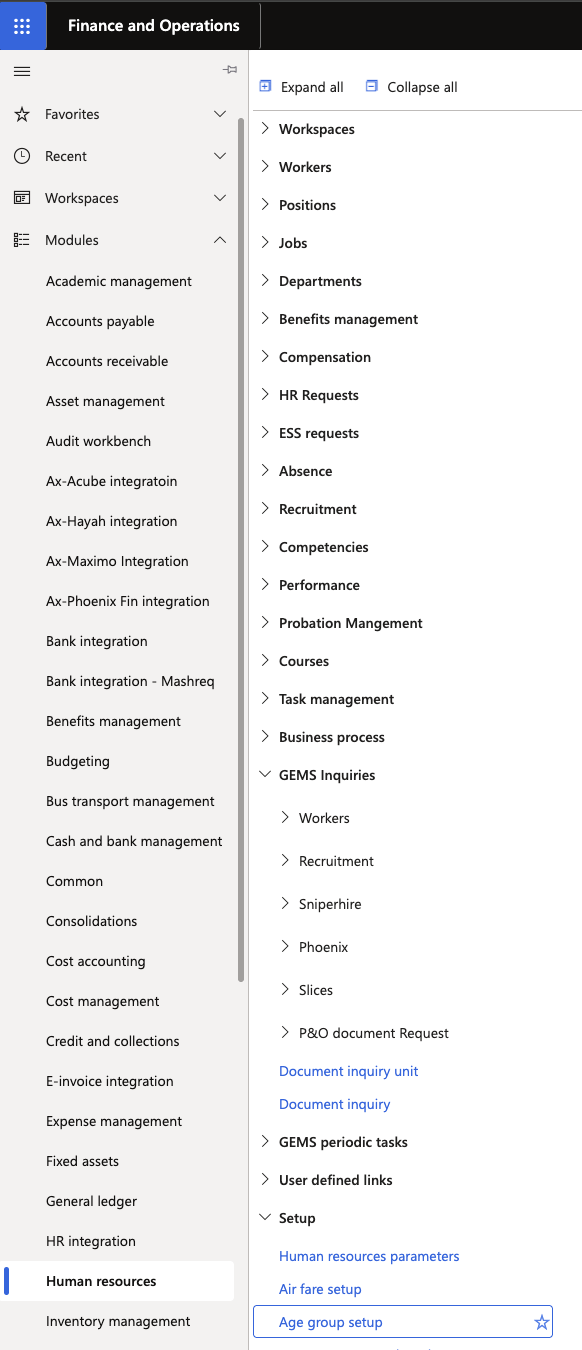
Create a band for each fare category
Add a line for each category and set the age range it covers:
Field What it controls From age The lower bound of the band, in years To age The upper bound of the band, in years Age group The fare category the band maps to — infant, child, or adult A typical configuration runs 0 to 2 for infant and 2 to 12 for child, with anyone above the top band treated as an adult. Set the ranges to match your travel policy.
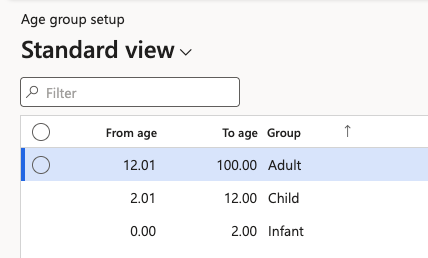
Save
Click Save.
The bands apply across all legal entities — they are not set per company. Only the fare amounts in Set up airfare rates vary by legal entity.
Check the bands before running a new airfare year
A dependent's category is not fixed for the whole airfare period. The calculation checks the birth date against the bands across the period, so a dependent who crosses a boundary part-way through is paid partly at one rate and partly at the next — see Review calculated airfare.
Because of that, changing a band after calculations have run changes the result for anyone near a boundary. Adjust the bands before running the calculation for a new airfare year rather than partway through one.