Run the airfare calculation
Quick answer
- Run the airfare calculation batch, setting the From date and To date to the airfare period.
- Leave the employee blank to run across the workforce, or name one employee to calculate a single record.
- To recalculate, delete the existing calculated airfare lines for that employee and run the batch again.
The calculation is a batch process. It reads the employee's route, start date, benefit enrolment and dependents, finds the matching fare, and writes a calculated line for the employee and for each dependent. The same batch handles recalculation, so you run it for both the annual disbursement and a one-off correction.
Confirm the setup is complete
Before running, check that the age groups exist, that fare records cover the period for the legal entity and route, and that the employee details are right — see Set employee and dependent airfare details.
Open the calculation
In D365, open the airfare calculation batch under System administration ▸ Periodic tasks ▸ GEMS periodic ▸ AirFare disbursement.
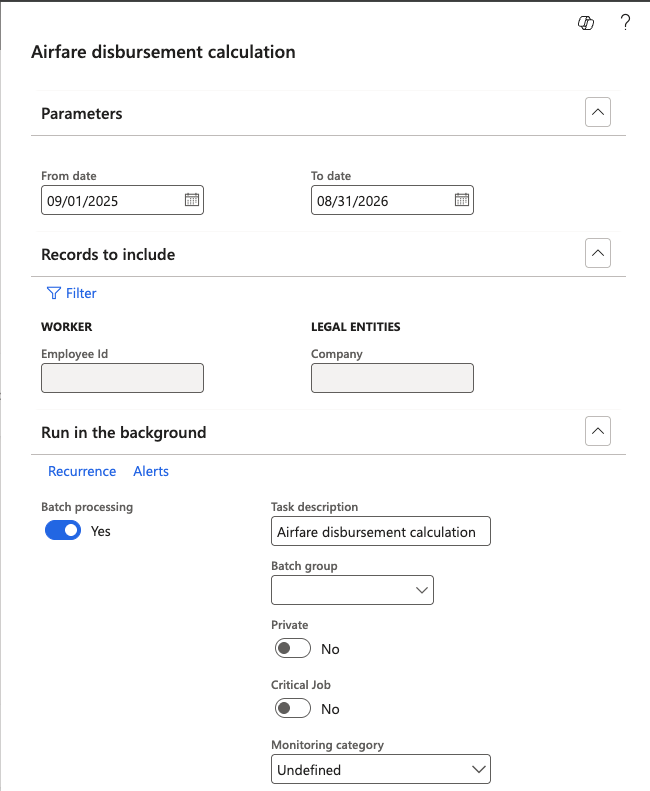
Set the parameters
Parameter What to set Legal entity The companies being calculated. More than one can be selected. If left blank, the batch runs for the current legal entity only Employee Leave blank to run across the whole workforce, or name a single employee to calculate just that record From date / To date The airfare period. These must match the dates on the fare records in the airfare setup The from and to dates are what the pro-rata is measured against, so a mismatch between these and the fare record period produces amounts that do not reconcile.
Run the batch
Click OK to submit. The job runs in the background — the batch is added to the queue, and the calculated lines appear once it completes.
Check the results
Open the calculated airfare form and confirm lines have been written for the employee and each of their dependents. The employee and their dependents are all calculated in the same run — see Review calculated airfare.
For an employee who has transferred or been promoted, the calculation uses their employment start date and their current fare eligibility. If that produces the wrong entitlement for the period, correct it by hand—the batch will not reconcile the change on its own.
Recalculate after a correction
There is no separate recalculation process. After correcting a birth date, a valid From date, a route or a fare, run the batch again for that employee and the same period. Rerunning for a named employee overwrites the existing lines for that period, for the employee and all of their dependents.
Delete the employee's existing lines first if you want to be certain of what you are reading — it costs nothing, and it makes it obvious whether the rerun produced lines at all. Run it for the named employee rather than the whole workforce; it finishes faster and leaves the rest of the workforce untouched.