Create a fee schedule template
Fee schedule templates define what is charged to students and when. Each template sets the billing interval, the fee items, the customer type, and any conditions that limit which students it applies to. Once saved, the template is available when you run the fee generation batch.
Open the fee schedule form
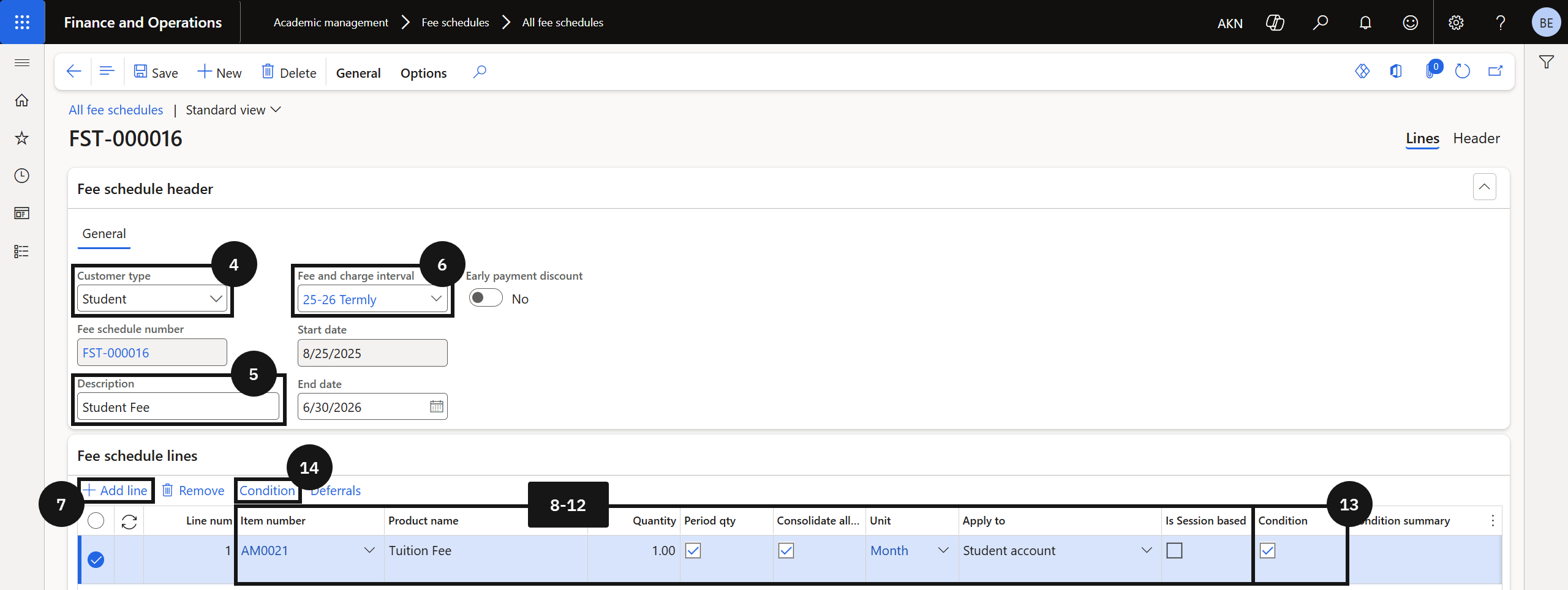
From the FNO dashboard, open Modules ▸ Academic Management, expand Fee schedules, click All fee schedules, then click New.
Complete the header and add fee lines
Set Customer type to Student (④), enter a Description (⑤), and select the Fee and charge interval (⑥). Under Fee schedule lines, click + Add line (⑦) and set the line's Item number, Unit, Quantity, Consolidate all periods, and Apply to (⑧–⑫). Repeat + Add line for each fee item.
Note: Enable Quantity for items charged monthly; enable Consolidate all periods for recurring items such as tuition.
Add a condition (optional)
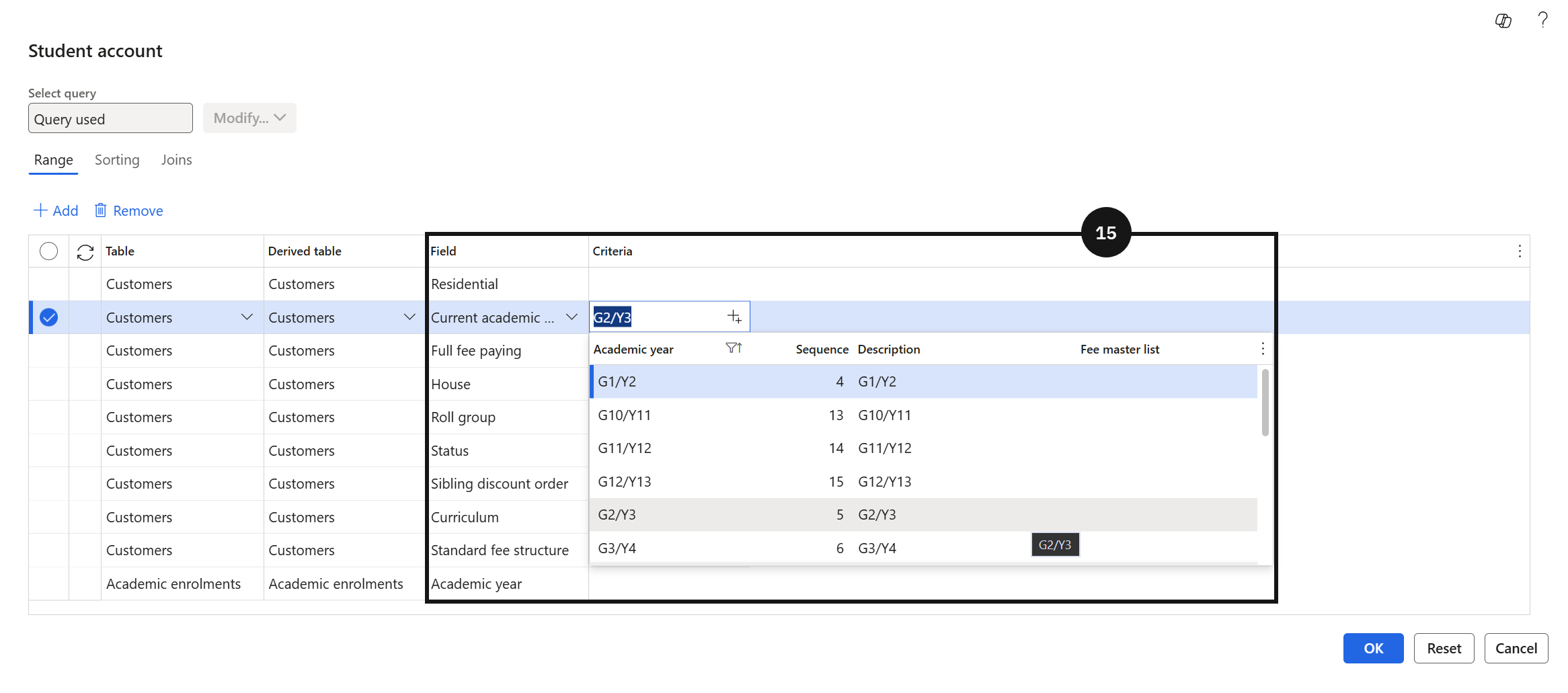
Use a condition to apply an item only to students who meet set criteria — for example, a fee for one year group. On the line, enable Condition (⑬) and click Condition in the toolbar (⑭). Select the Field, enter the value in the Criteria column (⑮), then click OK.
Set up revenue recognition (optional)
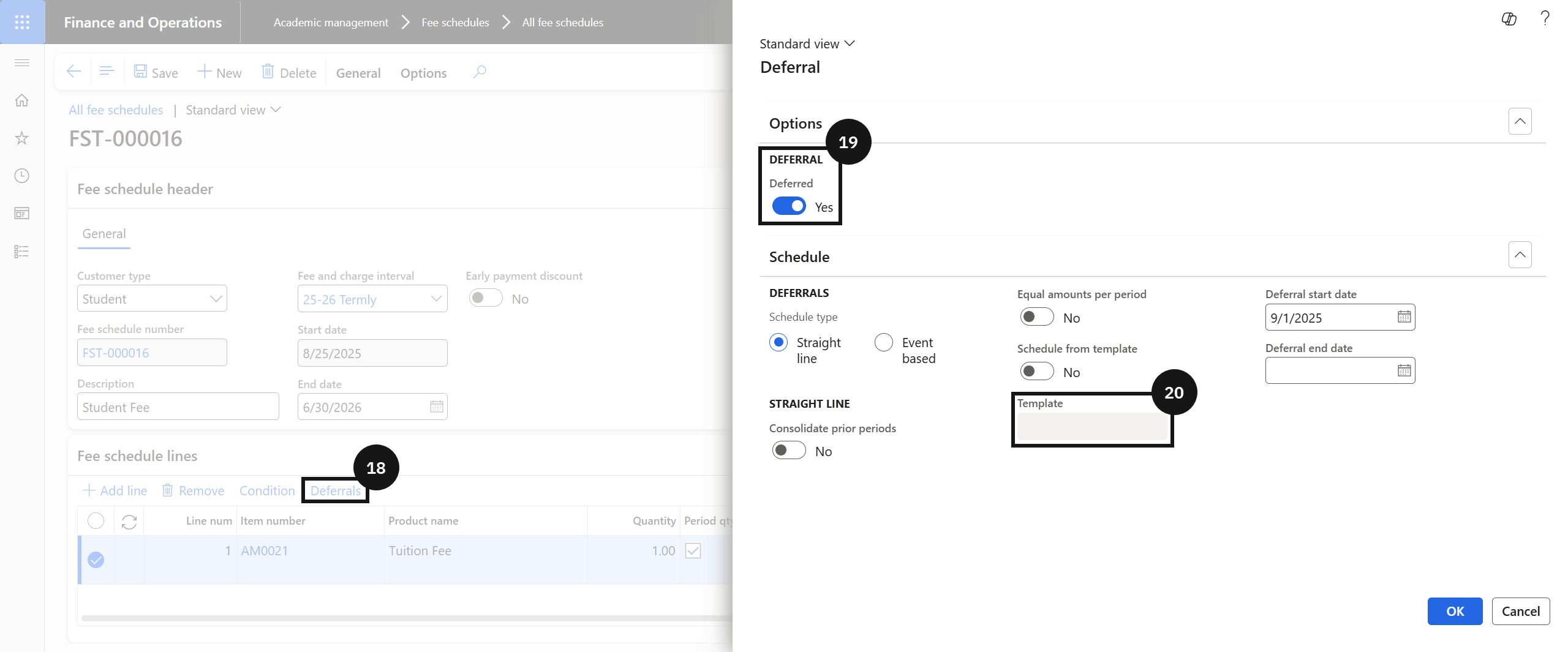
Click Deferral in the toolbar (⑱), enable Deferred for each term (⑲), and select the Deferral template for the number of months to spread revenue across (⑳). Click OK.
Note: If a revenue-recognition date is set on the fee and charge interval, Deferral start date fills automatically.
Save
Click Save.