Update the Session Information
Quick answer
- In Sessional class and events details, change the status to Changed, enter the new session count in Updated sessions, and Save.
- Then run Periodic tasks ▸ Generate sessional class and event adjustments to create the adjusted sales order.
When a student attends more or fewer sessions than originally invoiced, update the session record status to Changed, enter the revised session count, and run the adjustment batch. The system calculates the difference and creates an updated sales order.
Update the session record
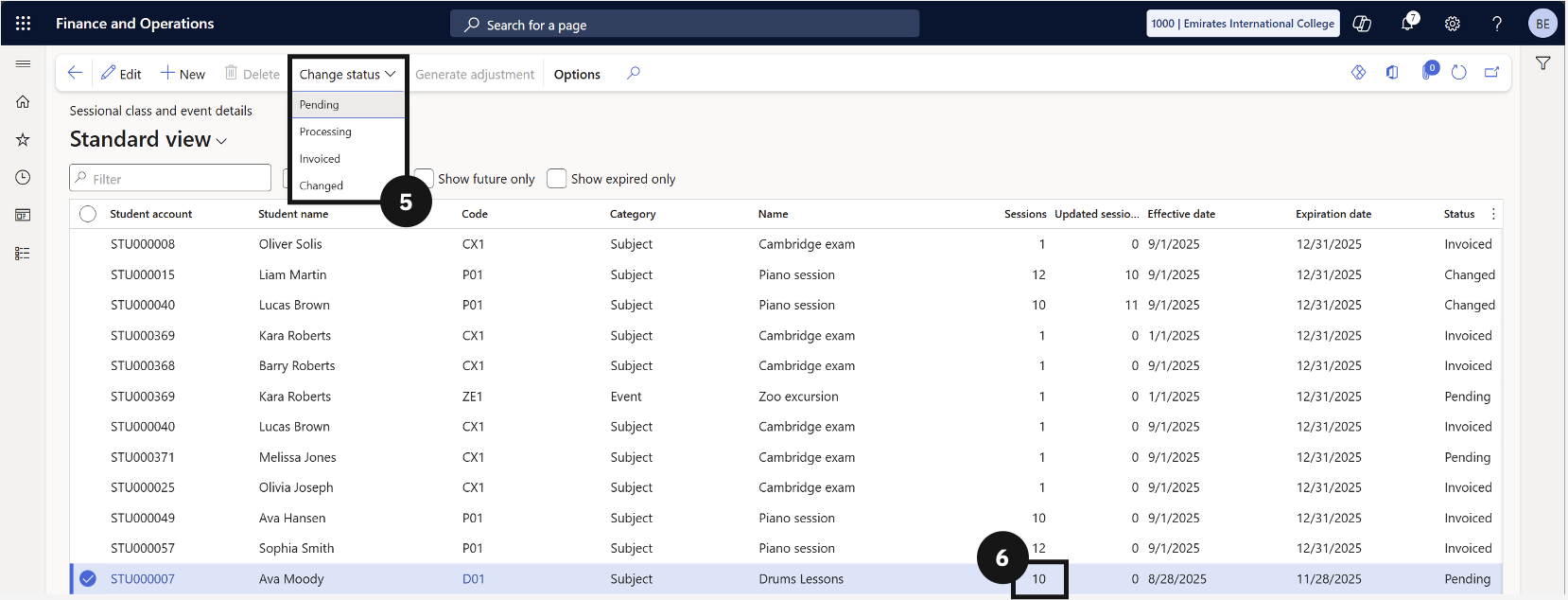
From the FNO dashboard, open Modules ▸ Academic Management, expand Inquiries and reports ▸ Fee schedules, and click Sessional class and events details. Locate and select the record requiring adjustment.
Open the Change status dropdown in the Action Pane and change the status to Changed (⑤). Enter the revised number of sessions in the Updated sessions column (⑥) and click Save.
Generate the adjustment
See Generate the Session Adjustment to create the adjusted sales order.