Over-the-Counter Registration and Invoice Generation
Quick answer
- Open Academic Management ▸ Inquiries and reports ▸ Fee schedules ▸ Sessional class and event details, create a new record, and click Generate invoice.
- View the sales order and posted voucher via the General tab.
When a parent or guardian registers for an event in person, staff complete the enrolment directly in the system and generate the invoice from the Sessional class and event details form. Once posted, the charge is held as deferred revenue until the event date.
Note: Student event registration is typically completed by the student or parent via Parent Connect, which automatically creates the enrolment record. Use this process only when a parent or guardian is registering in person at the school counter.
Open Sessional class and event details
From the FNO dashboard, open Modules ▸ Academic Management, expand Inquiries and reports ▸ Fee schedules, and click Sessional class and event details. Click New in the Action Pane.
Complete the registration record
Fill in the following:
- Student account (④) — select the student to register.
- Event Code (⑤) — select the event from the dropdown.
- Number of sessions (⑥) — enter the session count.
- Price (⑦) — enter the event price.
- Effective date and Expiration date (⑧) — enter the registration period.
Click Save.

Generate the invoice
Click Generate invoice in the Action Pane (⑩). The system creates a sales order with a deferral schedule attached, recording the charge as deferred revenue until the event date.
View the sales order and voucher
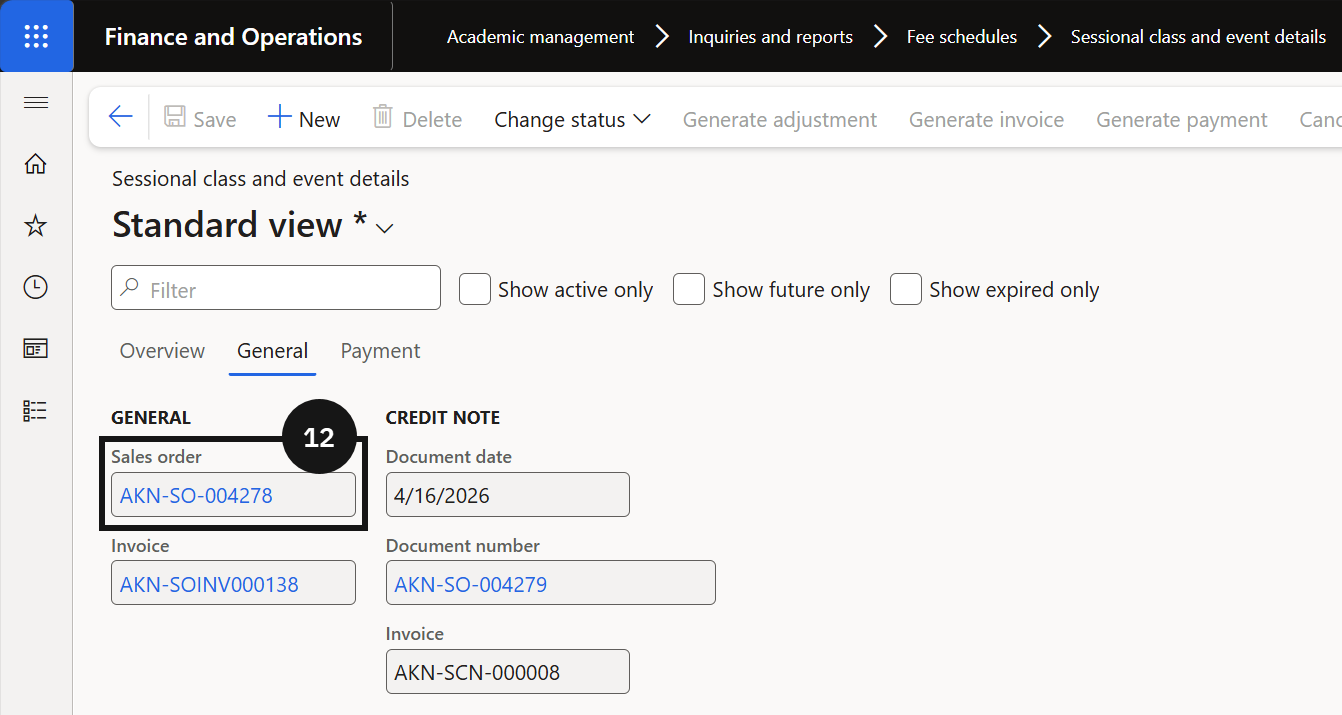
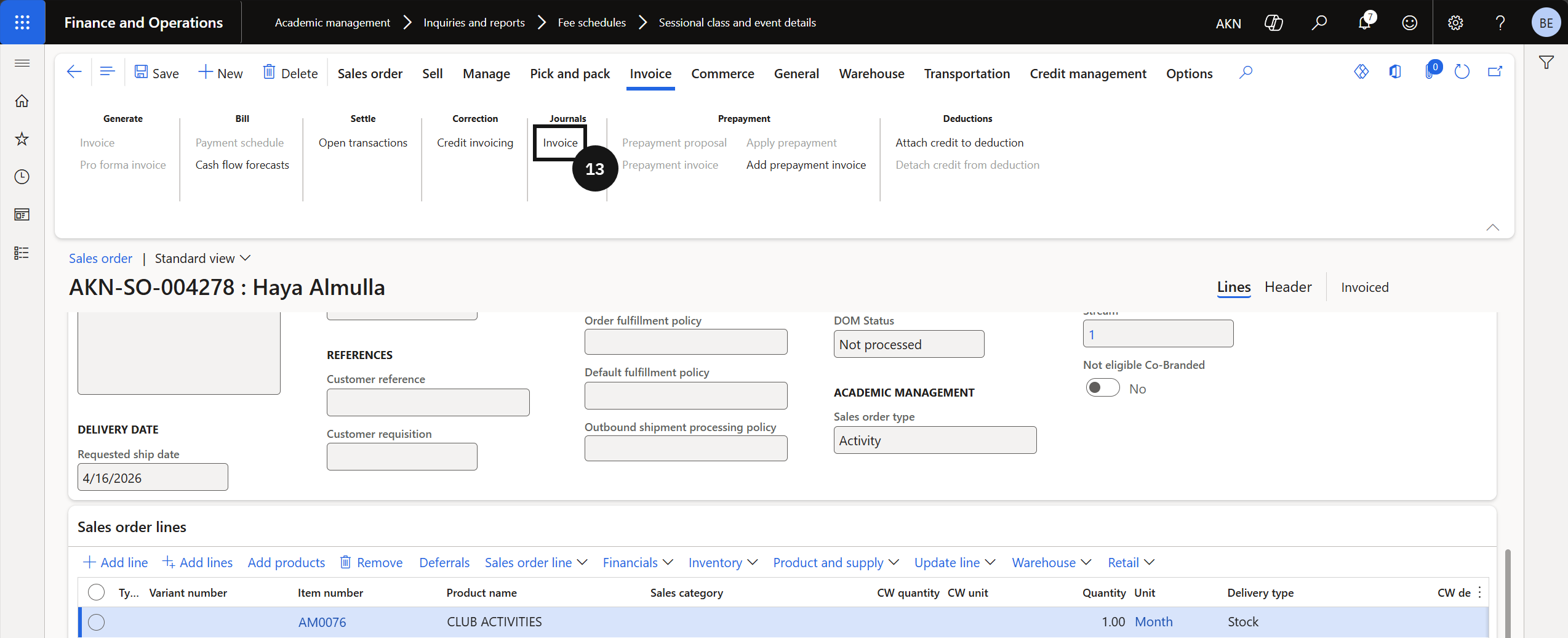
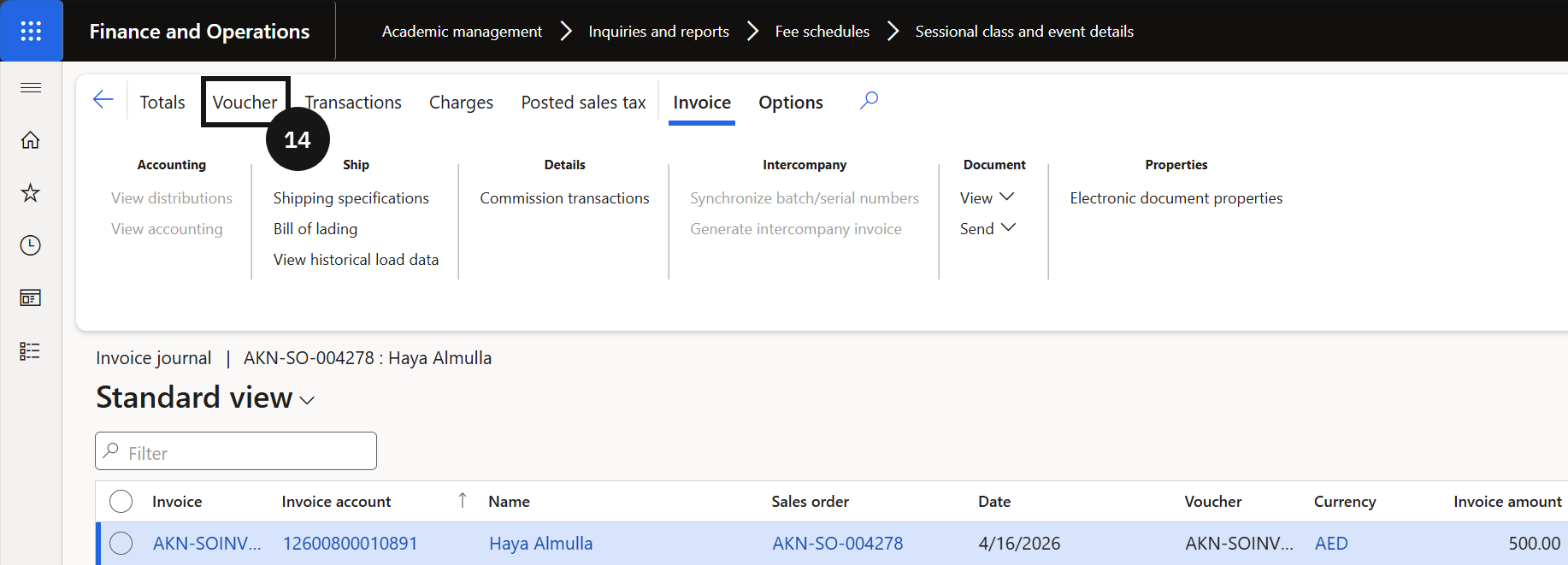
Open the General tab (⑪), then click the Sales order hyperlink (⑫) to view the order. Click Invoice journal (⑬) to view the posted invoice, then click Voucher (⑭) to review the posted accounting entry.