Enrol a Student in a Sessional Class or Event
Quick answer
- Create a fee schedule template in All fee schedules, set Apply to = Session class and event, and enable a condition filtering by the event code.
- Enable Session Based if charges should be calculated by sessions attended rather than a flat fee.
Once the subject and event codes are in place, a fee schedule template must be created to link each event code to the correct fee item. The template uses conditions to restrict invoice generation to students enrolled in that event.
Create a new fee schedule template
From the FNO dashboard, open Modules ▸ Academic Management, expand Fee schedules, and click All fee schedules. Click New in the Action Pane.
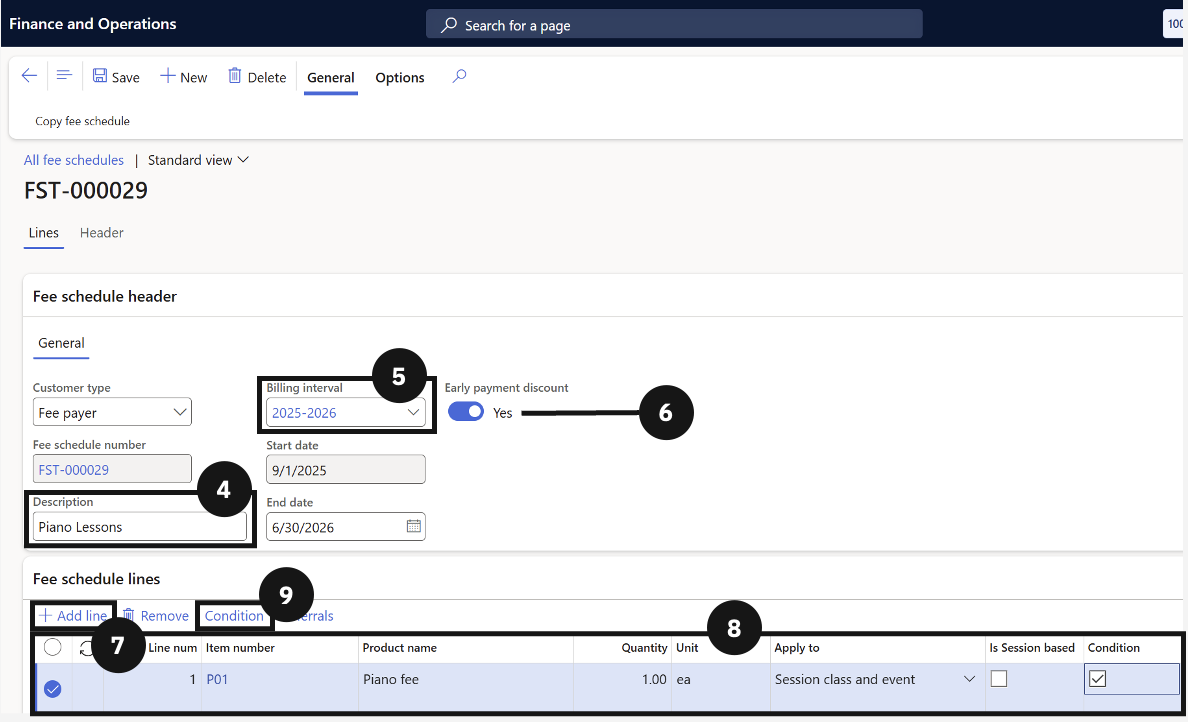
Enter a Description for the template (e.g., Zoo Excursion Fee) (④), choose the Billing interval(⑤), and match Early payment discounts with the fee categories (⑥).
Add the fee line and condition
Click + Add line (⑦) and complete the line (⑧):
- Item number — select the relevant fee item.
- Apply to — change to Session class and event.
- Condition — enable the checkbox.
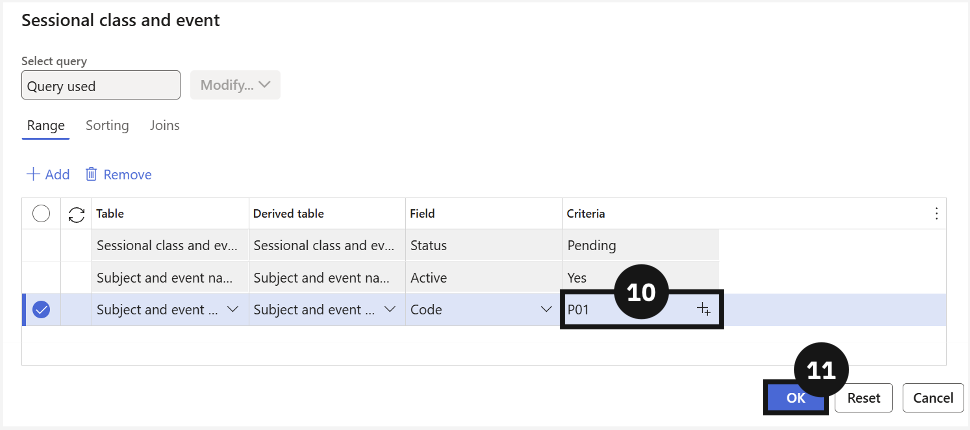
Click Condition in the toolbar (⑨). In the line with Code in the Field column, enter the event code in the Criteria column (⑩) by clicking +, then click OK (⑪).
Save
Click Save.