Raise a Transfer Certificate Fee
Quick answer
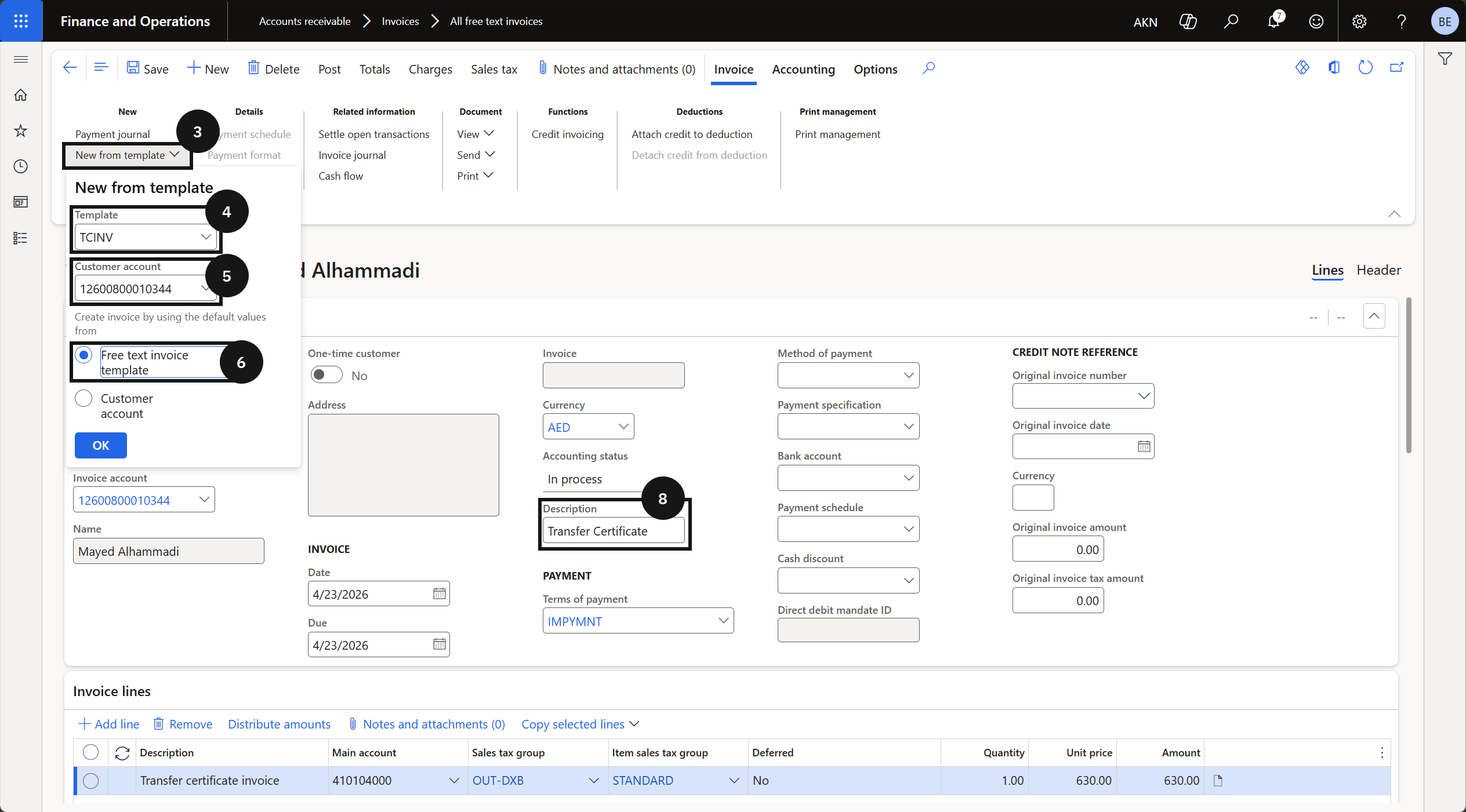
- Open Accounts receivable ▸ Invoices ▸ All free text invoices, click New from template, and select the TCINV template.
- Set the customer account, enter the description, configure financial dimensions, then Post.
When a student withdraws and requests a transfer certificate, a free-text invoice is generated using the preconfigured TCINV template. In a live environment, this step is triggered by a request from the customer experience team.
Create the invoice from template
From the FNO dashboard, open Modules ▸ Accounts receivable, expand Invoices, and click All free text invoices. Click New from template in the Action Pane (③), select TCINV in the Template field (④), and complete the following:
- Customer account (⑤) — enter or select the fee payer.
- Create invoice by using the default values from — select Free text invoice template (⑥).
Click OK. The template pre-populates the invoice line with the transfer certificate fee configuration.
Complete invoice details
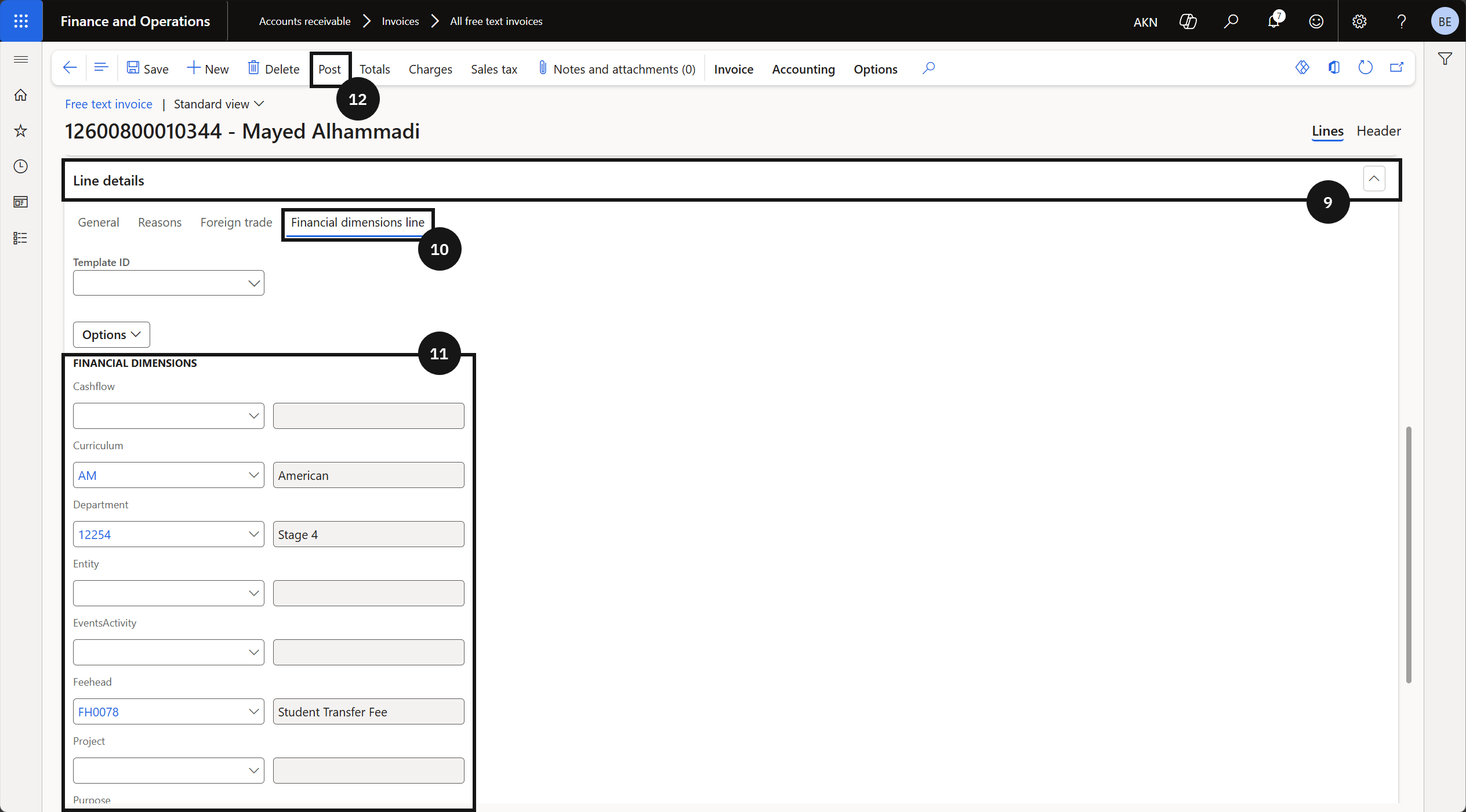
In the Description field, enter a description (⑧). Scroll down and expand the Line details tab (⑨), then open the Financial dimensions line tab (⑩). Set the financial dimensions (⑪) — select Curriculum, School Levels, and Year Group. The Fee Head field is auto-populated based on the free-text invoice template setup.
Post the invoice
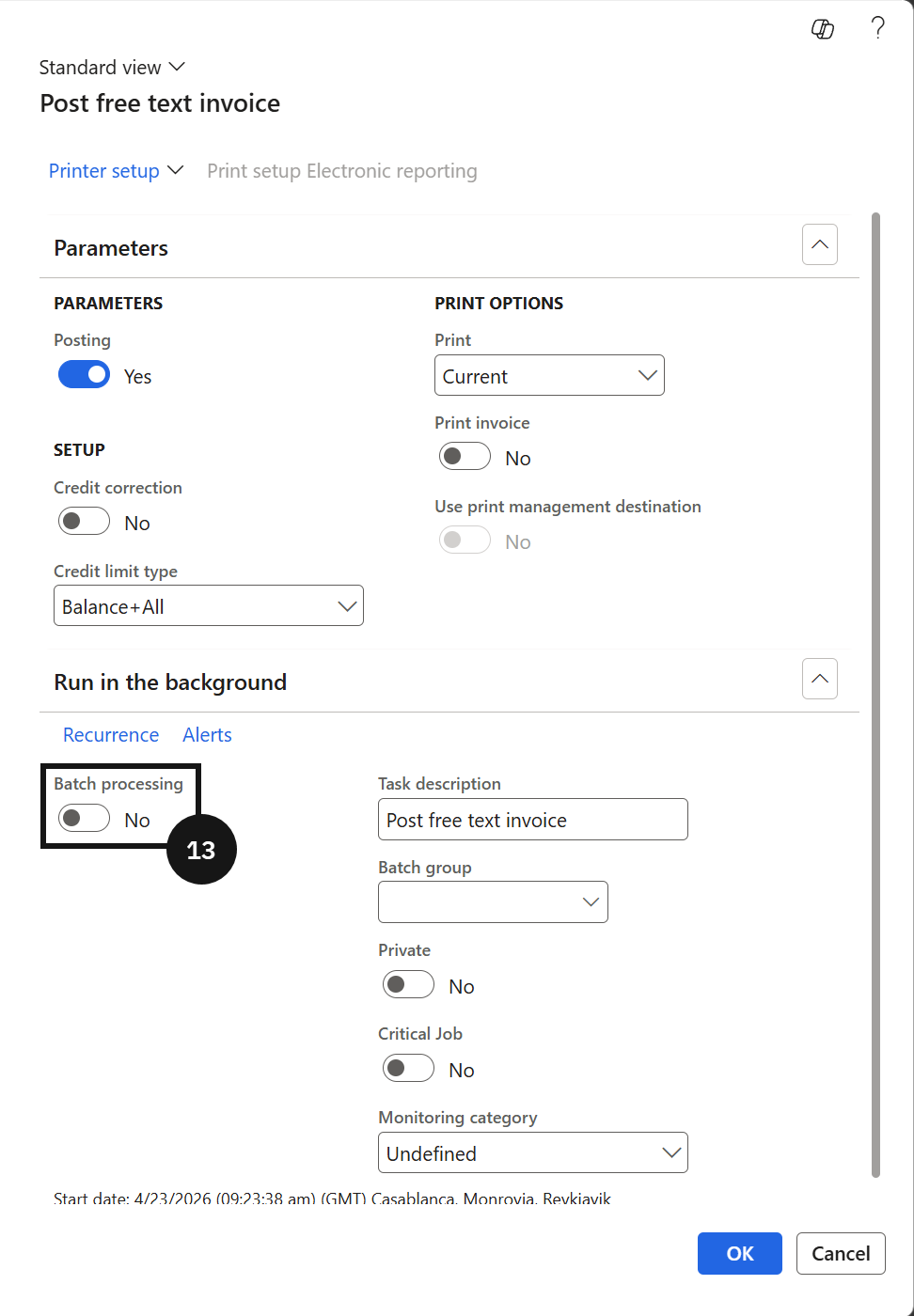
Click Post (⑫), set Batch processing to No (⑬), click OK, and close the page.