Override the Financial Check for Re-Enrolment
Quick answer
- On the student record, set Financial check override to Yes and select a Reason code, then Save.
- On the next system poll, the student is excluded from the financial check and their status updates to Re-enrolment open.
Where a payment arrangement is in place and the school does not want to block a student's re-enrolment, an authorised user can apply a financial check override on the student's record. This override applies to the next system poll only — it does not permanently exempt the student from the financial check.
Open the student record
From the FNO dashboard, open Modules ▸ Academic Management, expand Students, and click All students. Open the relevant student record.
Apply the override
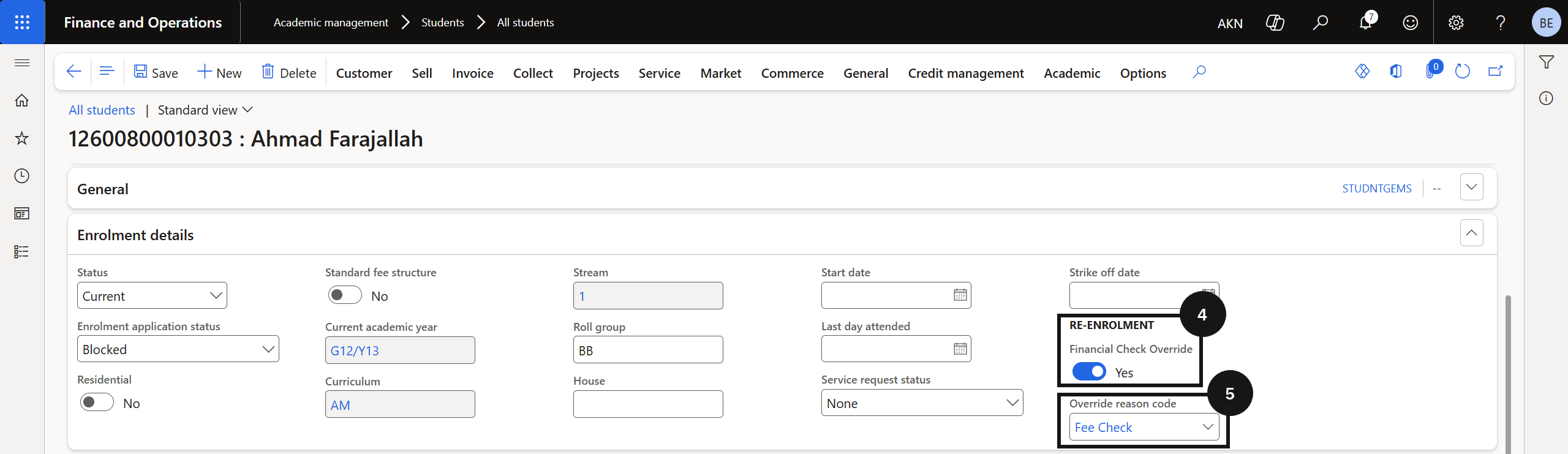
In the Enrolment details tab, set the Financial check override toggle to Yes (④) and select an Override reason code from the dropdown (⑤). Reason codes are configured by the school (e.g., Fee check — payment plan in place) and create an audit record for the override. Click Save.
On the next system poll, the student will be excluded from the financial check and their status will update to Re-enrolment open.