Configure Financial Check Threshold
Quick answer
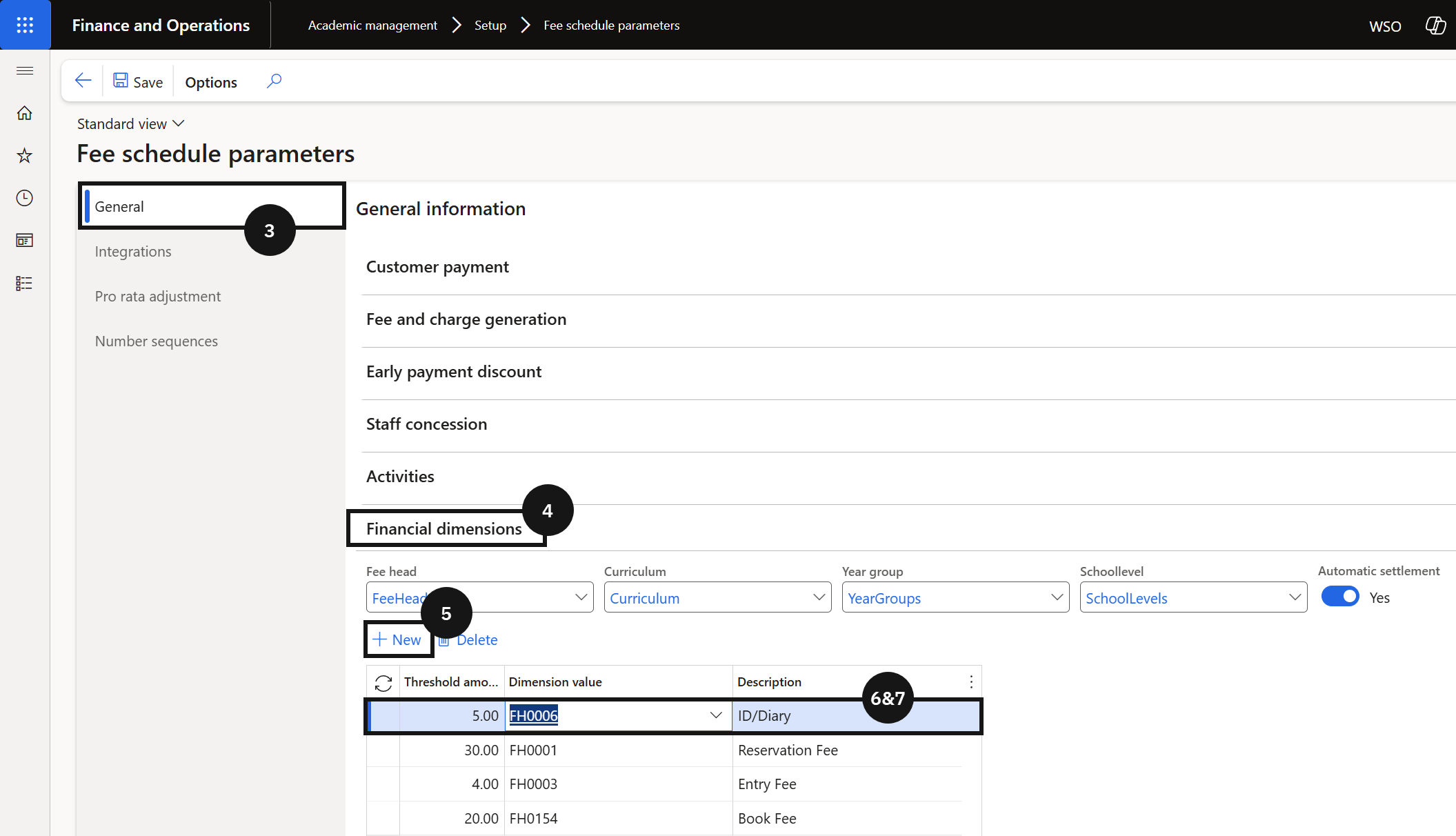
- Open Academic Management ▸ Setup ▸ Fee schedule parameters ▸ General tab ▸ Financial dimension section.
- Add a threshold amount and dimension value (fee head) for each fee type requiring a balance check, then Save.
The financial check setup defines the outstanding fee balance threshold that the Student Management System uses when polling Finance & Operations to determine whether a student is cleared for re-enrolment. Thresholds are configured by fee head (dimension value), so different acceptable balance limits can apply to different fee types.
Open Fee schedule parameters
From the FNO dashboard, open Modules ▸ Academic Management, expand Setup, and click Fee schedule parameters. Open the General tab (③) and expand the Financial dimension section (④).
Add thresholds by fee head
Click + New (⑤) and complete the following for each fee type that requires a balance check (⑥-⑦):
- Threshold amount — enter a monetary amount. If a student's outstanding balance for this fee head is at or above this amount, they will not receive financial clearance.
- Dimension value — select the fee head from the dropdown. The Description field defaults to the selected fee head.
Repeat for each fee head that requires a threshold.
Save
Click Save. When the Student Management System requests re-enrolment clearance, it checks the student's outstanding balance by fee head against each configured threshold. A student is financially cleared only if their balance for each configured fee head is below the threshold.