Clear Financial Check Overrides
Quick answer
- Add the Financial check override column to the All Students list view to identify students with an active override.
- Clear overrides individually by unchecking the column, or in bulk by exporting to Excel, clearing the values, and reimporting.
At the start of a new year or after a promotion process, overrides set in the previous cycle need to be cleared.
Add the Financial check override column to the list view
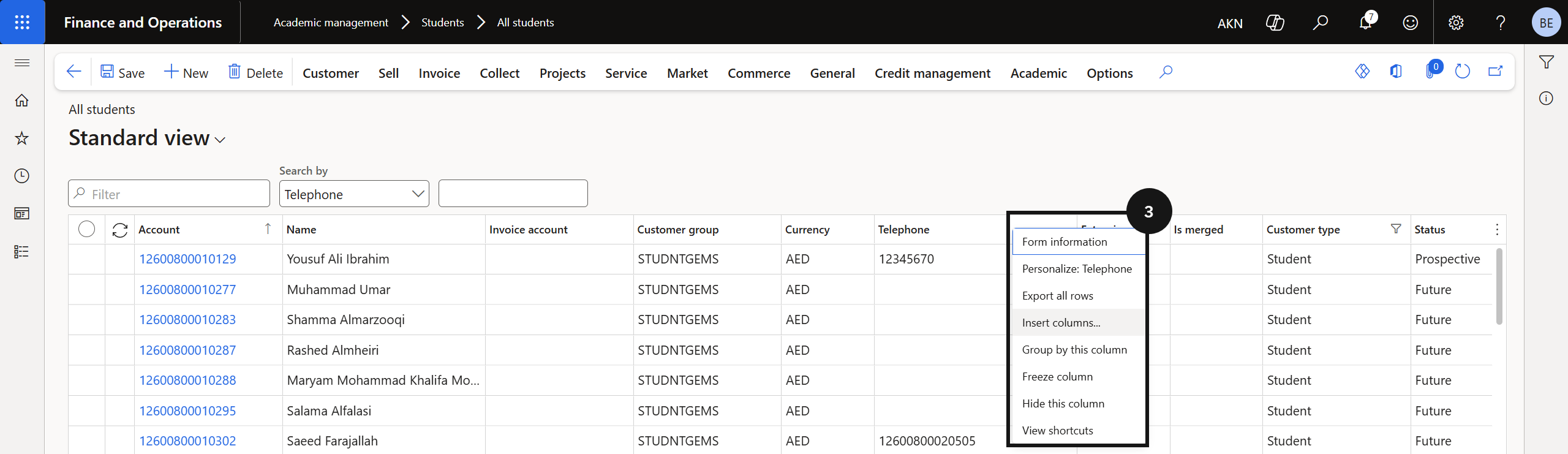
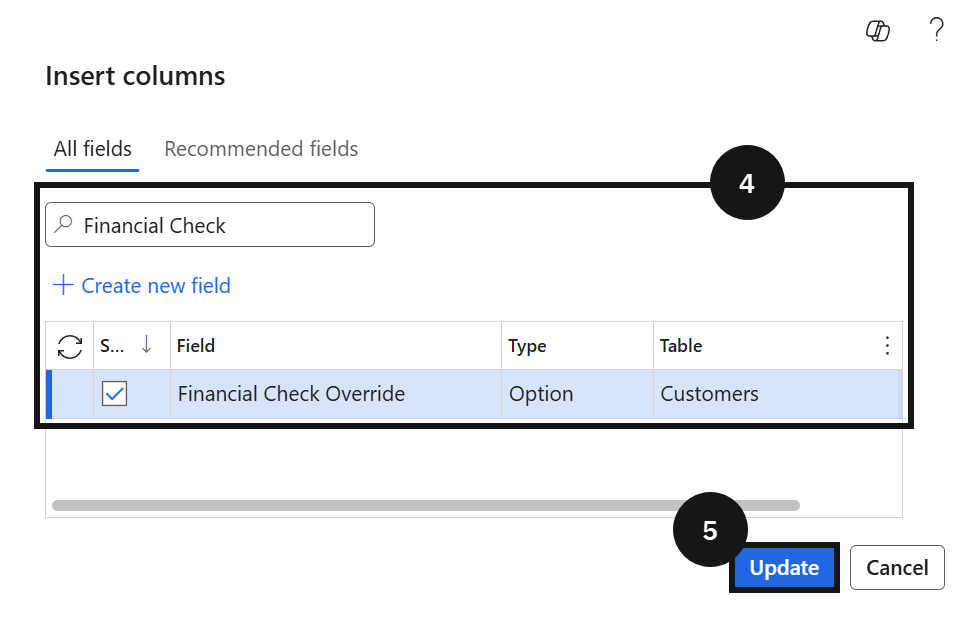
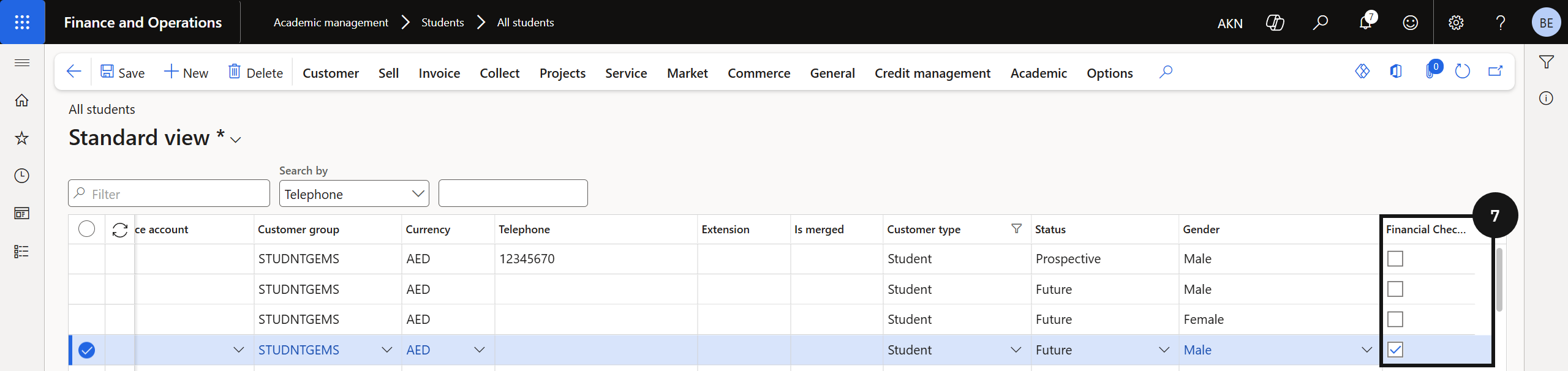
From the FNO dashboard, open Modules ▸ Academic Management, expand Students, and click All students. Right-click any column header and select Insert columns (③). Search for and add the Financial check override field (④), then click Update (⑤). The column displays as a checkbox (⑦) and persists in the view for future use.
Identify and clear overrides
Filter or sort the list by the Financial check override column to display only students with an active override. Clear overrides using one of the following methods:
- Individual — uncheck the Financial check override checkbox directly in the list for each student.
- Bulk via Excel — click Export to Excel, clear the override values in the exported file, then import the file back into the system.