Set Up Trade Agreement (Sibling Discount)
Quick answer
- Create a Sibling discount journal in Sales and marketing ▸ Prices and discounts ▸ Trade agreement journals, add lines for each sibling position with discount percentages, then Post to activate.
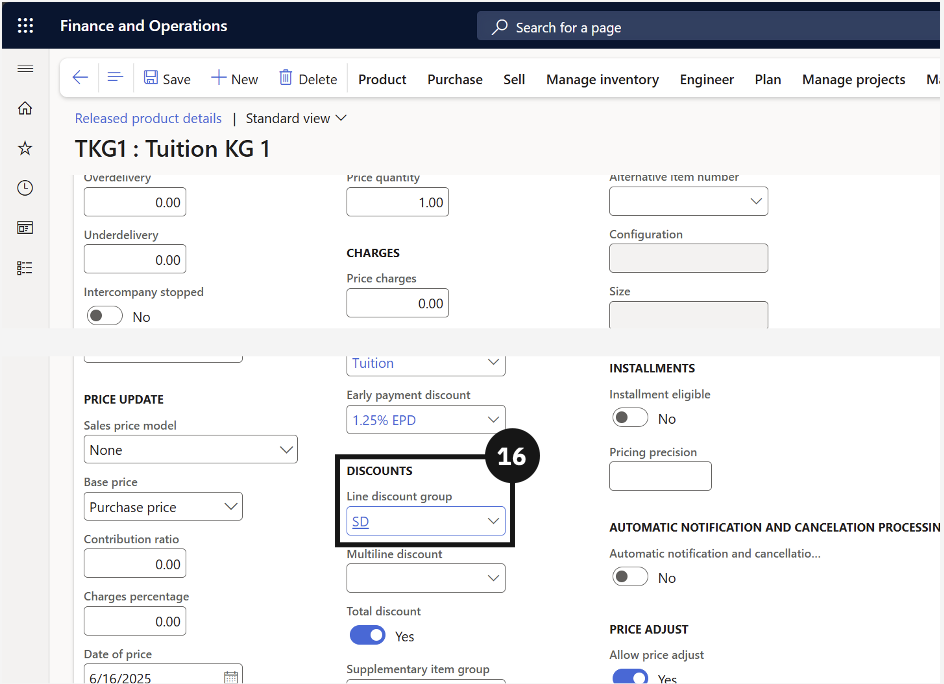
- Link tuition fee items to the sibling discount line discount group in Released products ▸ Sell ▸ Line discount group.
Trade agreements define the discount percentages applied to students based on their sibling order position. A sibling discount journal is created in Sales and Marketing with a separate line for each child position and the corresponding discount rate.
Create the trade agreement journal
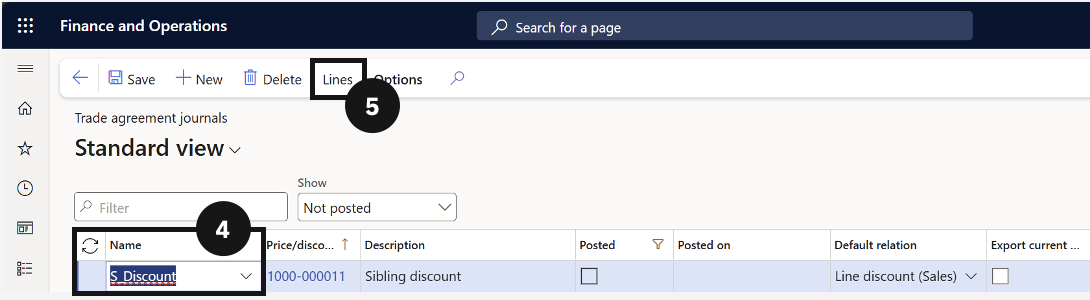
From the FNO dashboard, open Modules ▸ Sales and marketing, expand Prices and discounts, and click Trade agreement journals. Click New and in the Name column select Sibling discount (④). Change view to Lines (⑤).
Add discount lines
Click New and complete the following columns:
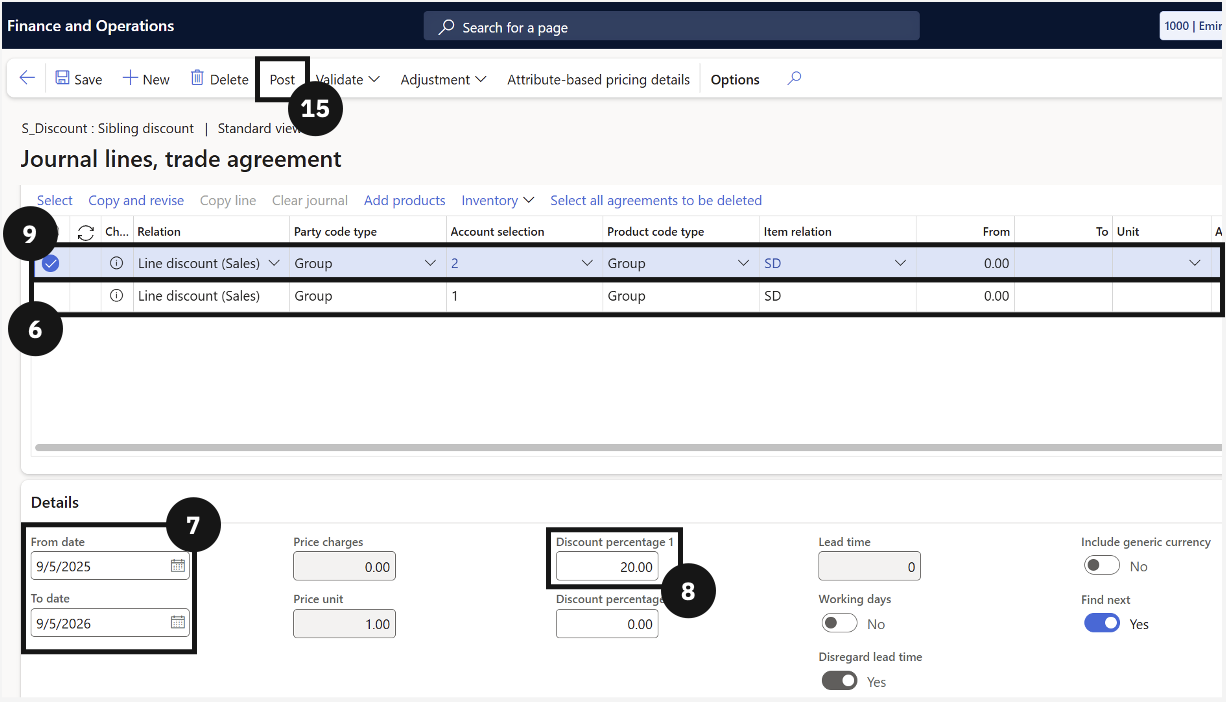
- Party code type — change to Group.
- Account selection — select the sibling position (e.g., First child).
- Product code type — change to Group.
- Item relation — set to Sibling discount (⑥).
In Details, set the policy start and end date (leave end date blank to run indefinitely) (⑦). Enter the discount amount in Discount percentage 1 (e.g., 10.00 for 10%) (⑧).
Click New to add the next sibling position and repeat until all positions are configured (⑨).
Save and Post
Click Save, then click Post (⑮) to activate the trade agreement policy.
Link items to the sibling discount group
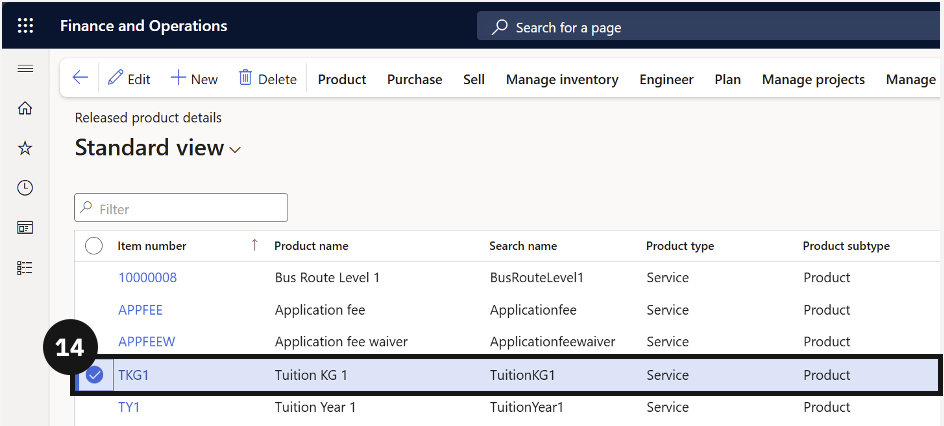
Navigate to Modules ▸ Product information management, expand Products, and click Released products. Open each tuition-related item (⑭). Expand the Sell section, scroll to Line discount group (⑯), and select the Sibling discount trade agreement. Click Save. Repeat for all tuition fee items.