Set Up Fee Master Template to Sync Items to CE
Quick answer
- Create a fee master list template in Academic Management ▸ Setup ▸ Fee master list template, add fee items, then assign the template to each academic year in Setup ▸ Academic year.
- This template determines which fee items are synced from D365 F&O to CE for inclusion in student offer letters.
This setup creates a fee master list template that determines the fee items synced from D365 F&O to CE for inclusion in student offer letters.
Create the fee master template
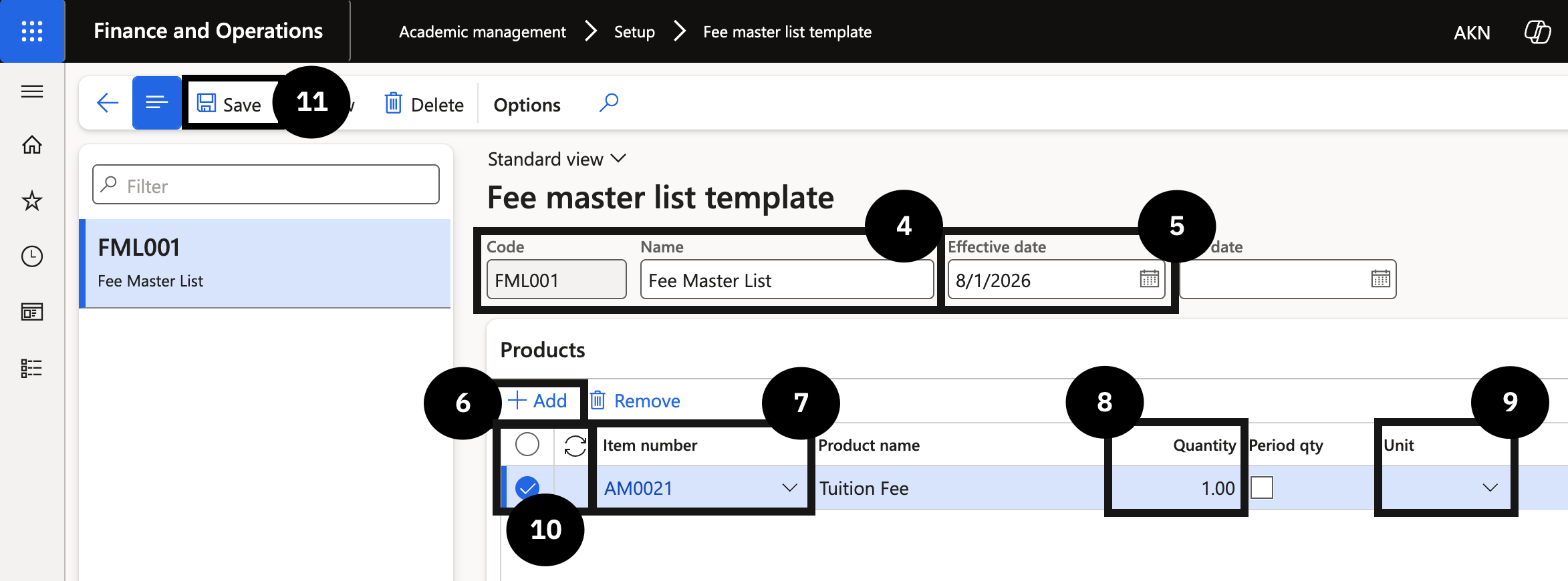
From the FNO dashboard, open Modules ▸ Academic management, expand Setup, and click Fee master list template. Click New in the toolbar and complete the following:
- Code and Name (④) — enter values for the template.
- Effective date (⑤) — enter the date.
In the Products section, click + Add (⑥) and complete the following:
- Item number (⑦) — select the fee item to sync to D365 CE.
- Quantity (⑧) — set to 1.
- Unit (⑨) — select the annual option.
In the Switch view field, select All, then select your template row. Click Save (⑪).
Link the template to academic years
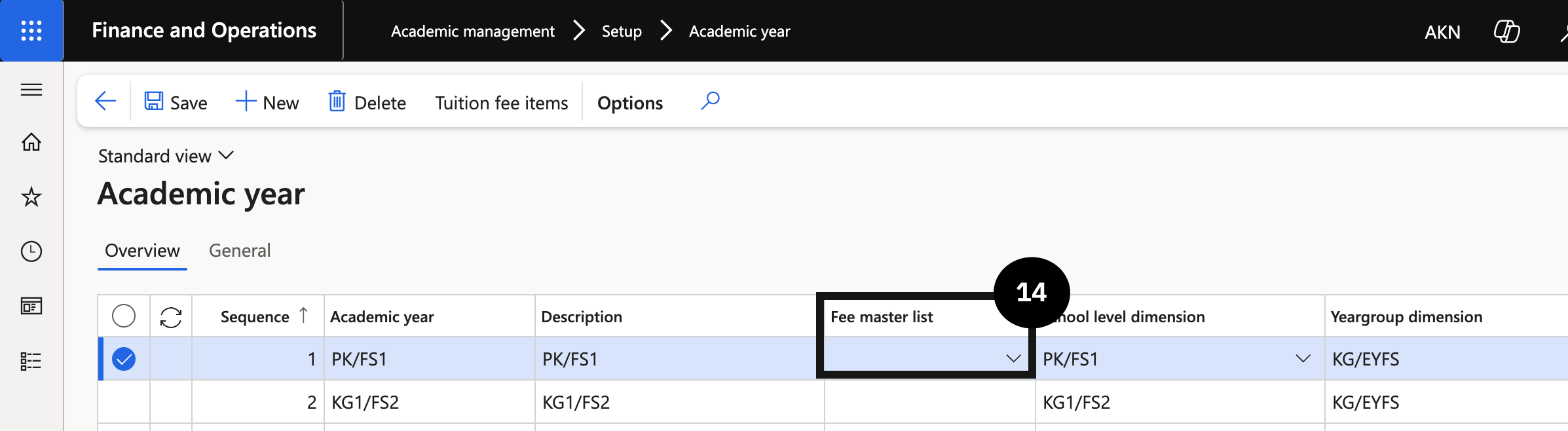
Navigate to Modules ▸ Academic management, expand Setup, and click Academic year. Select each academic year row and choose the Fee master list (⑭) code from the dropdown. Repeat for each academic year.
Save
Click Save.