Set Up Fee Categories
Quick answer
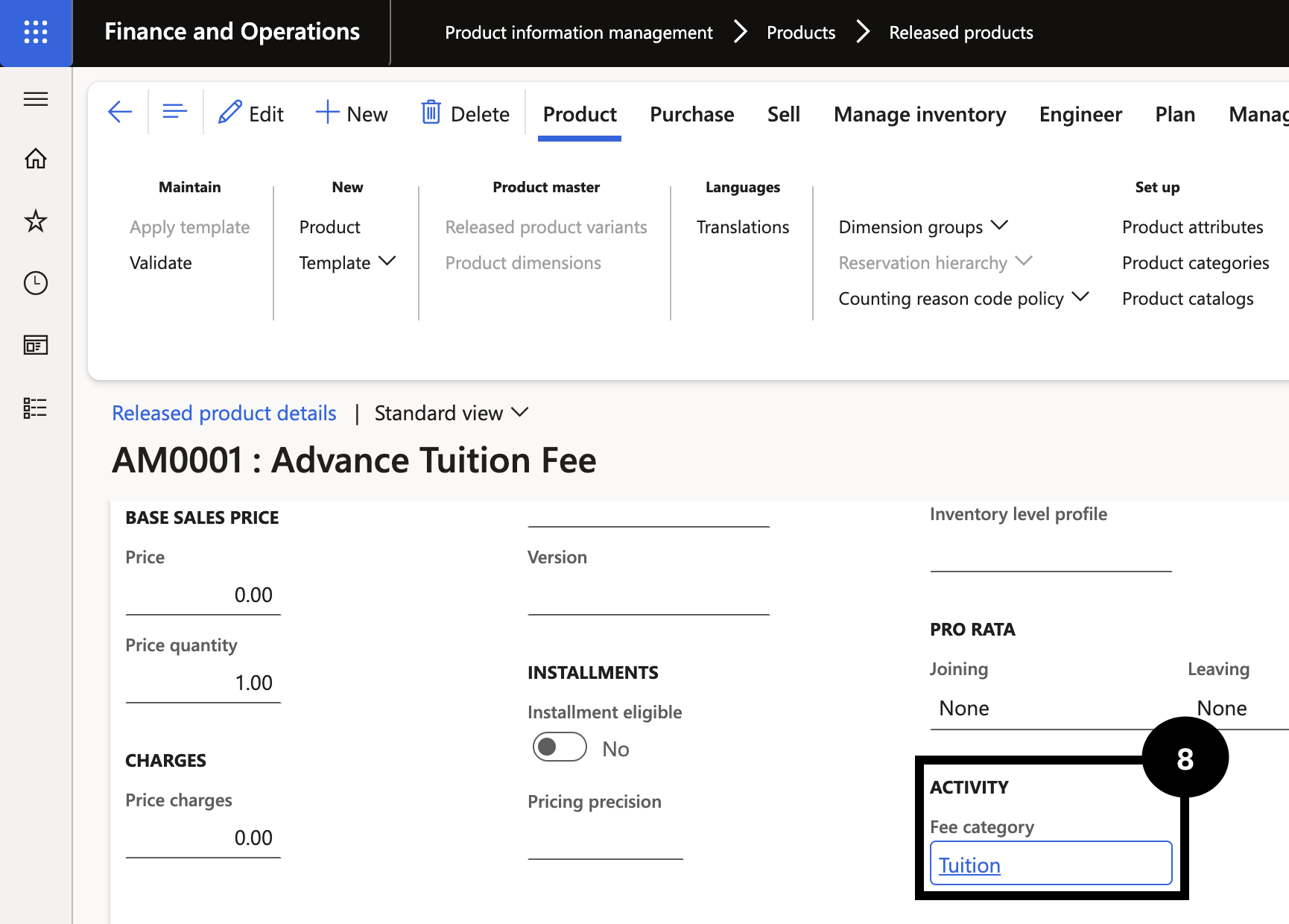
- Create fee categories in Academic Management ▸ Setup ▸ Fee categories, then link each category to the released product in Product information management ▸ Products ▸ Released products via the Sell ▸ Activity ▸ Fee category field.
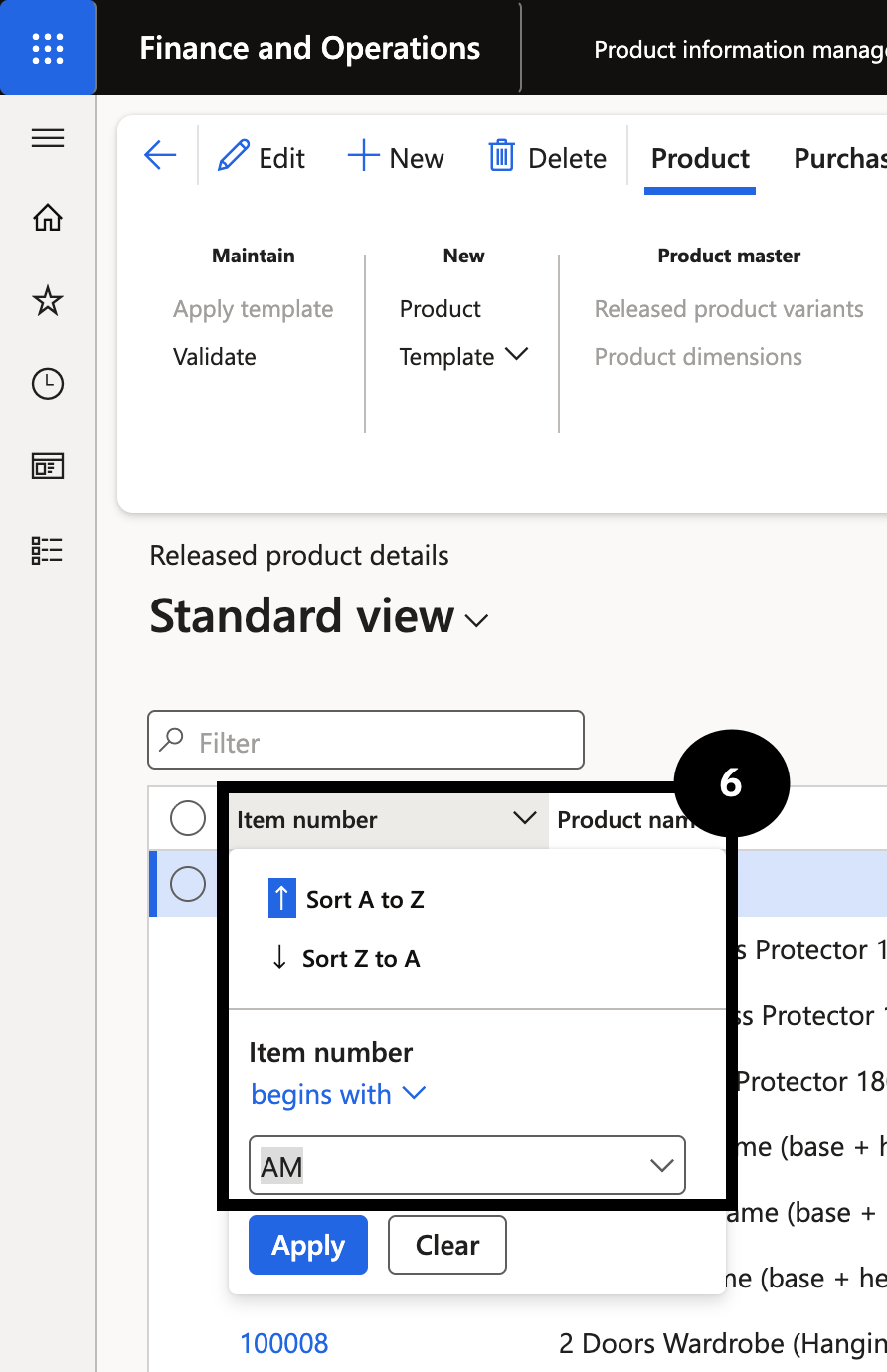
- Categories related to Academic Management start with the letters AM.
Fee categories classify the type of activity associated with each fee item and are used throughout the system to drive accounting, reporting, and fee schedule logic. Once categories are created in Academic Management, they must be linked to the corresponding released product in Product information management.
Create fee categories
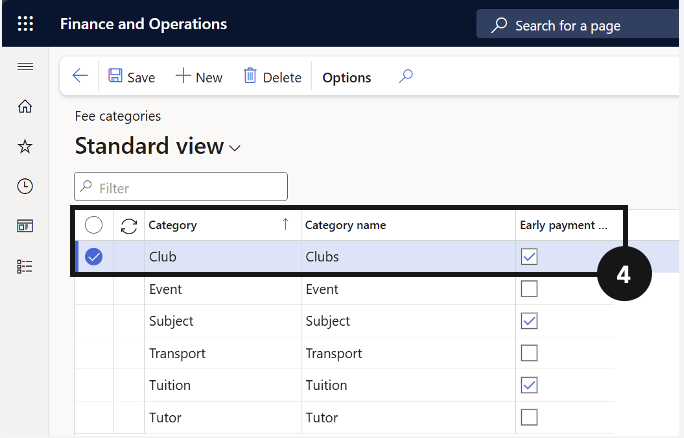
From the FNO dashboard, open Modules ▸ Academic management, expand Setup, and click Fee categories. Click New in the top toolbar and complete the columns to create new fee categories (④). Click Save.
Link categories to released products
Navigate to Modules ▸ Product information management, expand Products, and click Released products. Filter by Item number to locate the items that correspond to the fee categories just created (categories related to Academic Management start with the letters AM) (⑥). Select the item, expand the Sell tab, and locate Activity ▸ Fee category. Ensure the fee category aligns with the category it will be billed as (⑧).