Set Up Academic Year
Quick answer
- Open Academic Management ▸ Setup ▸ Academic year, click New, enter the academic year code and description, select the Fee master list, then save.
- Click Tuition fee items, add the tuition fee item with Unit = Year and Quantity = 1, then save.
- The academic year code must match the grade code in the student management system.
Academic year setup defines the academic calendar structure used across the platform and must align with the configuration in the student management system. Tuition fees for re-enrolment and enrolment deposits are attached to the academic year record so the system can look up the correct fees during the deposit process.
Create the academic year record
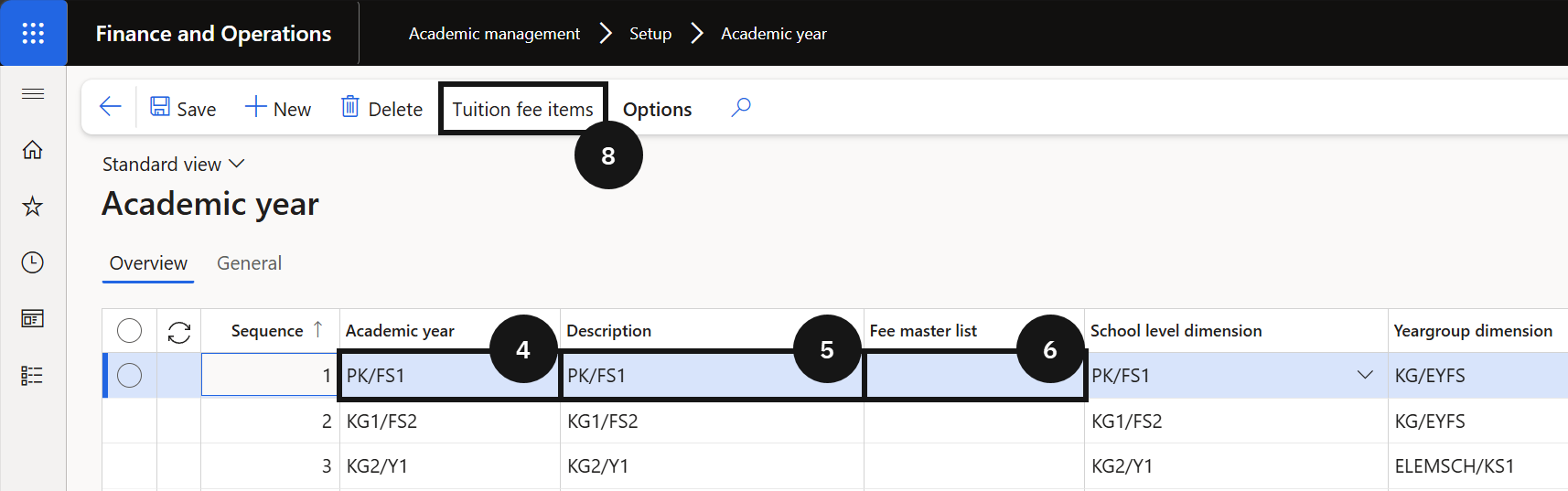
From the FNO dashboard, open Modules ▸ Academic management, expand Setup, and click Academic year. Click New in the toolbar and complete the following:
- Academic year (④) — enter the short code (e.g., KG1, 01, 02). This code is used internally and must match the grade code in the student management system.
- Description (⑤) — enter the full grade name (e.g., KG1, Grade 1). This is displayed to users across Academic Management.
- Fee master list (⑥) — select the applicable code. The Fee master list identifies the fees to be sent to the student management system.
The Sequence number is assigned automatically and determines the order in which grades appear — it cannot be edited.
Add tuition fee items
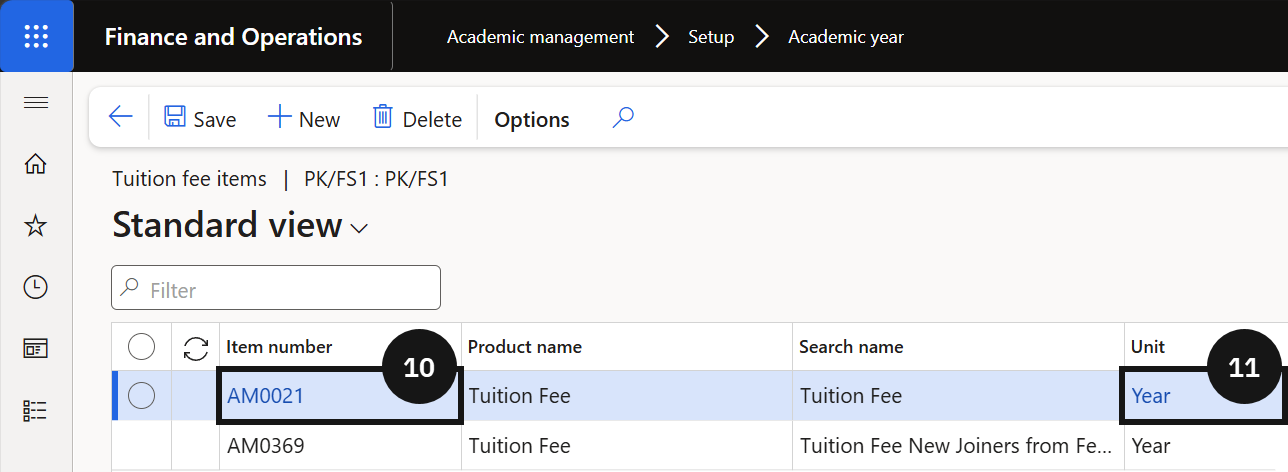
Click Save, then select Tuition fee items (⑧) from the Action Pane. Click New and complete the following:
- Item number (⑩) — select Tuition fee. This defines the fee item used to calculate enrolment and re-enrolment deposits.
- Unit (⑪) — enter Year to indicate the tuition fee is charged annually.
Save
Click Save.