Link Tuition Fee Item to Academic Year
Quick answer
- Open the academic year record in Academic Management ▸ Setup ▸ Academic year, click Tuition fee items, add the tuition fee item with Unit and Quantity, then save.
- This link is required for enrolment deposit calculations — the system uses it to identify the tuition fee item and look up the correct annual price from the trade agreement.
This step is required for enrolment deposit calculations. The system uses this link to identify the tuition fee item and look up the correct annual price from the trade agreement.
Open the academic year and add the tuition fee item
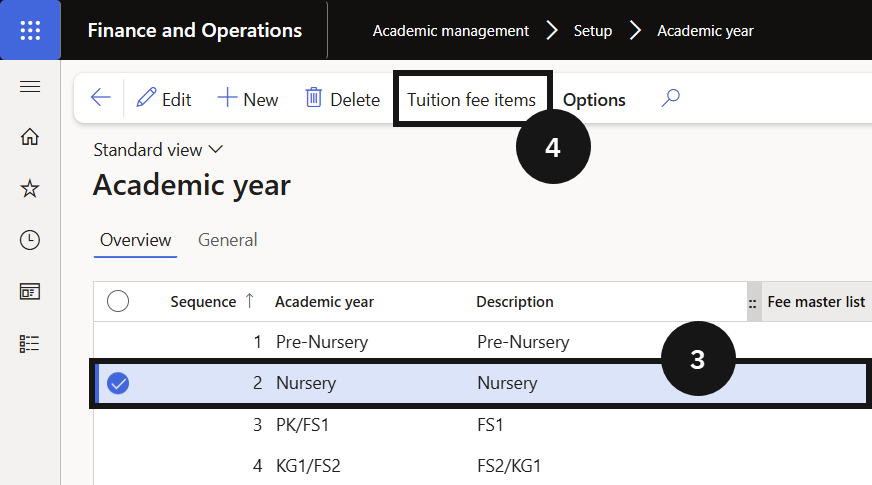
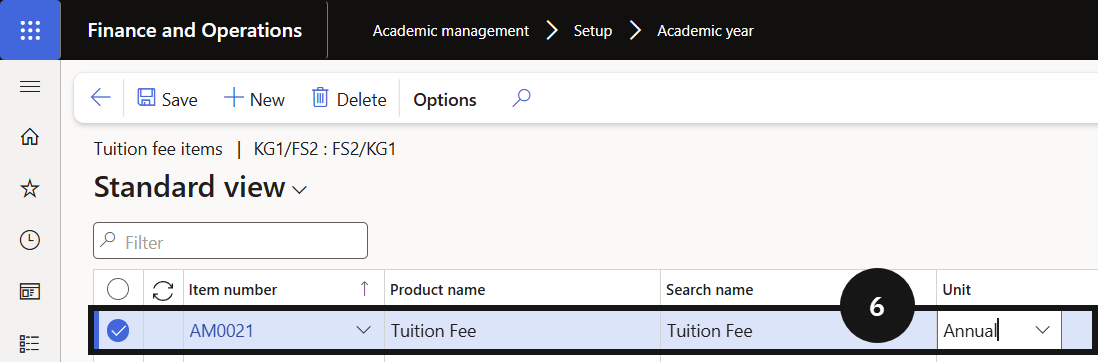
From the FNO dashboard, open Modules ▸ Academic management, expand Setup, and click Academic year. Select the relevant academic year record (③) and click Tuition fee items (④). Click New in the tuition fee items section and complete the columns to link the tuition fee item.
Add a second tuition fee item (optional)
If a second tuition fee item exists for another student type, click New and add that item. Repeat for each additional academic year (⑥).
Save
Click Save.