Recognise a Specific Invoice
Quick answer
- Open Subscription billing ▸ Deferral schedules ▸ All deferral schedules, locate the posted invoice, and click the deferral number.
- Select the line, click Recognize, set the Cutoff date and Transaction date to month end, preview, then Process.
- After posting, verify via Audit trail and Voucher transaction.
Use this process to recognise deferred revenue for a single invoice outside of the batch run — for example, to process a specific deferral schedule before the period is locked or to handle a one-off correction.
Open the deferral schedule
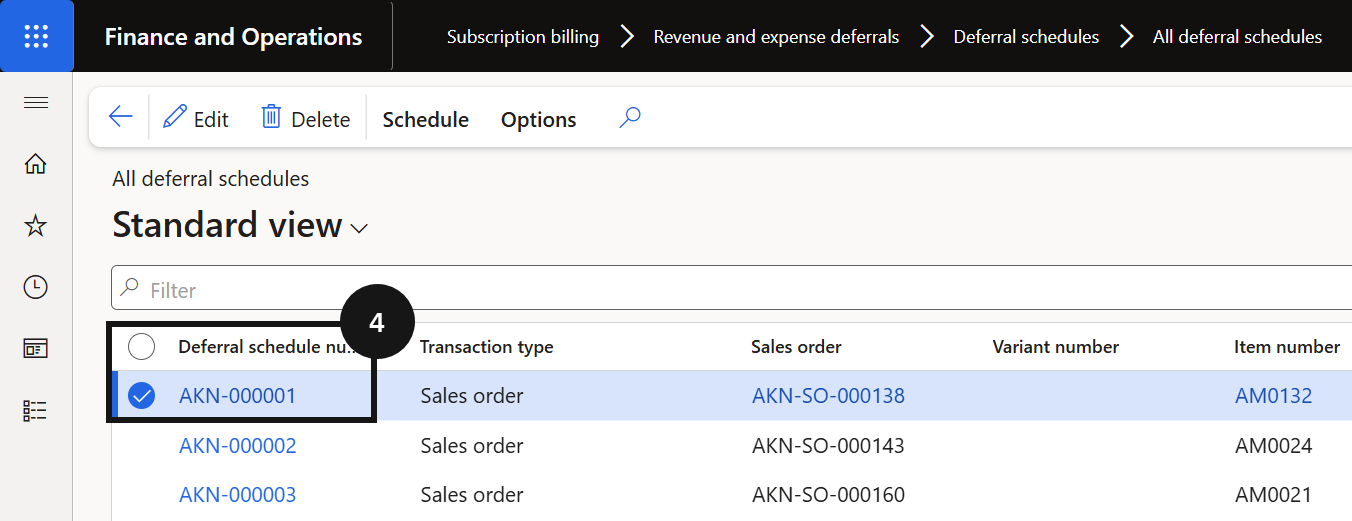
From the FNO dashboard, open Modules ▸ Subscription billing ▸ Revenue and expense deferrals, expand Deferral schedules, and click All deferral schedules. Locate and select the posted invoice, then click the deferral number (④) to open its schedule.
Initiate recognition
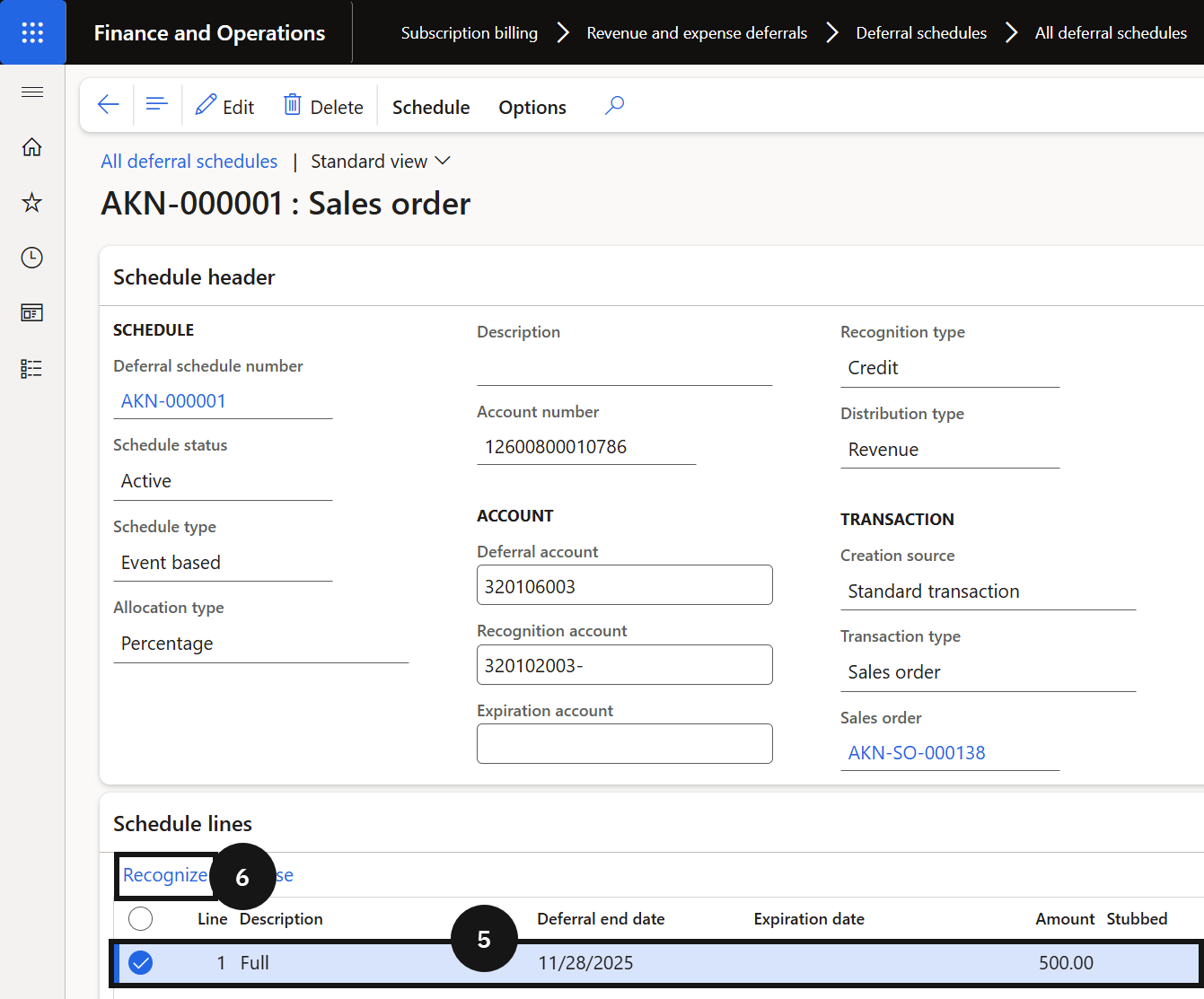
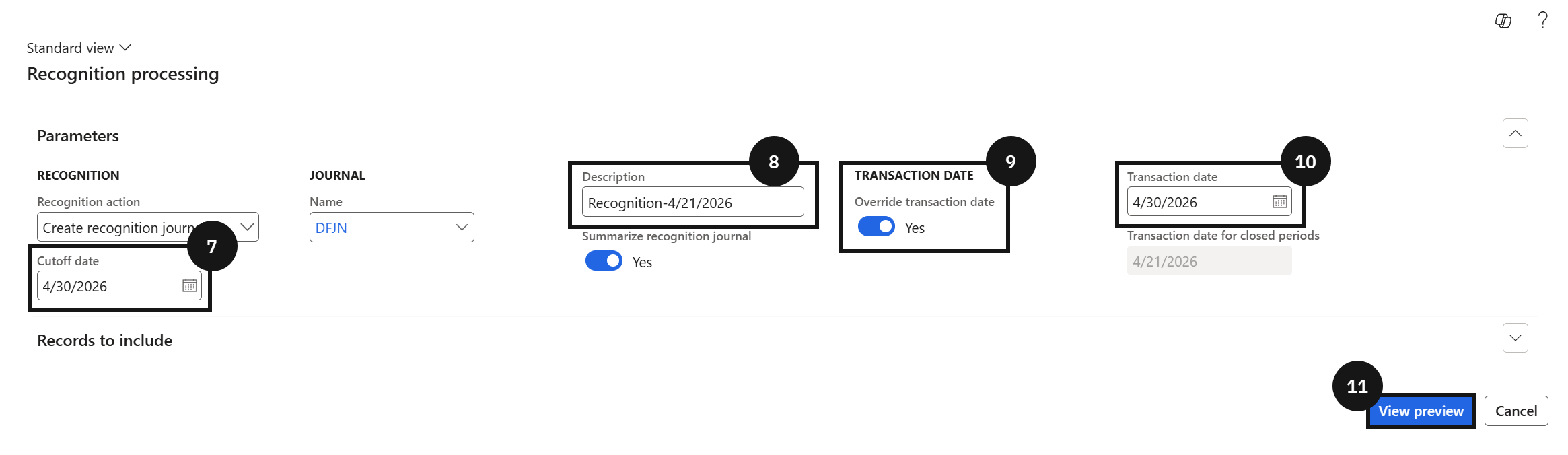
Select the Line (⑤) and click Recognize in the toolbar below (⑥). Complete the following fields:
- Cutoff date (⑦) — enter the last day of the month.
- Description (⑧) — enter a description.
- Override transaction date (⑨) — select Yes.
- Transaction date (⑩) — enter the last day of the month.
Preview and process
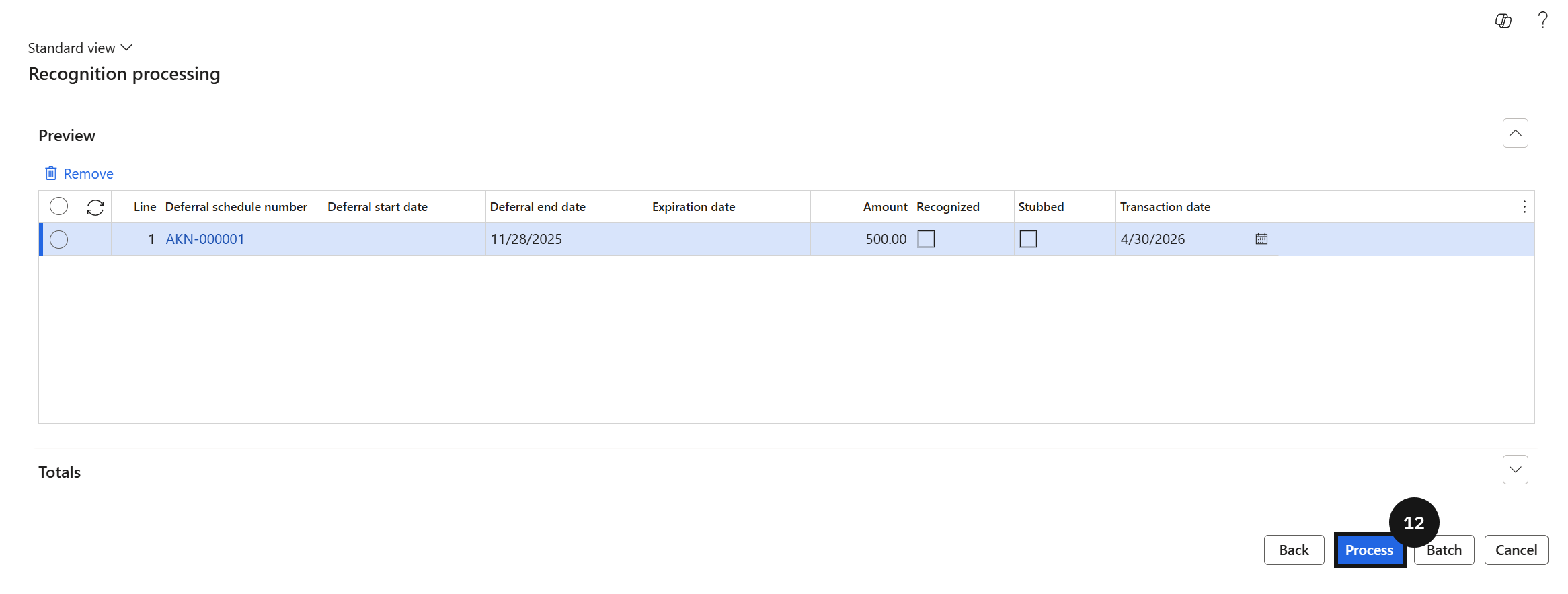
Click View preview (⑪) to confirm the lines to be recognised, then click Process (⑫) to post.
Verify the posting
After posting, click Audit trail to confirm the journal entry was created, then click Event voucher to review the posted voucher detail.