Reverse an Enrolment Deposit or Fee
Quick answer
- In All pre-admission fees, filter by Status = Posted, select the deposit or fee, click Cancel, set the Reverse posting date, and click OK.
- The reversal creates an offsetting entry without deleting audit history.
Use this process when a posted enrolment fee or deposit needs to be reversed — for example, when a fee was created in error or circumstances changed before payment was received. The reversal creates an offsetting entry in the system without deleting audit history.
Find the posted fee
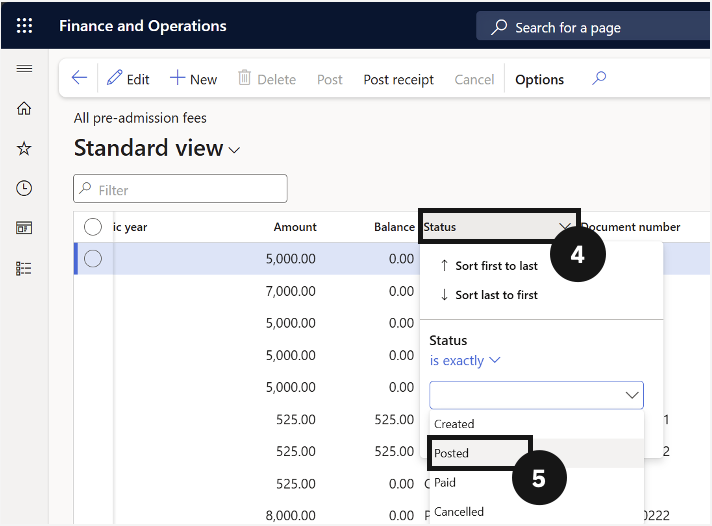
From the FNO dashboard, open Modules ▸ Academic Management, expand Inquiries and reports, then expand Pre-admission fees, and click All pre-admission fees. Filter the Status column to show only Posted entries (⑤) and select the enrolment deposit or fee using the checkbox on the far-left column (⑥).
Reverse the fee
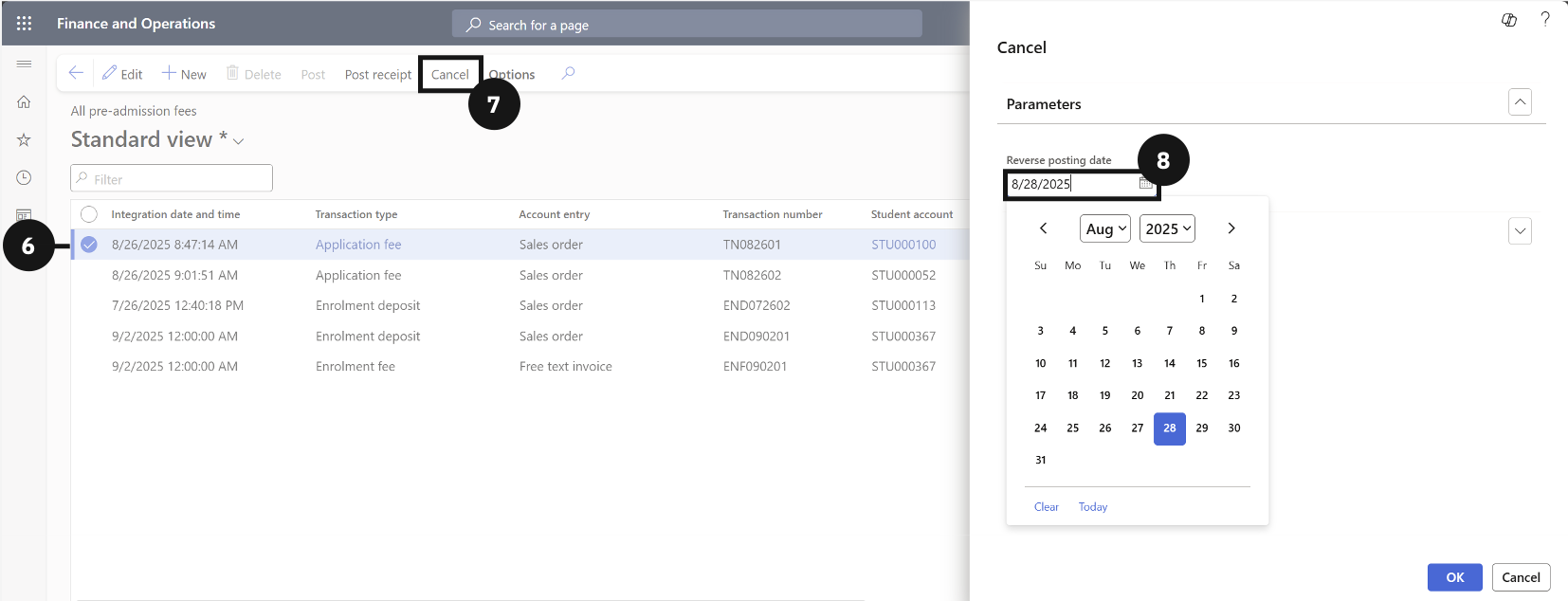
Click Cancel in the Action Pane (⑦). In the dialog on the right, set the Reverse posting date (⑧), then click OK.