Manually Add an Enrolment Fee Record
Quick answer
- In All pre-admission fees, click New, complete the required columns, click Post, then Save.
- Use only when a fee was not captured through the integration — in most cases, enrolment fee records are created automatically.
In most cases, enrolment fee records are created automatically when the student management system sends data to D365 F&O. Use this process only when a record needs to be created manually — for example, when a fee was not captured through the integration.
Open All pre-admission fees and create the record
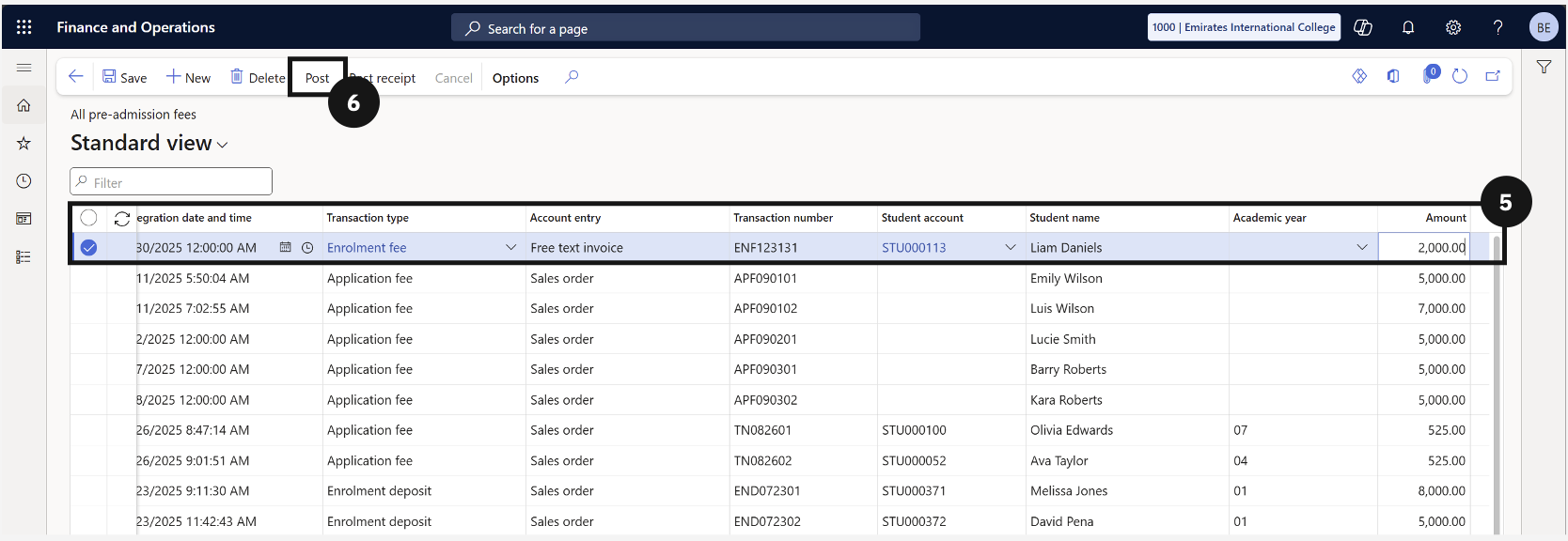
From the FNO dashboard, open Modules ▸ Academic Management, expand Inquiries and reports, then expand Pre-admission fees, and click All pre-admission fees. Click New in the toolbar and enter the required information for each column (⑤).
Post and save
Click Post in the Action Pane (⑥). The status updates from Created to Posted. Click Save.