Configure Posting Logic for Each Transaction Type
Quick answer
- In Pre-admission posting, add entries for Application Fee, Enrolment Fee, and Enrolment Deposit in sequence, completing all required columns for each.
This page walks through configuring the three standard posting entries — Application Fee, Enrolment Fee, and Enrolment Deposit — in Pre-admission posting. Complete this setup after creating the types in Set Up Pre-Admission Types.
Open Pre-admission posting
From the FNO dashboard, open Modules ▸ Academic Management, expand Setup, then expand Pre-admission fees, and click Pre-admission posting.
Add the Application Fee entry
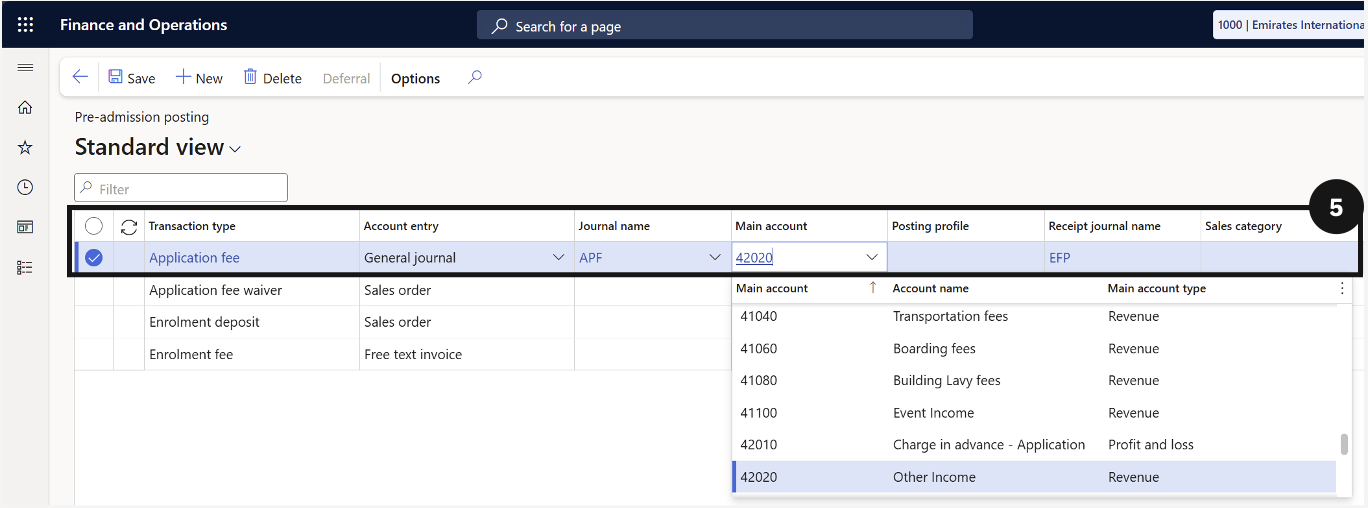
Click New in the toolbar. Select Application fee in Pre-admission type and complete all required columns in the row (⑤).
Add the Enrolment Fee entry
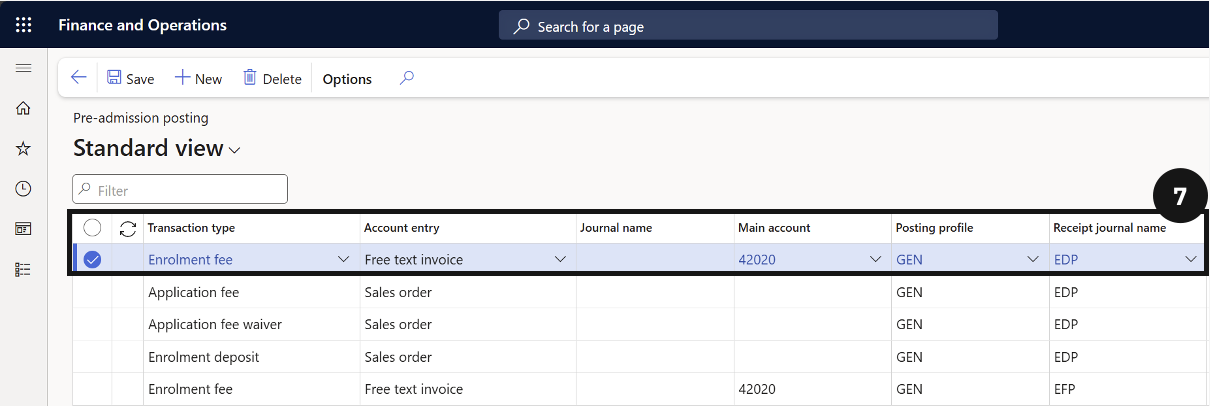
Click New in the toolbar. Select Enrolment fee in Pre-admission type and complete all required columns in the row (⑦).
Add the Enrolment Deposit entry
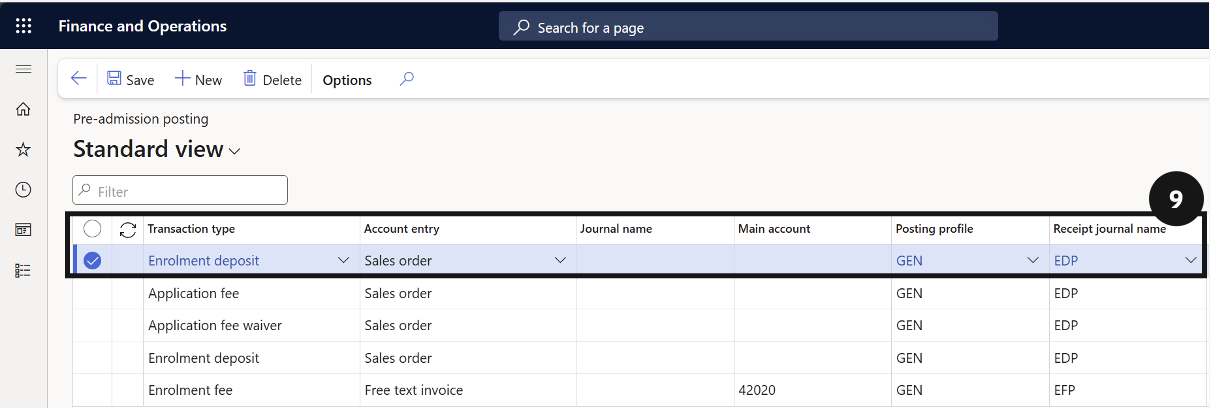
Click New in the toolbar. Select Enrolment deposit in Pre-admission type and complete all required columns (⑨). Do not select an Item number for deposit types.
Save
Click Save.