Transfer Customer Credit Balance
Quick answer
- Confirm the student exists in the destination school with a matching Party ID before initiating a transfer.
- Open the student record, expand Other Information, verify the Destination school, then click Academic ▸ Transfer and confirm.
When a student transfers from one school to another within the group, their credit balance at the originating school must be moved to the destination school so it can be applied to their account there.
Note: Before transferring, confirm the student exists in the destination school and that the Party ID (global ID) is identical in both companies. The system uses the Party ID to match the student account across companies — the account number itself may differ between schools. Cancel any outstanding advanced tax invoices before transferring, as the system transfers net credit balances only.
Open the student record and confirm destination
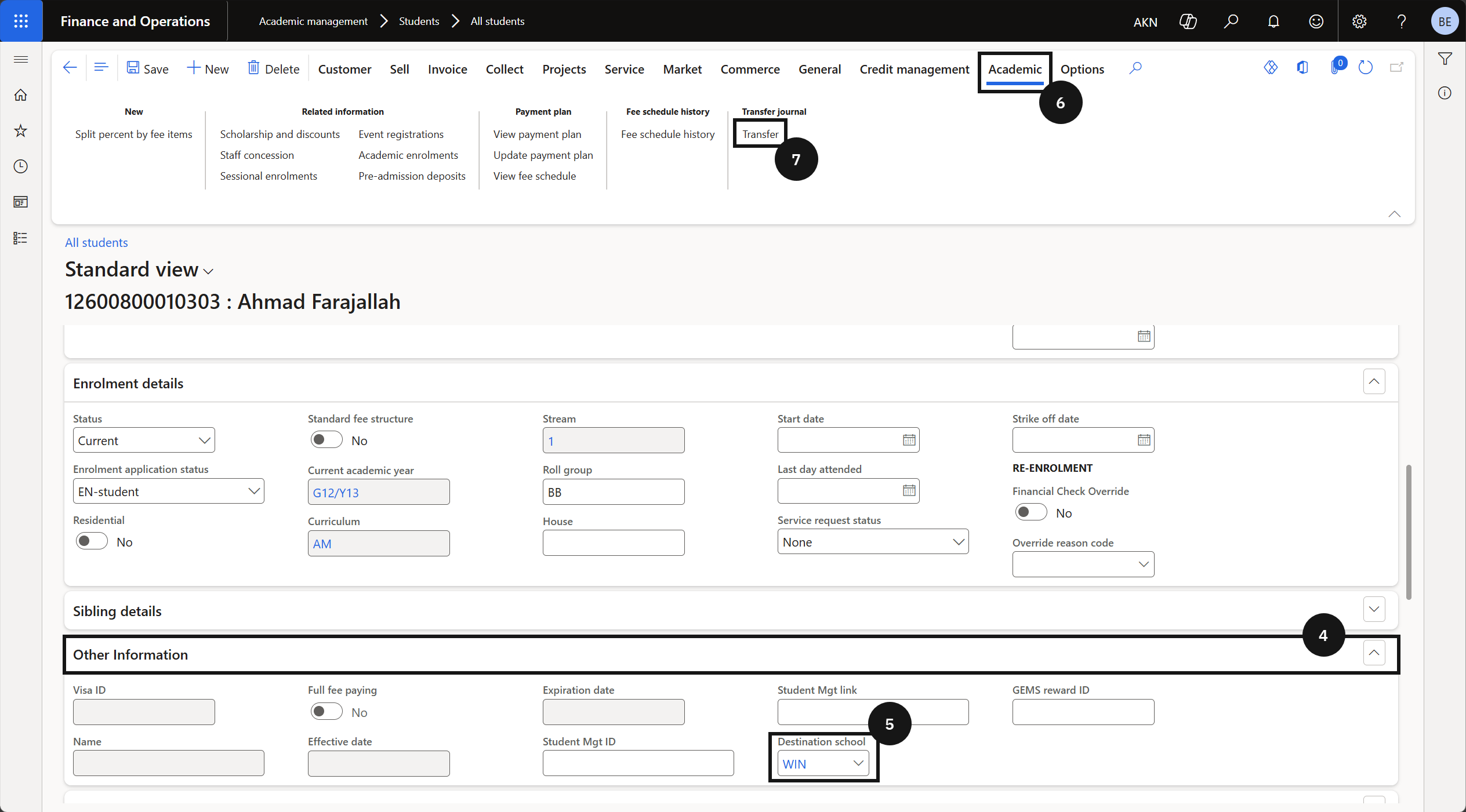
From the FNO dashboard, open Modules ▸ Academic Management, expand Students, and click All Students. Search for and open the student record. Expand Other Information (④) and verify the Destination school (⑤) field has been populated by the CE system — this field identifies which company the credit balance will transfer to.
Initiate the transfer
Click Academic (⑥) in the toolbar and select Transfer (⑦). Confirm the student's balance is in credit and no advanced tax invoices remain outstanding.
Confirm and post
Review the credit balance shown in the confirmation dialog and click OK. The system automatically generates two transfer journals — one in the originating school to clear the credit, and one in the destination school to post the corresponding credit to the student's account.