Check Student Master
Quick answer
- Open the student record in Academic Management ▸ Students ▸ All students and verify Current academic year, Effective/Expiration dates, and Sibling number.
- Confirm the Paid percentage in the Relationships section totals 100% across all fee payers before running any fee batch.
The student master is built from enrolment data created in the student management system. Academic attributes and demographic information must not be edited directly in D365 F&O — changes made at source synchronise automatically. Verify the following before running any fee batch.
Open the student record
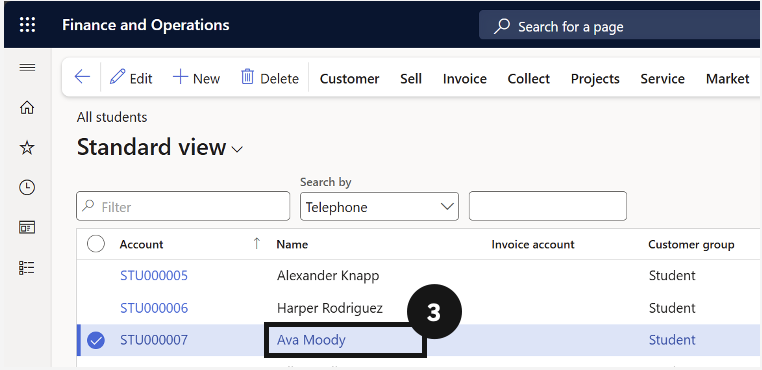
From the FNO dashboard, open Modules ▸ Academic Management, expand Students, and click All students. Click the student's name to open their record (③).
Confirm academic year and enrolment dates
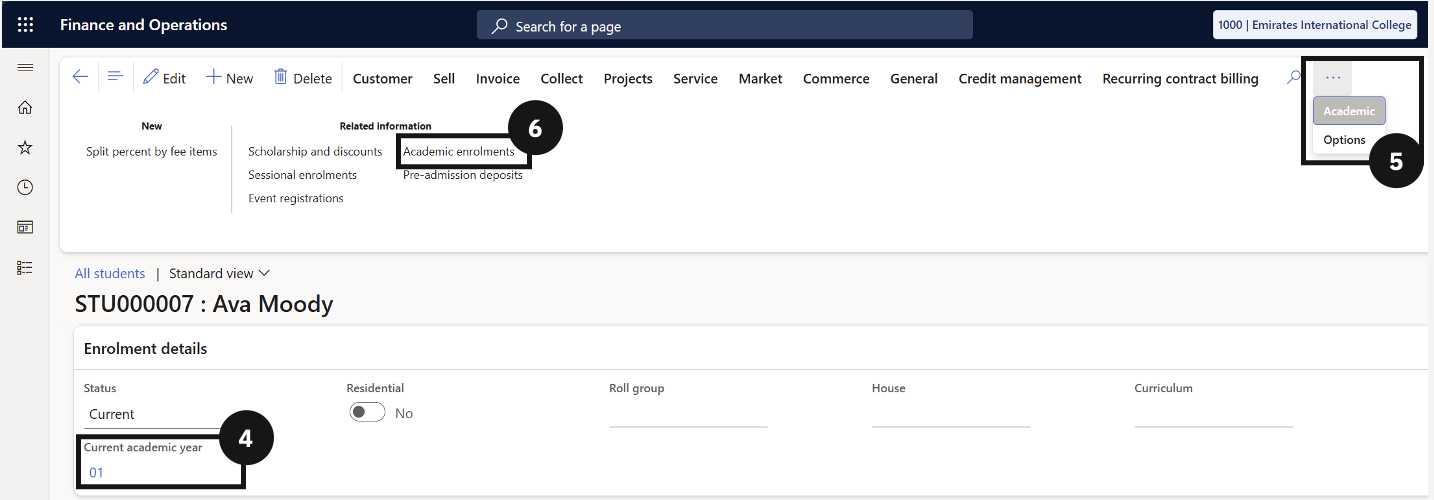
Under Enrolment details, confirm the Current academic year is correct (④). If it needs updating, make the change in the student management system.
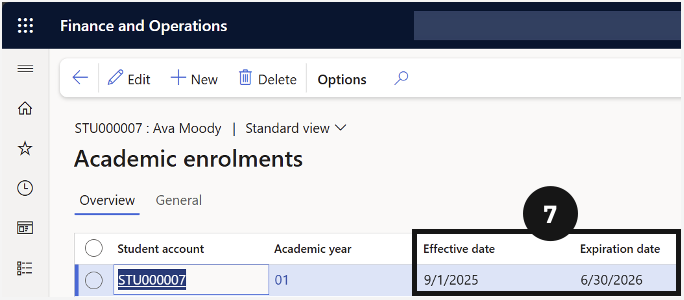
Click the Academic tab in the toolbar (⑤), then click Academic enrolments under Related information (⑥). Confirm the Effective date and Expiration date are current (⑦). Click Back when done.
Confirm sibling order and paid percentage
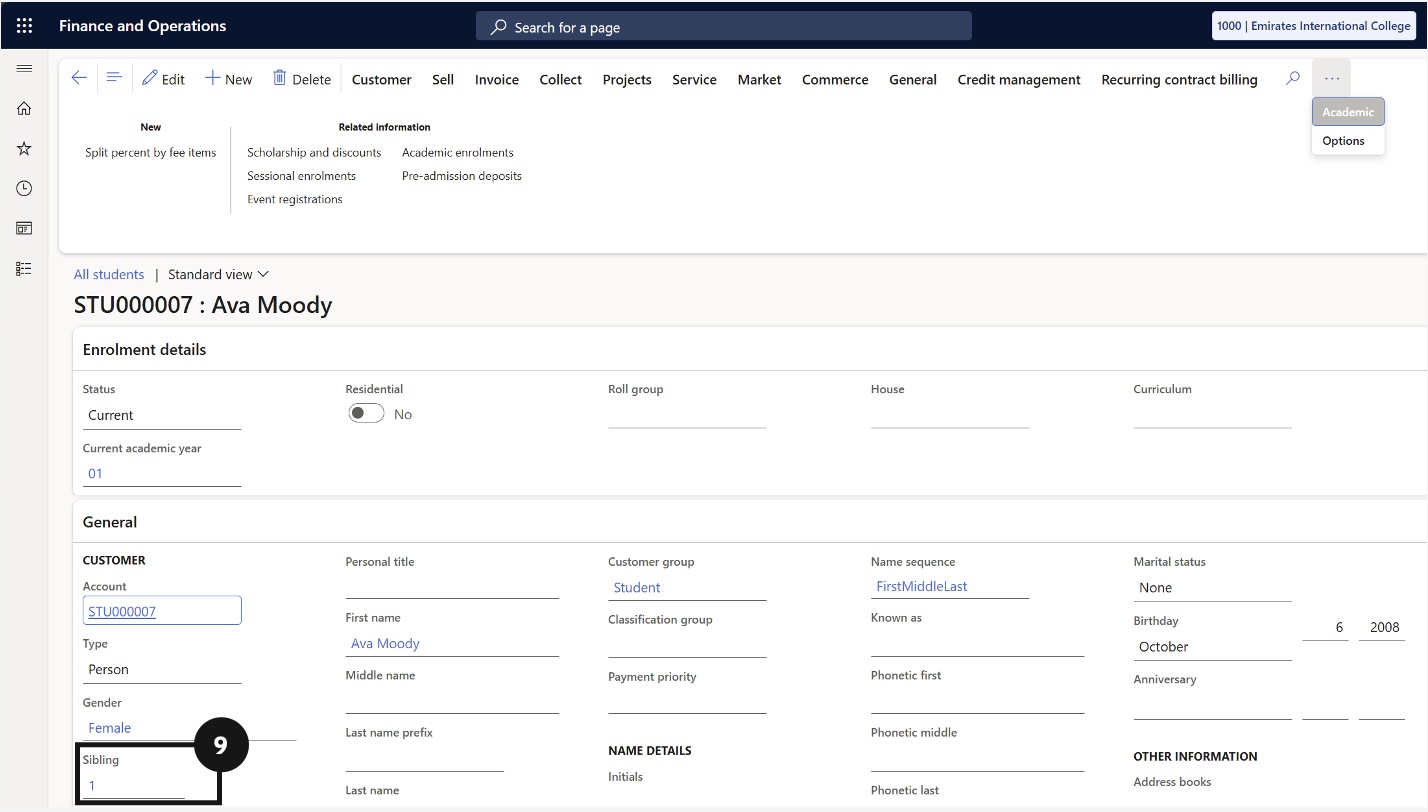
If the student has siblings eligible for a family discount, confirm the Sibling field under General contains a number (e.g., eldest sibling = 1) (⑨).
In the Relationships section, confirm the total Paid percentage equals 100.00 across all assigned fee payers.
Save
Click Save if any adjustments were made.