Verify a Concession in a Sales Order
Quick answer
- Open Scholarship and discount details, select the student, and click Generate concession to preview the estimated discount.
- Run the Generate Sales Order Batch Processing task filtered to the student.
- Open the resulting sales order and verify the discount under Financials ▸ Maintain Charges and Totals.
Use this process to generate a concession estimate for a student, run the fee batch for that student, and confirm the discount has applied correctly on the resulting sales order.
Generate the concession estimate
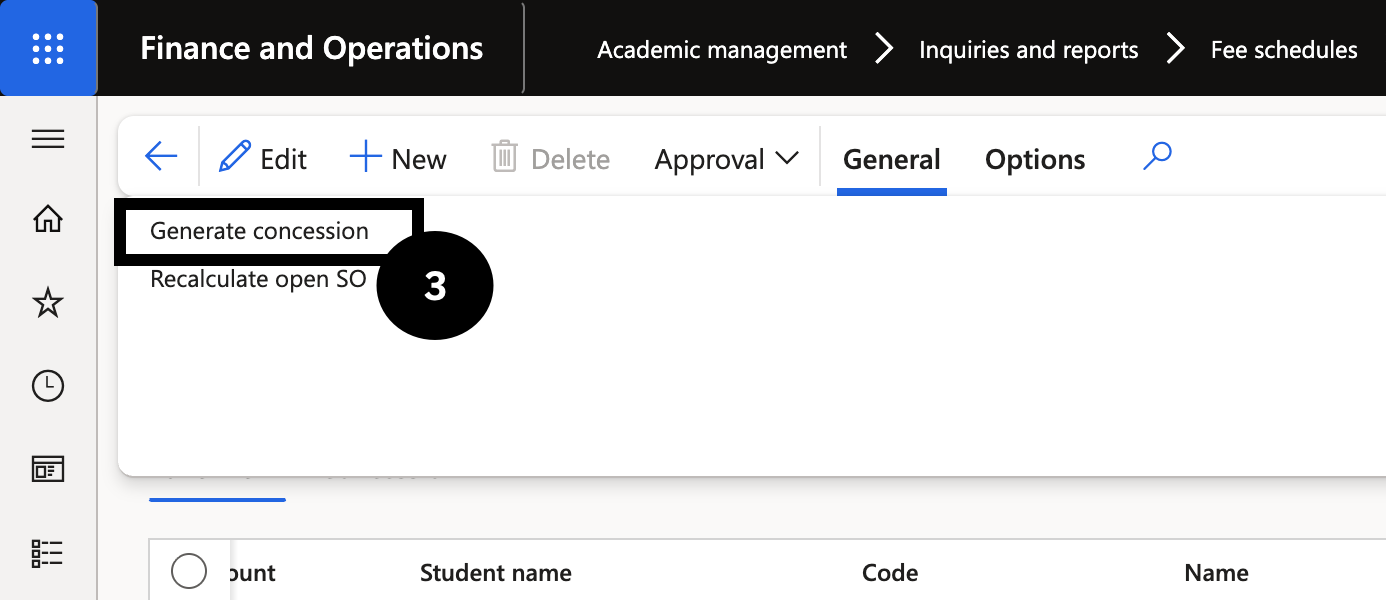
From the FNO dashboard, open Modules ▸ Academic Management ▸ Inquiries and reports ▸ Fee schedules ▸ Scholarship and discount details. Select the student, then in the Action Pane open the General tab and click Generate concession. Select the Fee and Charge Interval from the dropdown and click OK. Open the Concession tab to review the estimated discount amount.
Run the fee generation batch for the student
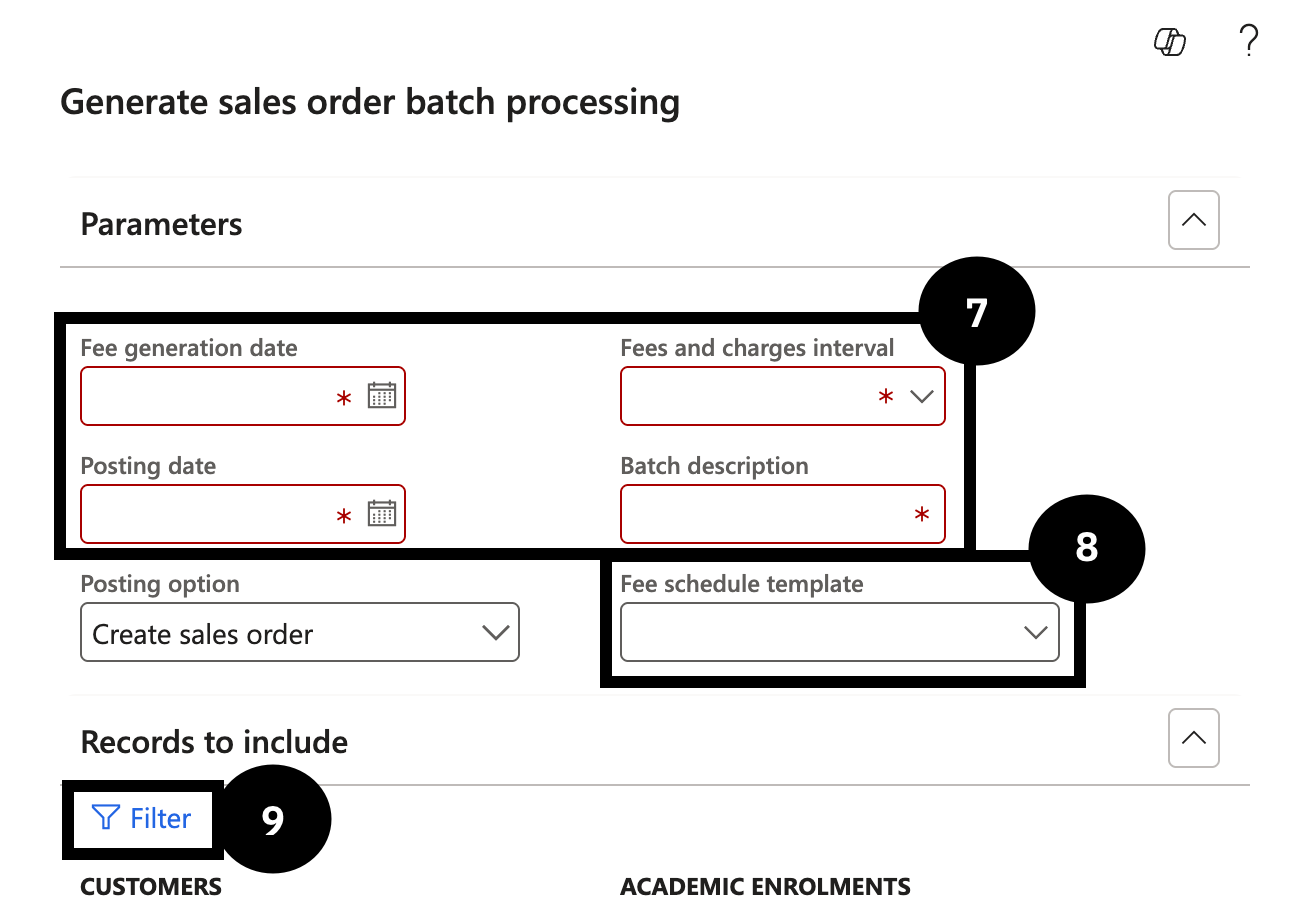
Navigate to Academic Management ▸ Periodic Tasks ▸ Generate Sales Order Batch Processing. Enter the Fee Generation Date, Posting Date, Fee and Charge Interval, and Batch Description. Select the required Fee Schedule Template. In the Records to include section, click Filter, enter the student's Student ID in the Student account field, and click OK. Click OK to run the batch.
Open the resulting sales order
Navigate to Academic Management ▸ Fee Schedule Batches ▸ All Fee Schedule Batches, find the batch just created using the Fee Schedule Batch Number, and click the Sales Order hyperlink to open the sales order.
Verify the discount is applied
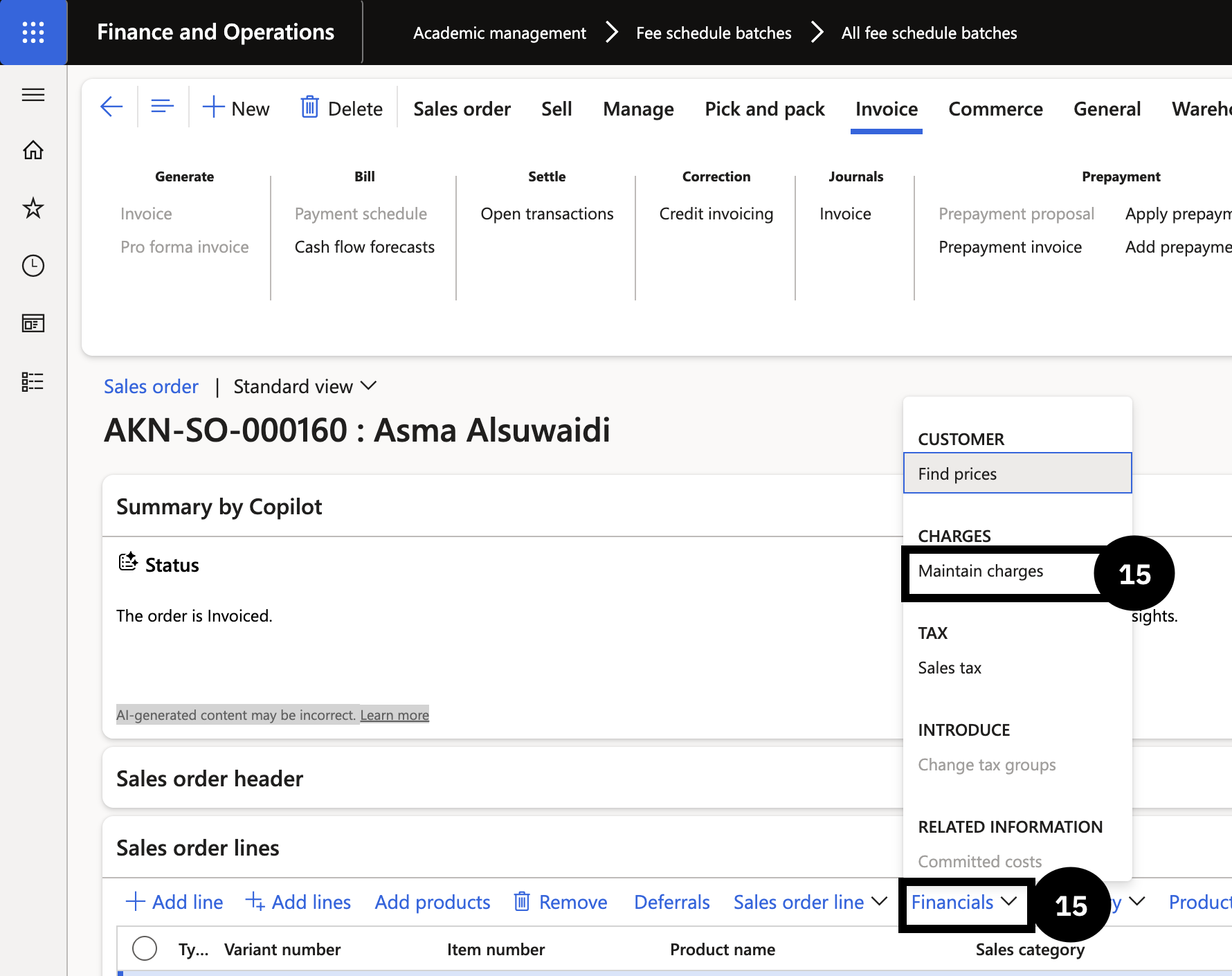
At line level, expand Financials and select Maintain Charges. Confirm the discount is displayed on the charges page. In the Sales Order Action Pane, select Totals to verify the total charges reflect the applied discount.