Set Up a Staff Concession Code
Quick answer
- Open Academic Management ▸ Setup ▸ Scholarship and discount and click New.
- Enter a name, select the Type, link the Charge code, and click Activate.
- Configure the Approval settings and click Save.
Before using this page, ensure a charge code has been created and is ready to link. See Set Up a Charge Code.
Staff concessions apply fee reductions to dependants of staff members. The system manages them through two tables depending on the type selected — the Staff Tuition Fee Concession table for staff-related reductions, and the Scholarship and Discount table for corporate or commercial concessions.
Open Scholarship and Discount
From the FNO dashboard, open Modules ▸ Academic Management, expand Setup, and click Scholarship and discount. Click New in the toolbar.
Enter the concession name
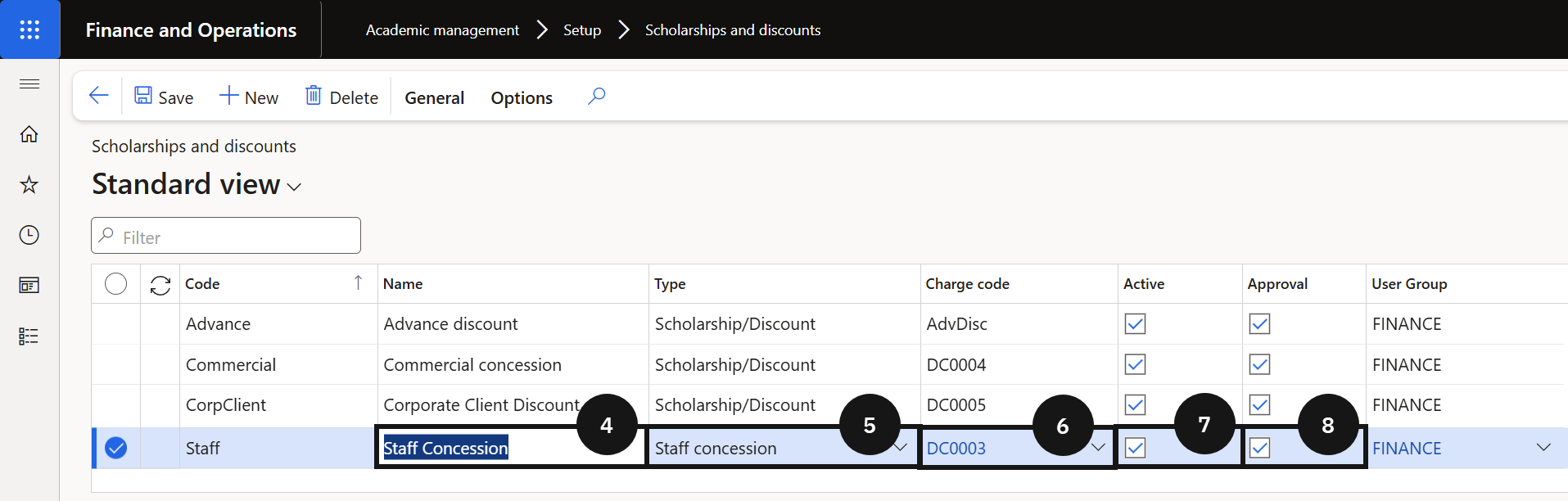
Enter the Name of the concession (④).
Select the type
Select the Type (⑤):
- Staff concession — for staff tuition fee reductions. The record is captured in the Staff Tuition Fee Concession table and is automatically set to Approved status — the approval workflow does not apply.
- Scholarship/Discount — for corporate or commercial concessions. The record is captured in the Scholarship and Discount table and can require an approver.
Link the charge code and activate
Select the Charge code to link to this discount code (⑥). Check the Active box (⑦) to make the code available for use.
Configure approval and save
In the Approval section, enable Approval (⑧) if concession records require an approver, then identify the authorised User Group. Click Save.