Link a Discount to a Student
Quick answer
- Open Academic Management ▸ Setup ▸ Scholarships and discounts and select the discount code.
- Click General, choose Students, and click New.
- Select the student, set the discount amount and dates, then click Save.
Open Scholarships and Discounts
From the FNO dashboard, open Modules ▸ Academic Management, expand Setup, and click Scholarships and discounts.
Select the discount code and open Students
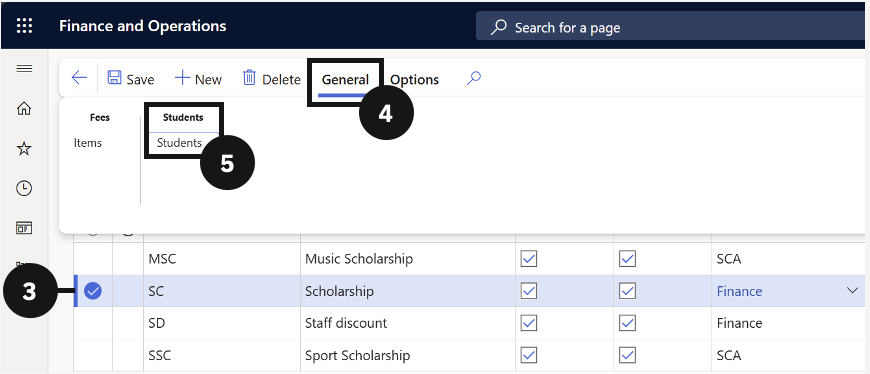
Check the circle to the left of the scholarship or discount you want to configure (③). Click General in the Action Pane (④), then choose Students under the Students tab (⑤).
Add a student record
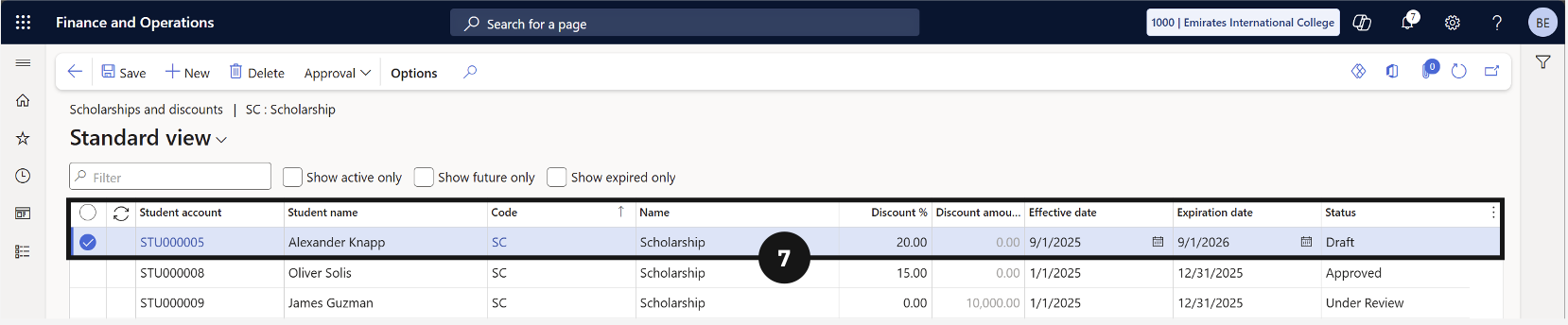
Click New and complete the following columns (⑦)— the Student Name, Code, and Scholarship / Discount Name will prepopulate automatically:
- Student Account — select the student from the dropdown.
- Discount % — enter the percentage or total discount amount.
- Effective date and Expiration date — set the dates the discount is active.
Save
Click Save.