Link a Discount to Fee Items
Quick answer
- Open Academic Management ▸ Setup ▸ Scholarships and discounts and select the discount code.
- Click General in the toolbar, then choose Items under the Fees tab.
- Click New, enter the fee item details, and click Save.
Fee items must be linked to a scholarship or discount code before the discount applies when invoices are generated.
Open Scholarships and Discounts
From the FNO dashboard, open Modules ▸ Academic Management, expand Setup, and click Scholarships and discounts.
Select the discount code and open Fee Items
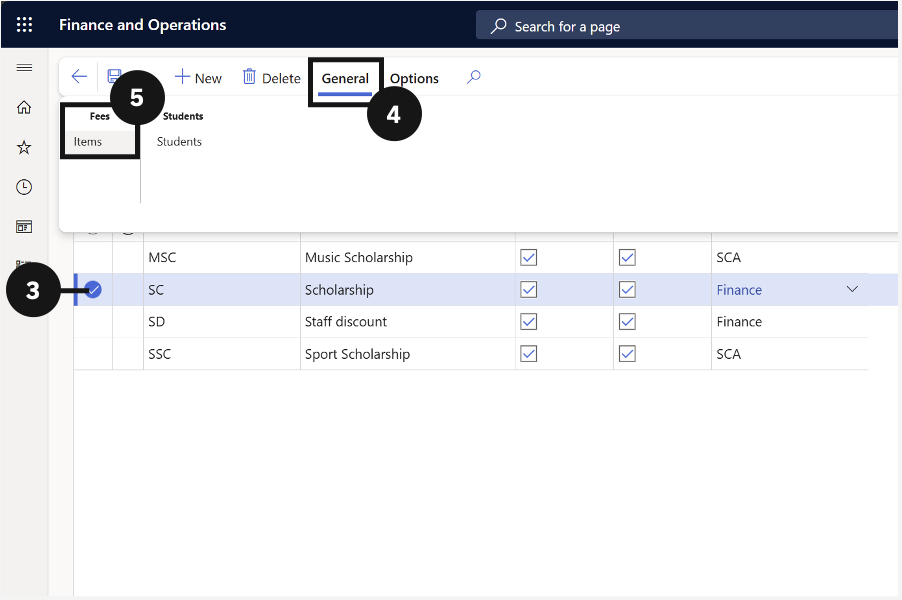
Check the circle to the left of the scholarship or discount you want to configure (③). Click General in the Action Pane (④), then choose Items under the Fees tab (⑤).
Add a fee item
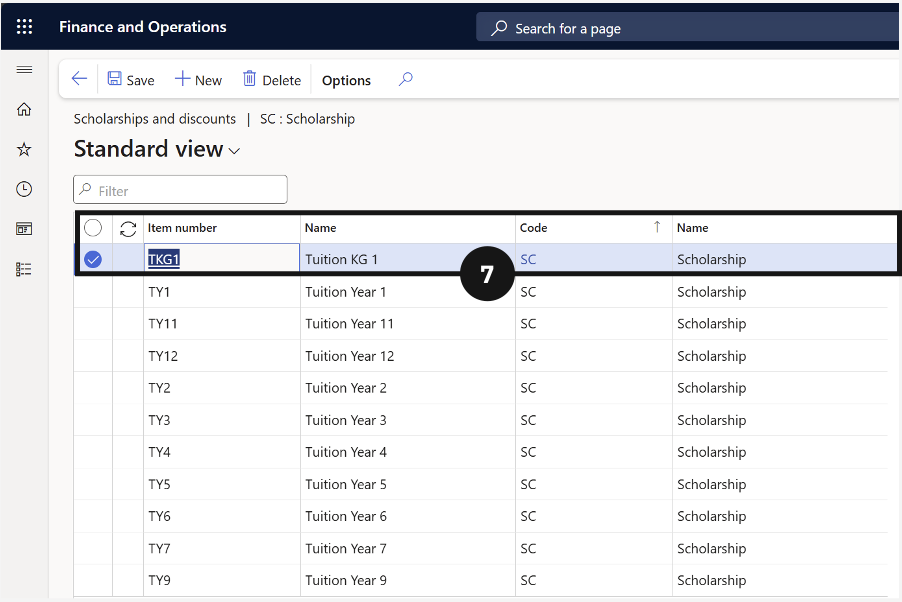
Click New, enter the required fee item details (⑦), and click Save. Repeat for each additional fee item.