Set Up Collection Letters
Quick answer
- Open Credit and Collections ▸ Collection letter ▸ Set up collection letter sequence, add each letter stage with its code, description, days after due date, and any fees, then configure note text in Setup ▸ Forms ▸ Form notes.
- The days value controls when each reminder is triggered after the due date.
Before collection letters can be generated, a sequence of reminder stages must be configured — typically a first reminder, a second reminder, and a suspension letter. Each stage is defined by a number of days after the due date.
Configure the collection letter sequence
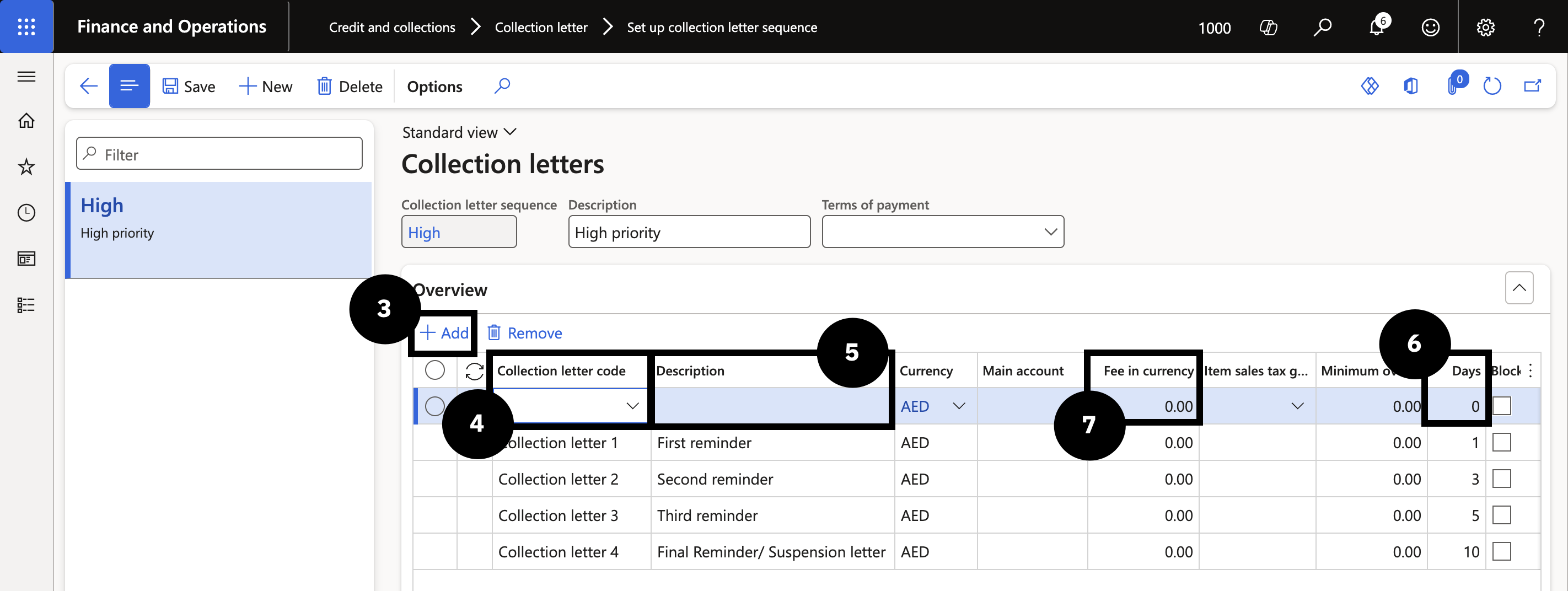
From the FNO dashboard, open Modules ▸ Credit and Collections, expand Collection letter, and click Set up collection letter sequence. Click + Add (③) and complete the following for each stage:
- Collection letter code (④) — select from the dropdown (e.g., First Reminder).
- Description (⑤) — enter a description.
- Days (⑥) — enter the number of days after the invoice due date when the letter should be sent.
- Fee in currency (⑦) — enter if applicable; leave blank if none apply.
Repeat to add each additional stage (e.g., Second Reminder, Suspension Letter). Click Save.
Configure the note text
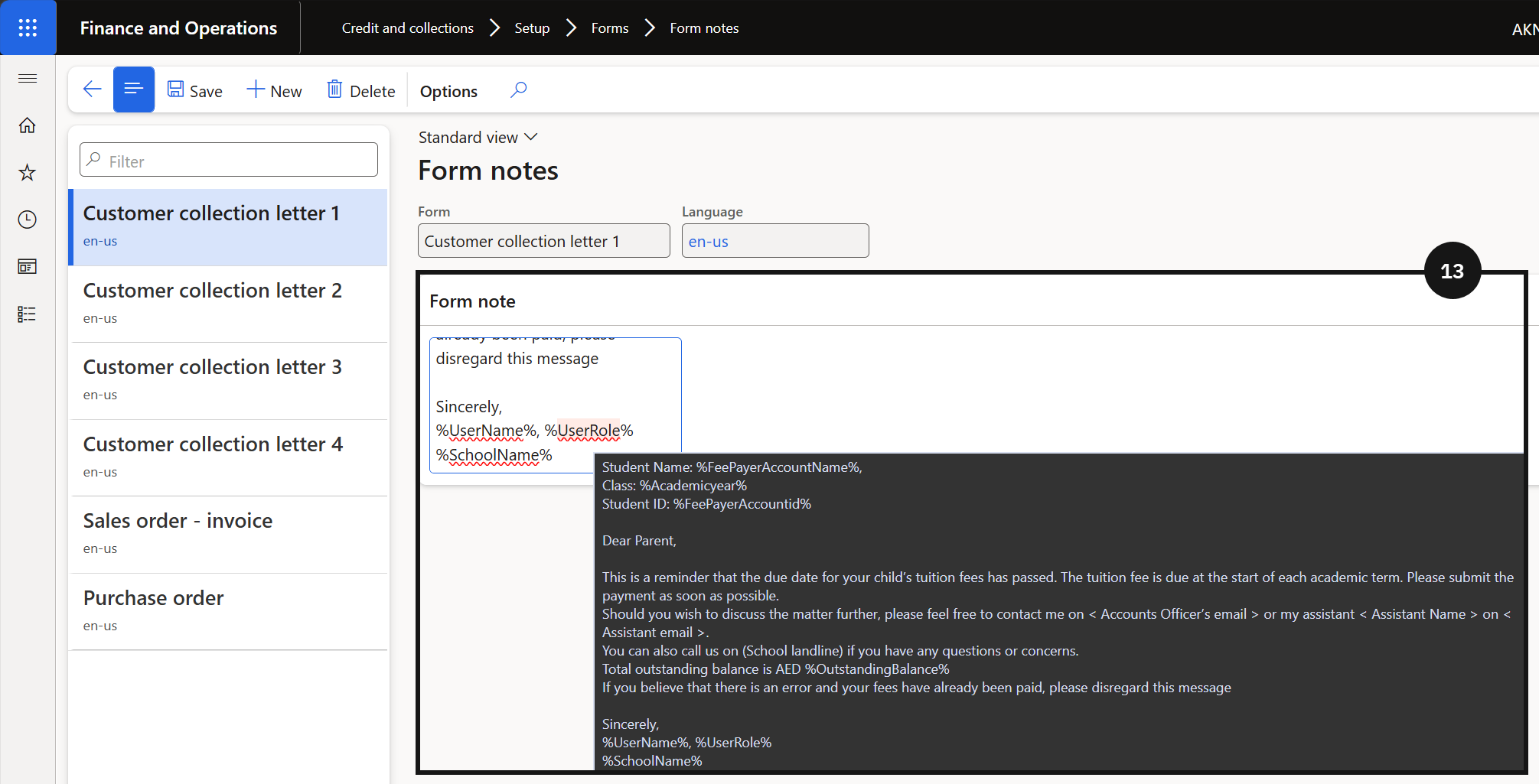
Navigate to Modules ▸ Credit and Collections, expand Setup ▸ Forms, and click Form notes. Enter the note text to print on each collection letter. Include student account, student ID, and outstanding amount if needed (⑬). Adjust the tone based on the reminder stage. Click Save.