Process an Overpayment
Quick answer
- Open Accounts receivable ▸ Payments ▸ Cashier receipt, create a new receipt, enter the student account, tick the invoice, and enter an amount greater than the invoice total.
- The excess appears in the Overpayment field for review before posting — the cashier can correct the amount if it was entered in error.
When a fee payer pays more than the invoice total at the counter, the system captures the excess in the Overpayment field. The cashier can review and correct the amount before posting.
Create the cashier receipt
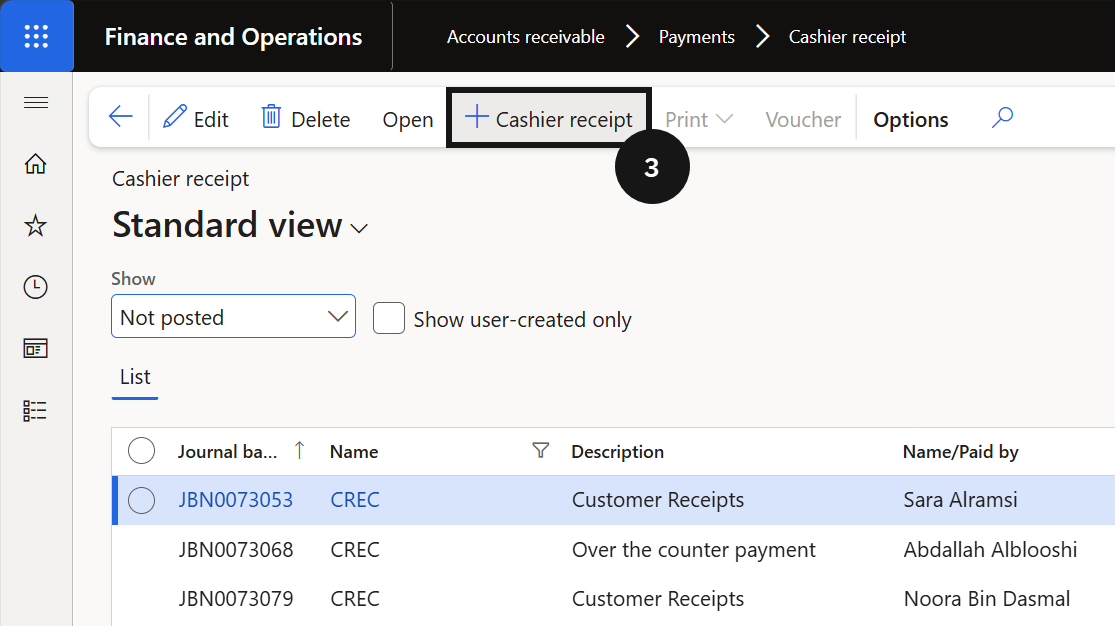
From the FNO dashboard, open Modules ▸ Accounts receivable, expand Payments, and click Cashier receipt. Click + Cashier receipt (③) and complete the following:
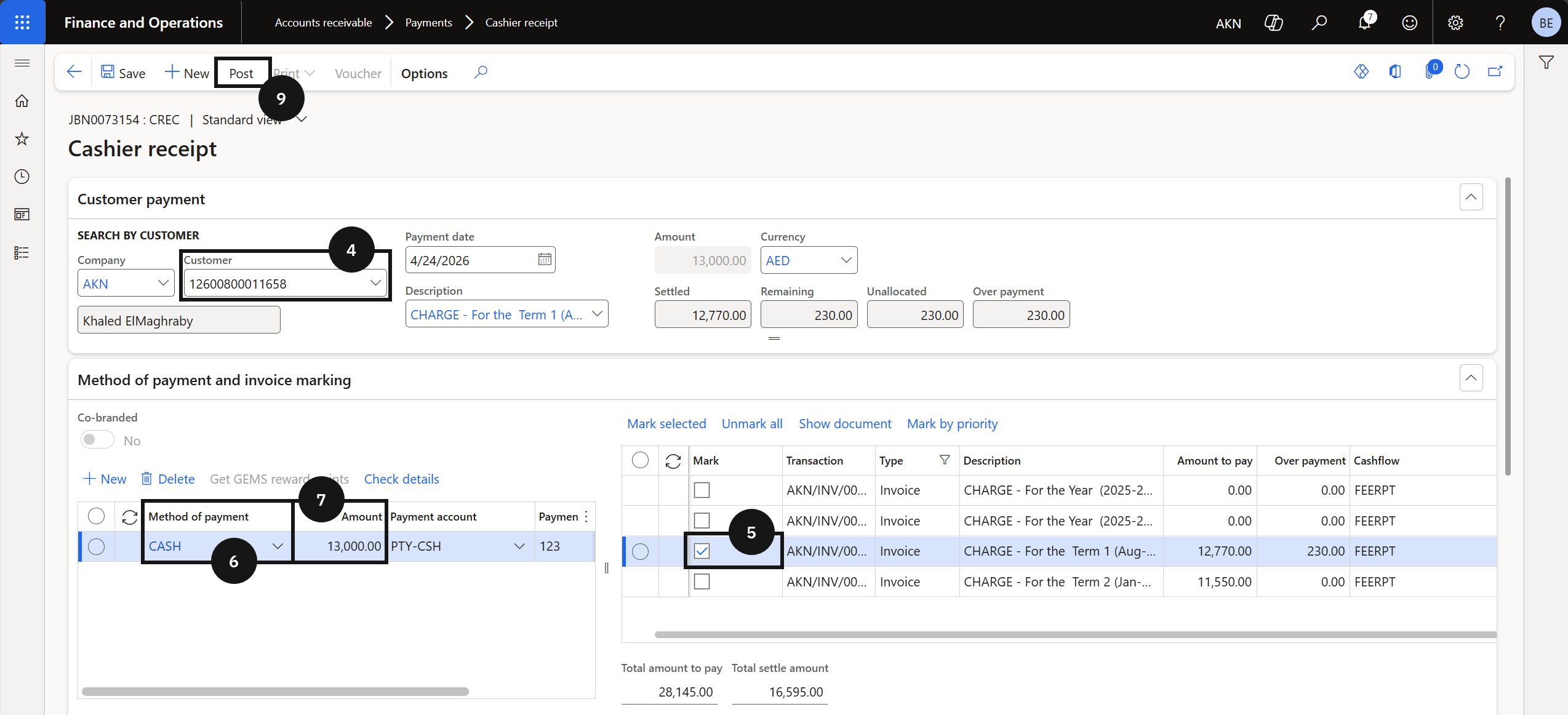
- Customer (④) — enter the student account.
- Invoice (⑤) — tick the invoice to be paid in the panel on the right.
- Method of payment (⑥) — select the payment method.
- Amount (⑦) — enter an amount greater than the invoice total. After saving, the excess amount appears in the Overpayment field, allowing the cashier to review and correct before posting.
- Payment reference (⑧) — enter a reference if required.
Post and deliver the receipt
Click Post (⑨). Enable the Print receipt toggle if a copy is required. Click OK.