Process an Over-the-Counter Payment
Quick answer
- Open Accounts receivable ▸ Payments ▸ Over the counter payment, click Create New Customer Payment, select the fee payer, mark the invoices, enter the payment method and amount, then Post.
- If the payment exceeds the invoice total, the system automatically ticks Pay in Advance and records the excess as an advance.
Over-the-counter payment processing is used when a fee payer pays directly at the school.
Create the payment
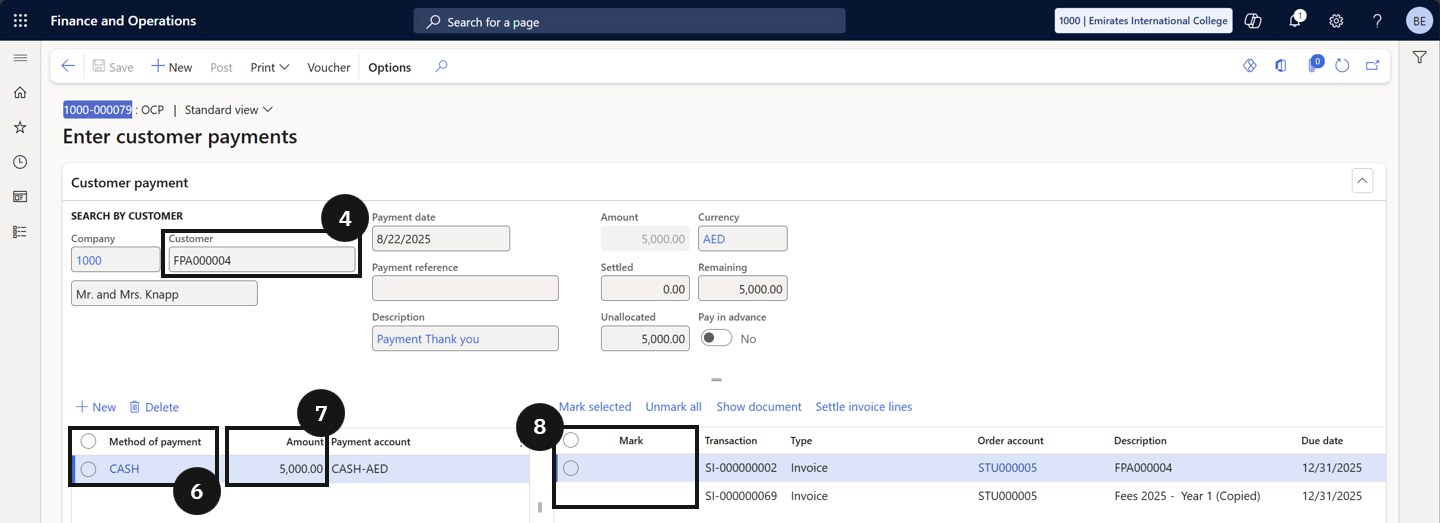
From the FNO dashboard, open Modules ▸ Accounts receivable, expand Payments, and click Over the counter payment. Click + Create Customer Payment in the Action Pane. Choose the Customer ID from the list (④). Select the payment method (e.g., credit card or cash) from the Method of payment column (⑥). Enter the Amount being paid (⑦) and select the payment account where the funds will be deposited. Mark the invoices to which the payment should be applied (⑧).
If the payment exceeds the invoice total, the system automatically checks the Pay in Advance box and records the extra amount as an advance.
Post and deliver the receipt
Click Post to finalise the entry. In the dialog, select your print and/or email receipt options and click OK.