Process a Fee Refund of Credit Balance
Quick answer
- Create a customer payment journal using the Customer refund journal name, select the student account, choose the refund method, click Settle transactions to find the credit invoice, set financial dimensions, then Post.
- Proceed only after confirming bank details. If a workflow is active, submit for approval before posting.
Note: If a workflow is active, submit the journal for approval and follow the workflow process until the journal is approved before posting.
Proceed with the refund only after confirming the bank details. See Confirm Bank Account Details.
Create the refund journal
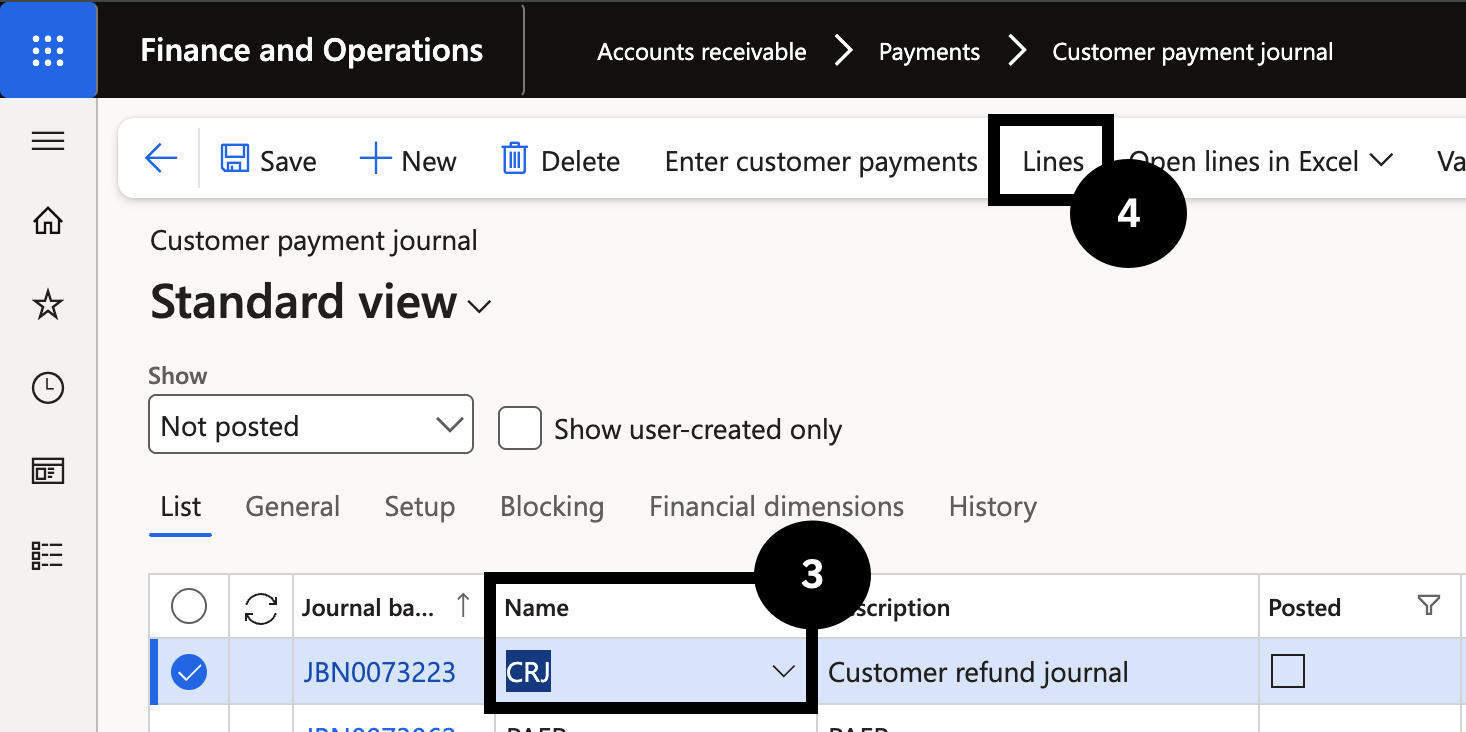
From the FNO dashboard, navigate to Modules ▸ Accounts receivable ▸ Payments ▸ Customer payment journal. Click New and in the Name field select Customer refund journal (③). Click Lines (④).
Select the student and settle the credit invoice
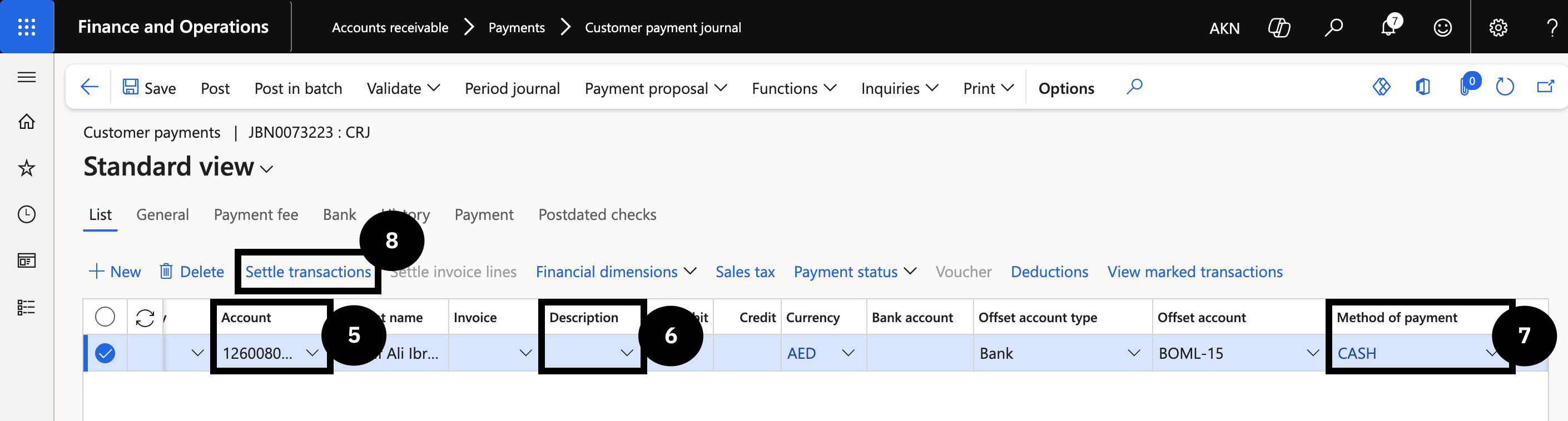
Mark the selected row in the list. In the Account field (⑤), select the Student account. Enter a value in the Description field (⑥). In the Method of payment field (on the far right) (⑦), select the refund method.
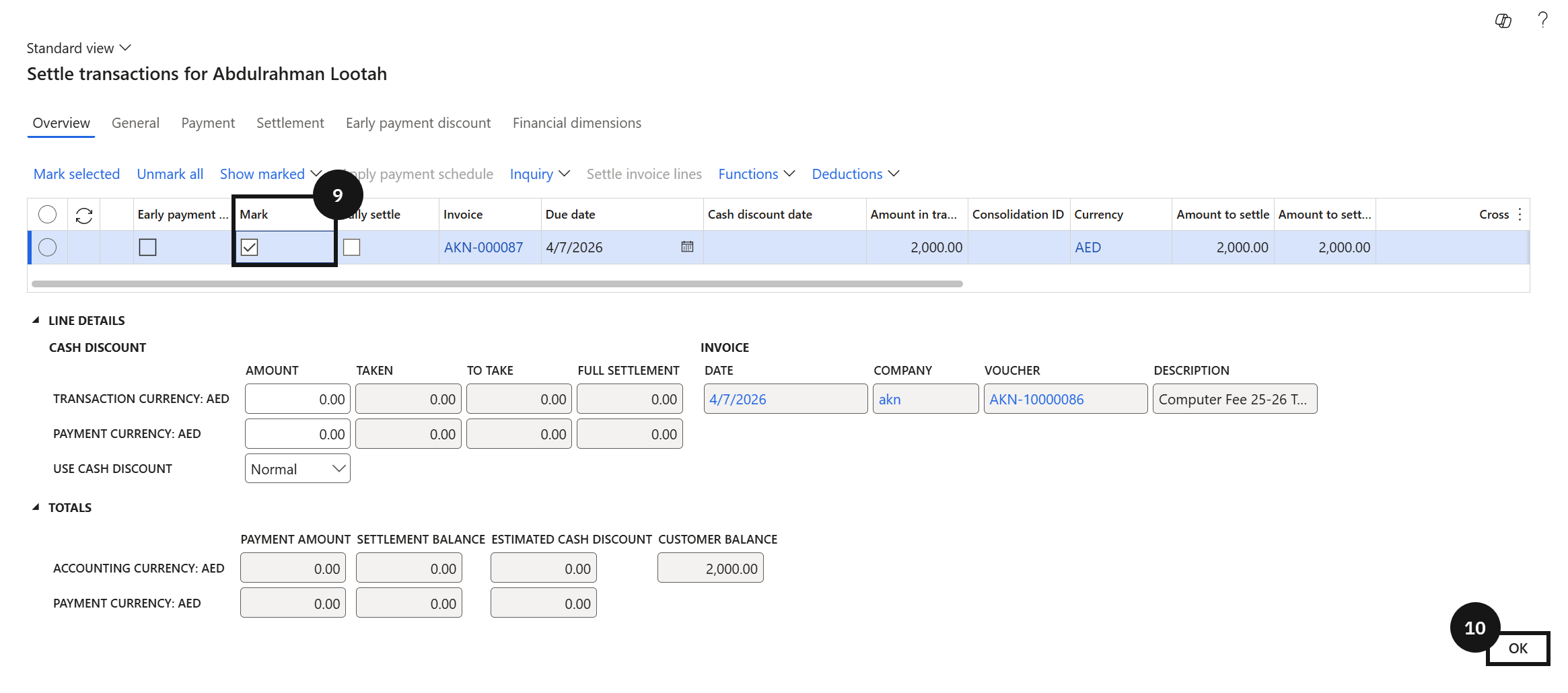
Click Settle transactions (⑧) to find and select the credit invoice. Select the Mark checkbox (⑨) for the desired invoice, then click OK (⑩).
Set financial dimensions and post
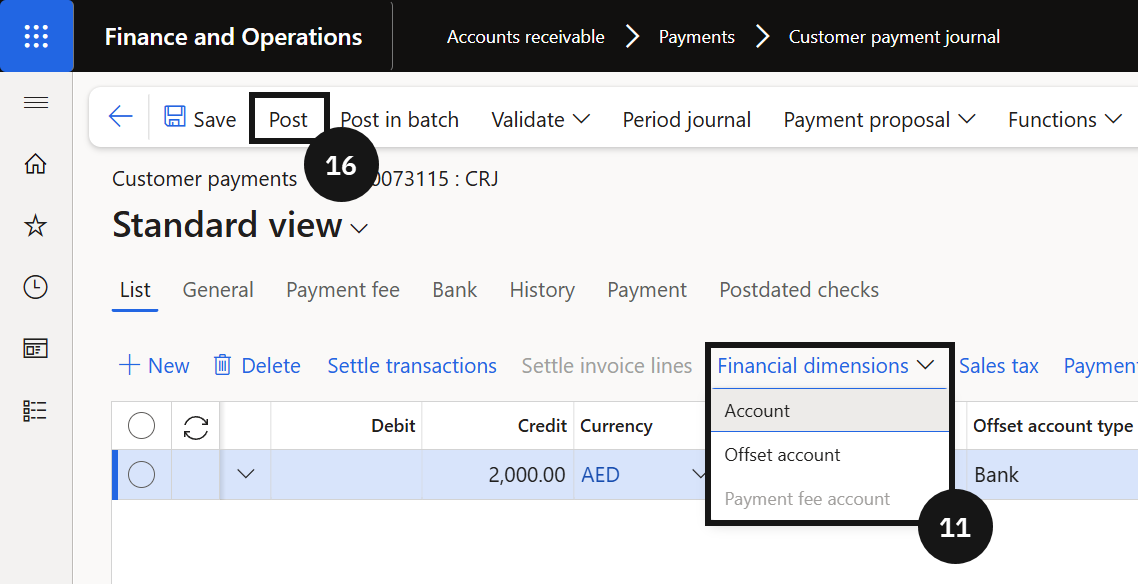
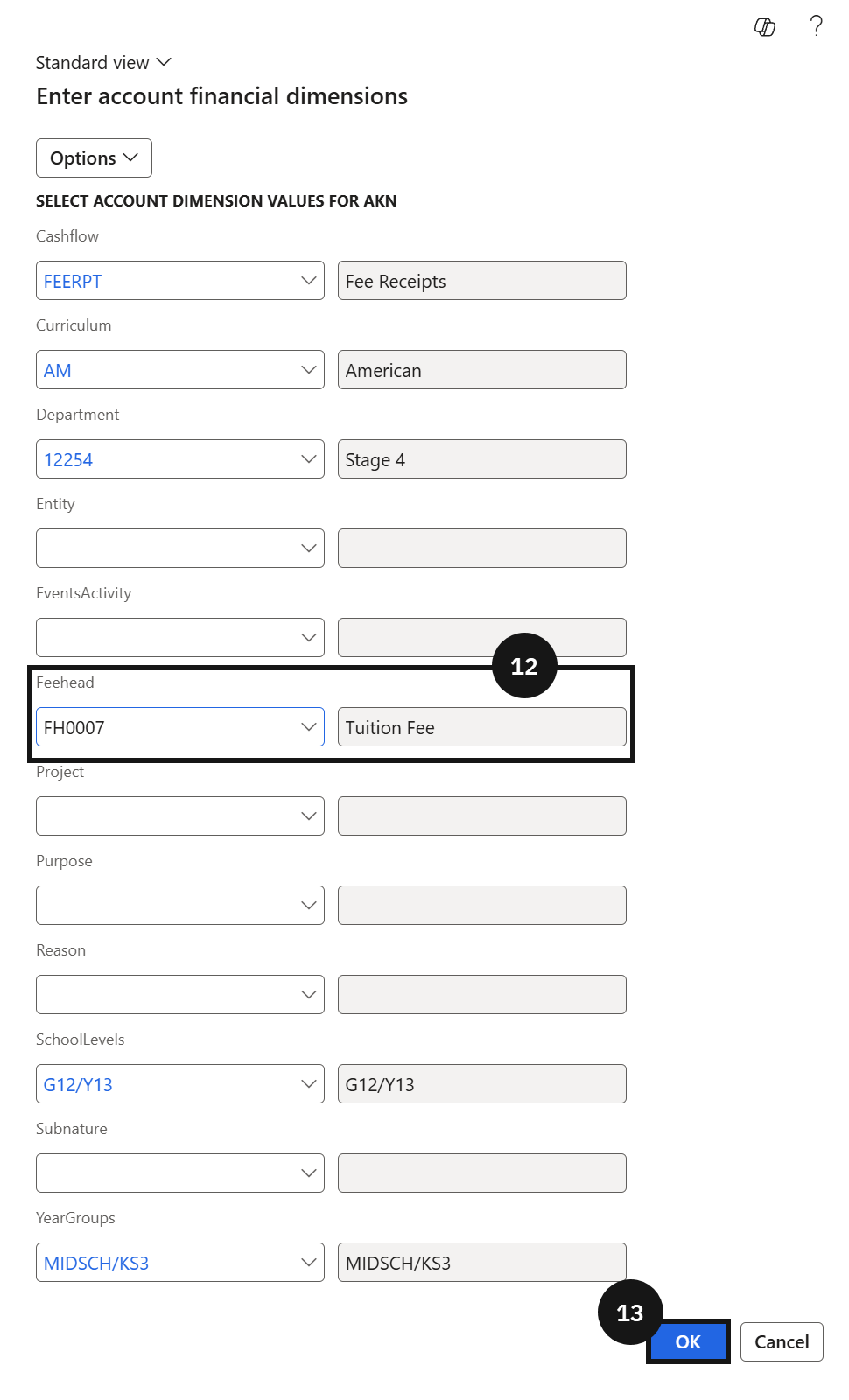
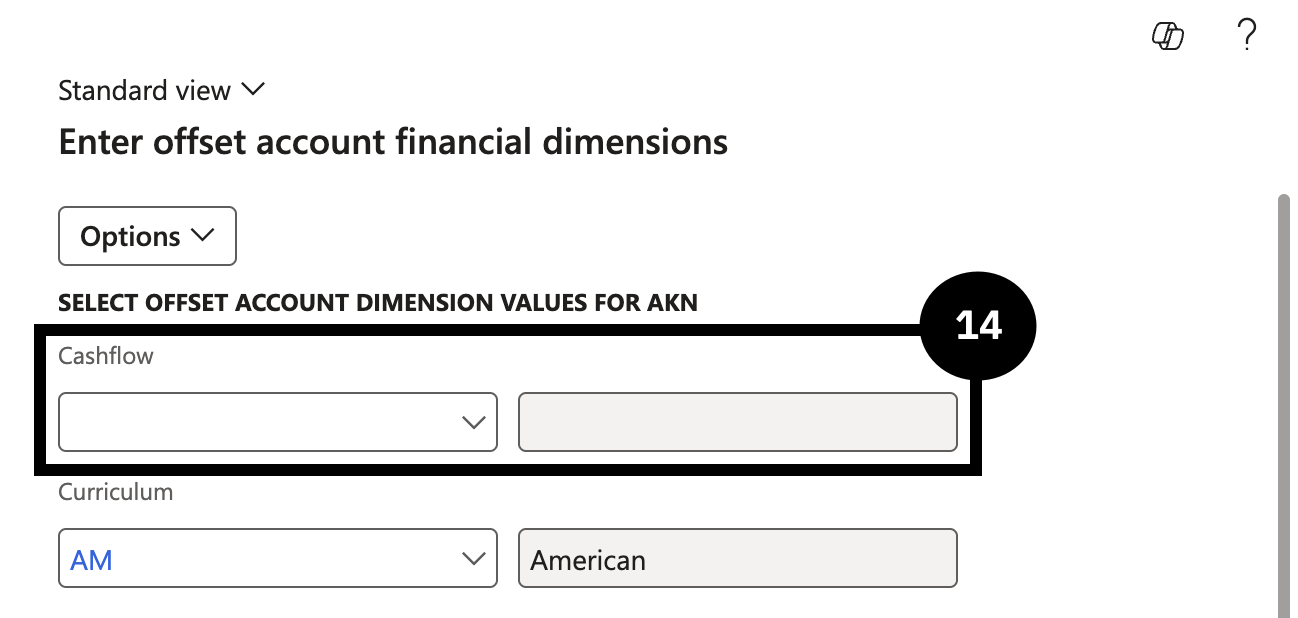
Click Financial dimensions and select Account (⑪). In the Feehead value field (⑫), select a value and click OK (⑬). Click Financial dimensions again, click on the Offset account field, and in the Cashflow field select Refund (⑭). Click OK.
Click Post (⑯).