Process an Advance Payment
Quick answer
- Open Accounts Receivable ▸ Payments ▸ Cashier Receipt, create a new receipt, enable Co-branded, choose the co-branded method, enter the total amount for all terms, enter the sales order reference, click Calculate Discount, then Post.
- Before starting, confirm the Advanced Discount Policy is configured for the fee and charge interval and a proforma invoice exists for the student.
Before processing, confirm that the Advanced Discount Policy is configured for the relevant fee and charge interval and that a proforma invoice has already been generated for the student.
Create the cashier receipt and apply the co-branded method
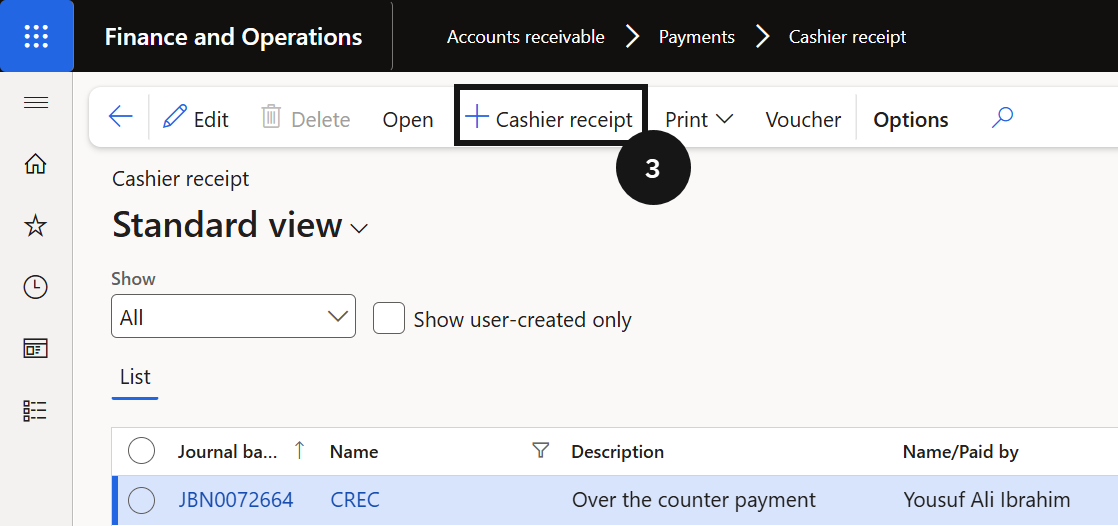
From the FNO dashboard, open Modules ▸ Accounts Receivable, expand Payments, and click Cashier Receipt. Click + Cashier receipt and complete the following:
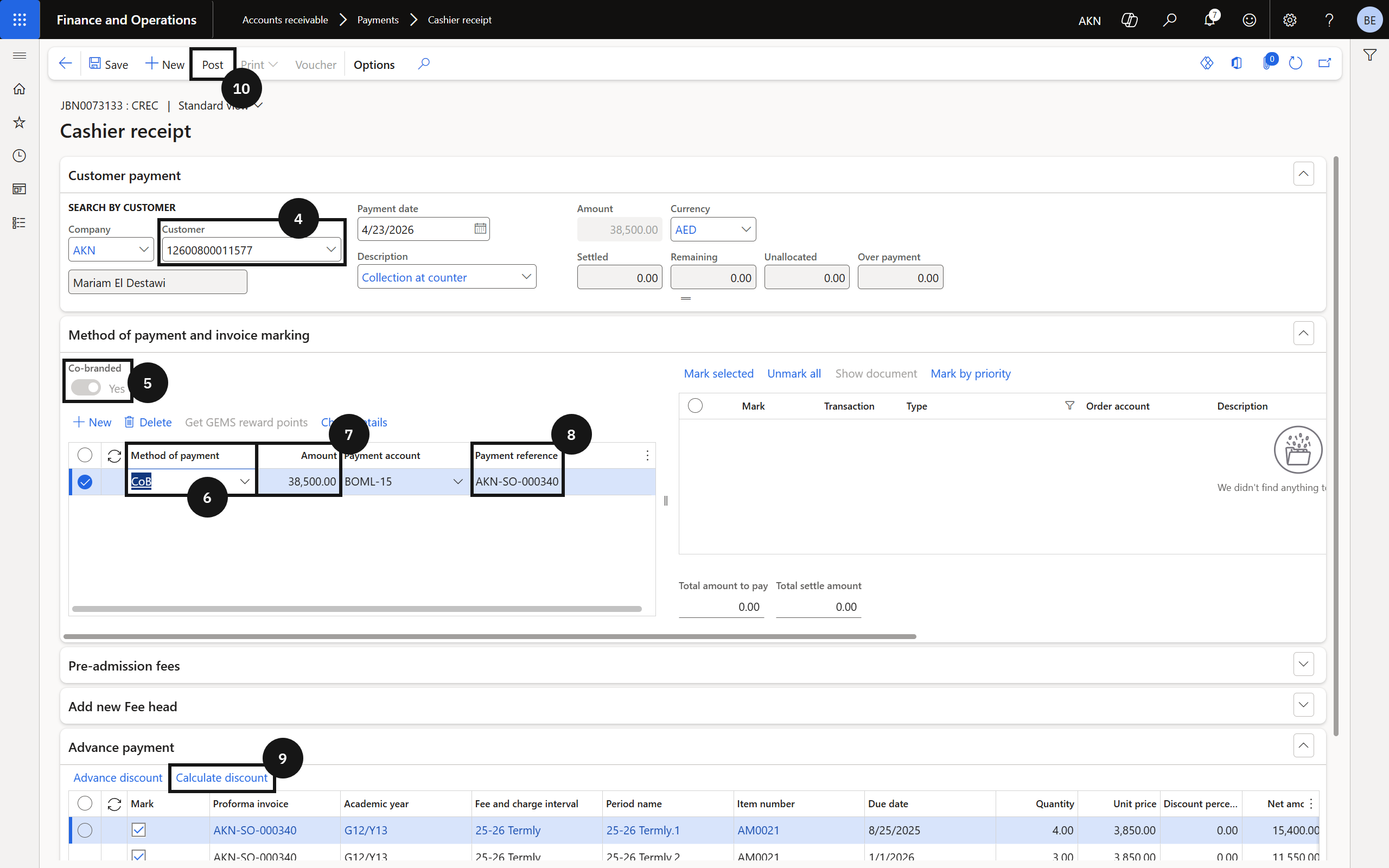
- Customer — enter the student account.
- Co-branded — enable this option under Method of Payment. Enabling Co-branded activates the Calculate Discount button.
- Method of payment — select the co-branded method from the dropdown.
- Amount — enter the total amount to be paid. To pay 3 terms enter the combined total of all 3 term invoice amounts; to pay 2 terms enter the 2-term combined total. The discount rate applied depends on the number of terms the entered amount covers.
- Payment Reference — enter the sales order number.
Calculate discount and post
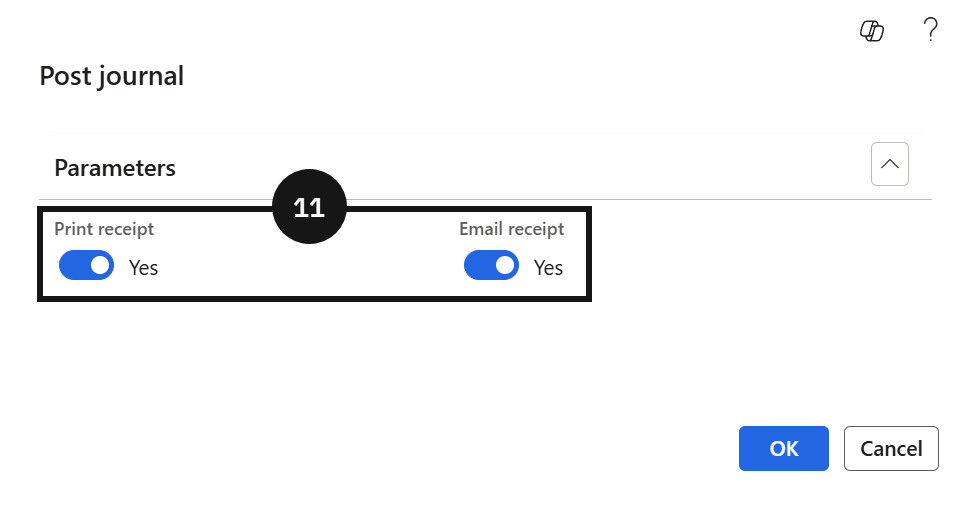
Click Calculate Discount. The system automatically populates the discount rate and discount amount based on the Advanced Discount Policy configuration. Click Post, select your receipt options, and click OK.
The system generates one prepayment invoice per term covered. Posted transactions include one receipt/payment transaction and one prepayment invoice per term paid.