Generate Collection Letters and Suspension Notices
Quick answer
- Open Credit and Collections ▸ Collection letter ▸ Create collection letters, select the letter code and date, optionally filter by customer account, click OK, then review, post, and print the letter.
- Repeat the process for each stage in the sequence using the next collection letter code.
Once the collection letter sequence is configured, run this process to generate reminders for fee payers with overdue balances. Repeat for each stage in the escalation sequence using the next collection letter code.
Create the collection letter
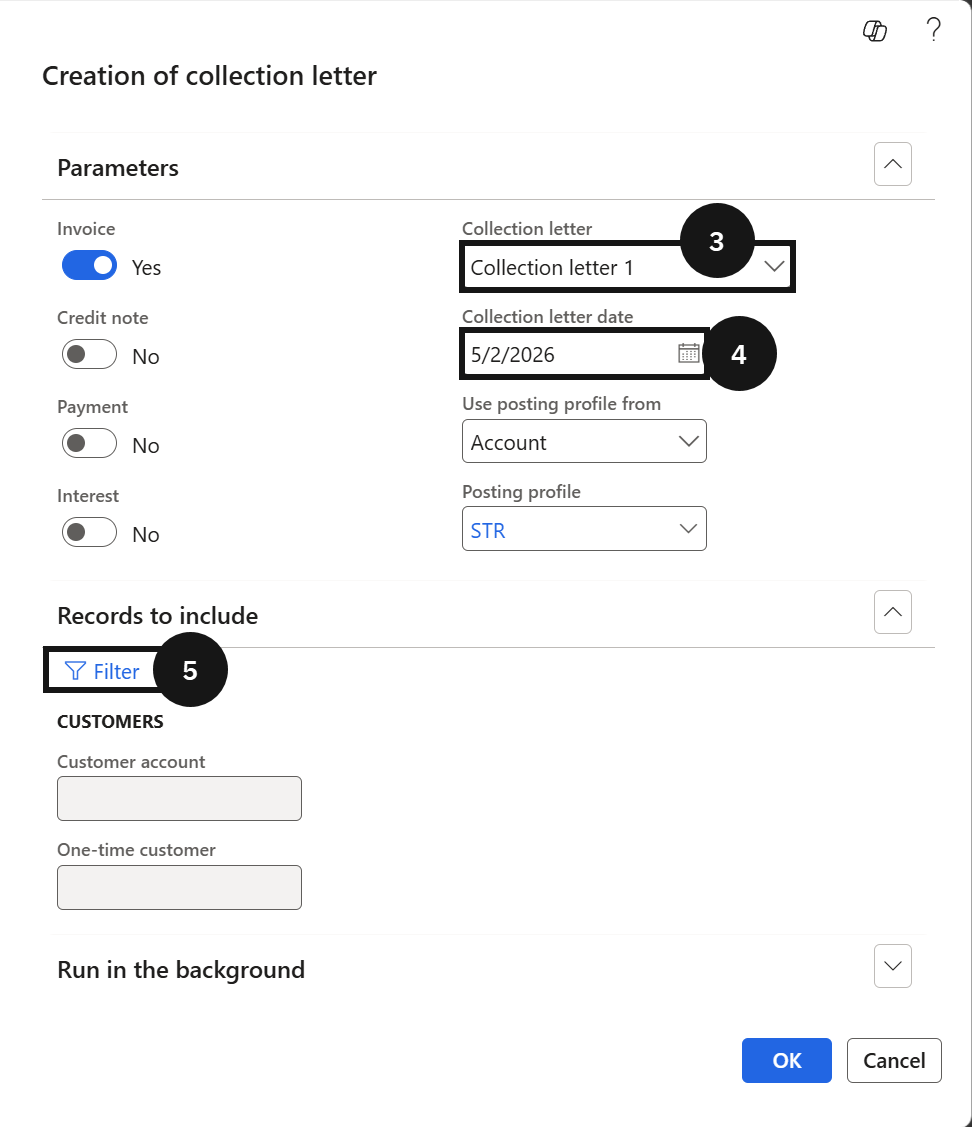
From the FNO dashboard, open Modules ▸ Credit and Collections, expand Collection letter, and click Create collection letters. In Parameters, select the Collection letter code from the dropdown (③) and enter the Collection letter date (④). In Records to include, enter the Customer account to generate for one account only, or leave blank to generate for all eligible accounts (⑤). Click OK.
Review, post, and print
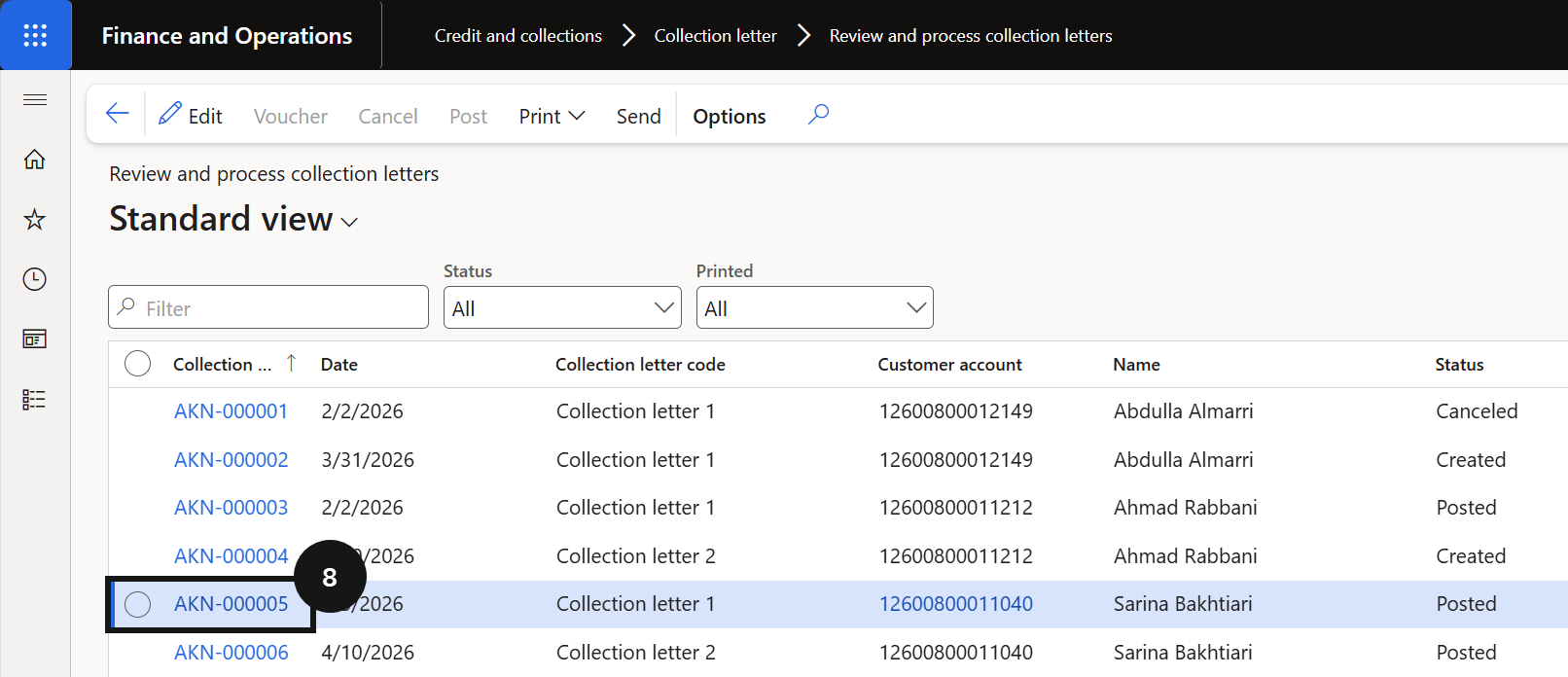
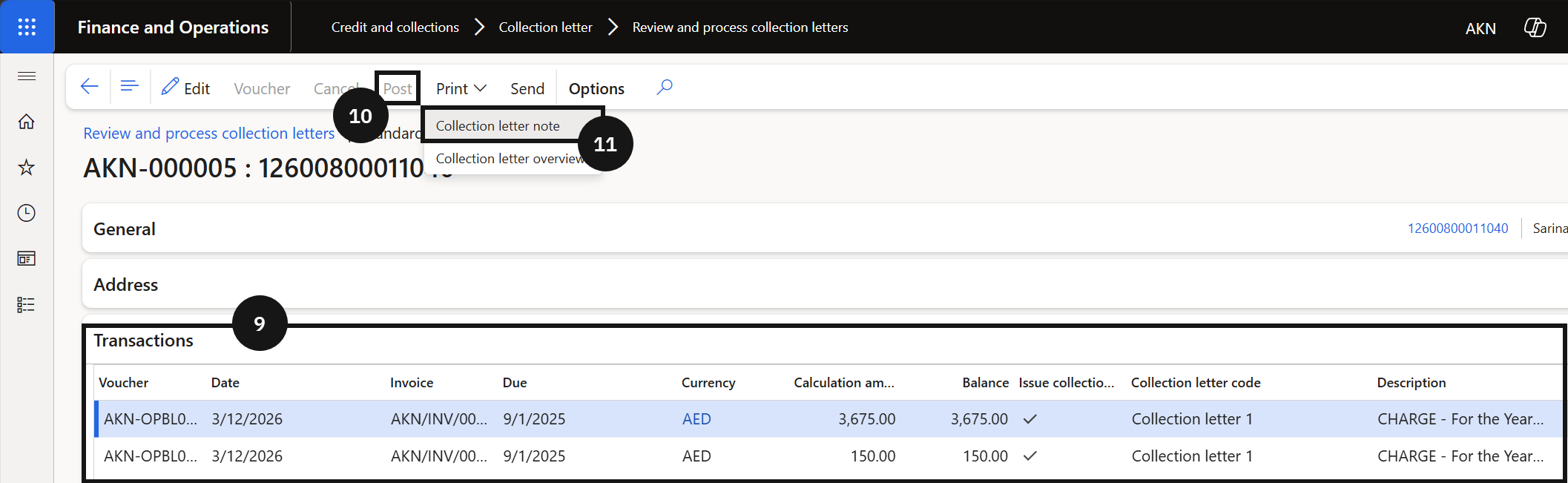
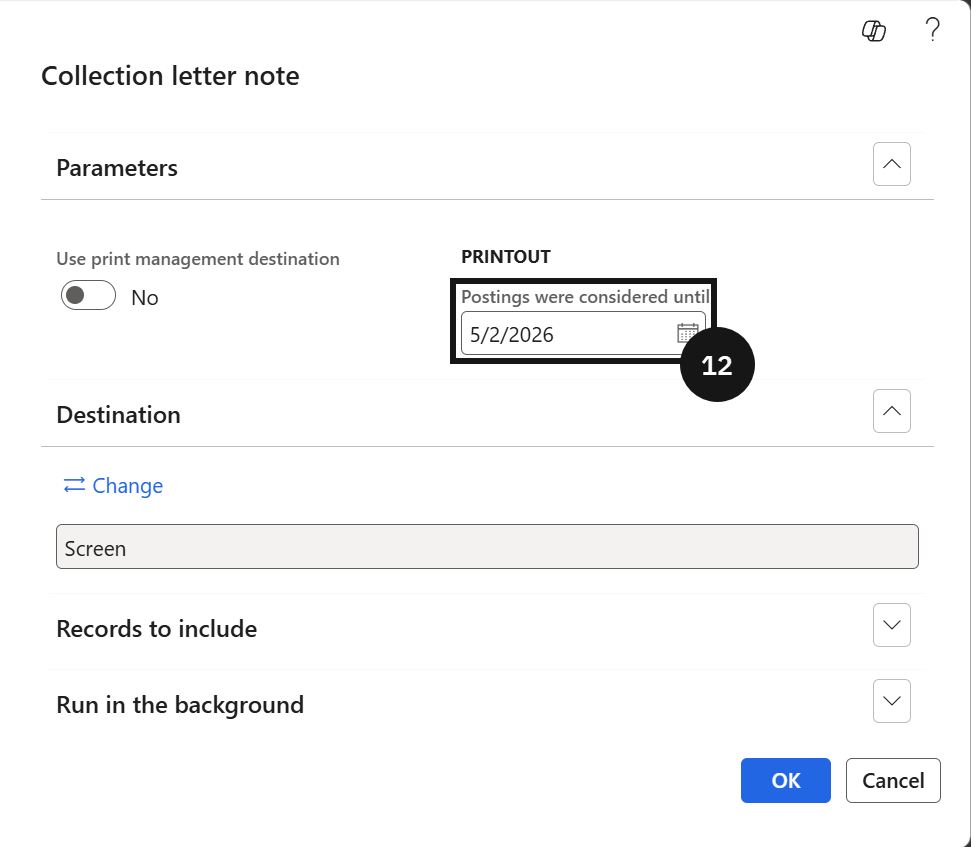
Navigate to Modules ▸ Credit and collections ▸ Collection letter ▸ Review and process collection letters. Open the newly created letter (⑧), review the details including overdue amounts and related transactions, then click Post (⑩). Click Print, select Collection letter note (⑪), enter the required date in Postings were considered until (⑫), and click OK. Review the printed letter for accuracy.
Repeat for each stage
Repeat all steps for the next letter in the sequence, using the next collection letter code and the correct date according to the escalation schedule.