Cancel a Receipt
Quick answer
- Open the student record, click Customer ▸ Transactions, select the transaction, click Reverse ▸ Cancel payment, set the reversal date, select a reason code, then click OK.
- The reversal date cannot be set prior to the original posting date.
Used when a posted customer payment needs to be reversed. The reversal date cannot be set prior to the original posting date.
Locate the transaction
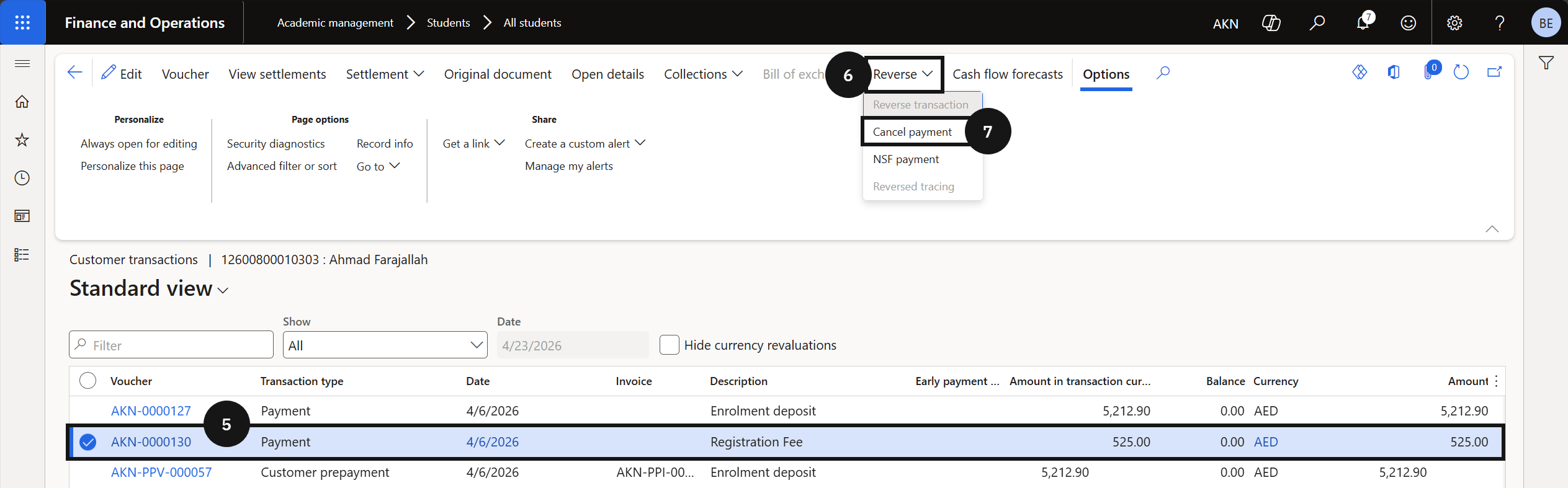
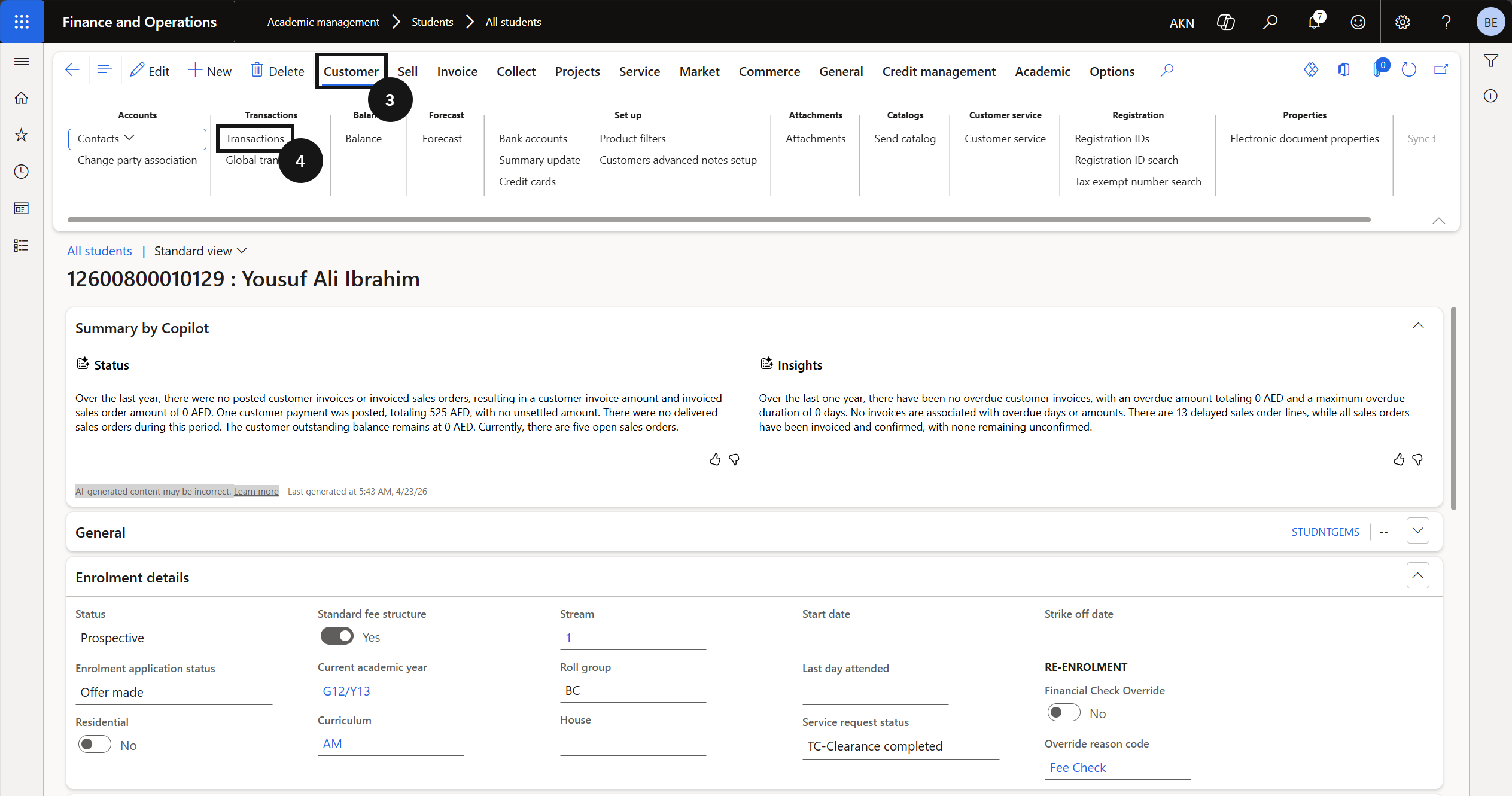
From the FNO dashboard, navigate to Modules ▸ Academic Management ▸ Students ▸ All students. Filter the list to locate the required student. Click Customer on the Action Pane (③), then click Transactions (④). Select the transaction to reverse (⑤).
Reverse and set the date
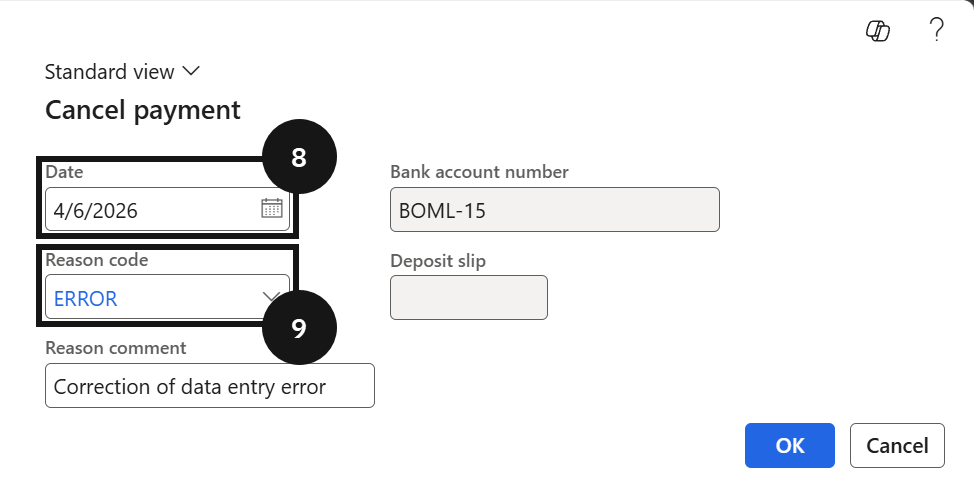
Click Reverse, (⑥) then click Cancel payment (⑦). Select the reversal date (⑧) from the date picker. Select a value from the Reason code dropdown (⑨). Click OK.