Cancel a Cheque — Insufficient Funds (NSF)
Quick answer
- Open the student's Customer Transactions, locate the cheque payment, click Reverse ▸ NSF payment, select a reason code, then locate the NSF journal in Customer payment journal and Post.
- Selecting NSF payment triggers the reversal of the original cheque transaction and initiates the NSF fee entry.
When a customer cheque is returned due to insufficient funds, reverse the original cheque payment, apply the NSF fee, and post the resulting accounting entries.
Locate the cheque payment and initiate NSF reversal
From the FNO dashboard, navigate to Modules ▸ Academic Management ▸ Students ▸ All students. Filter for the student using the Account column or by name. Click Transactions.
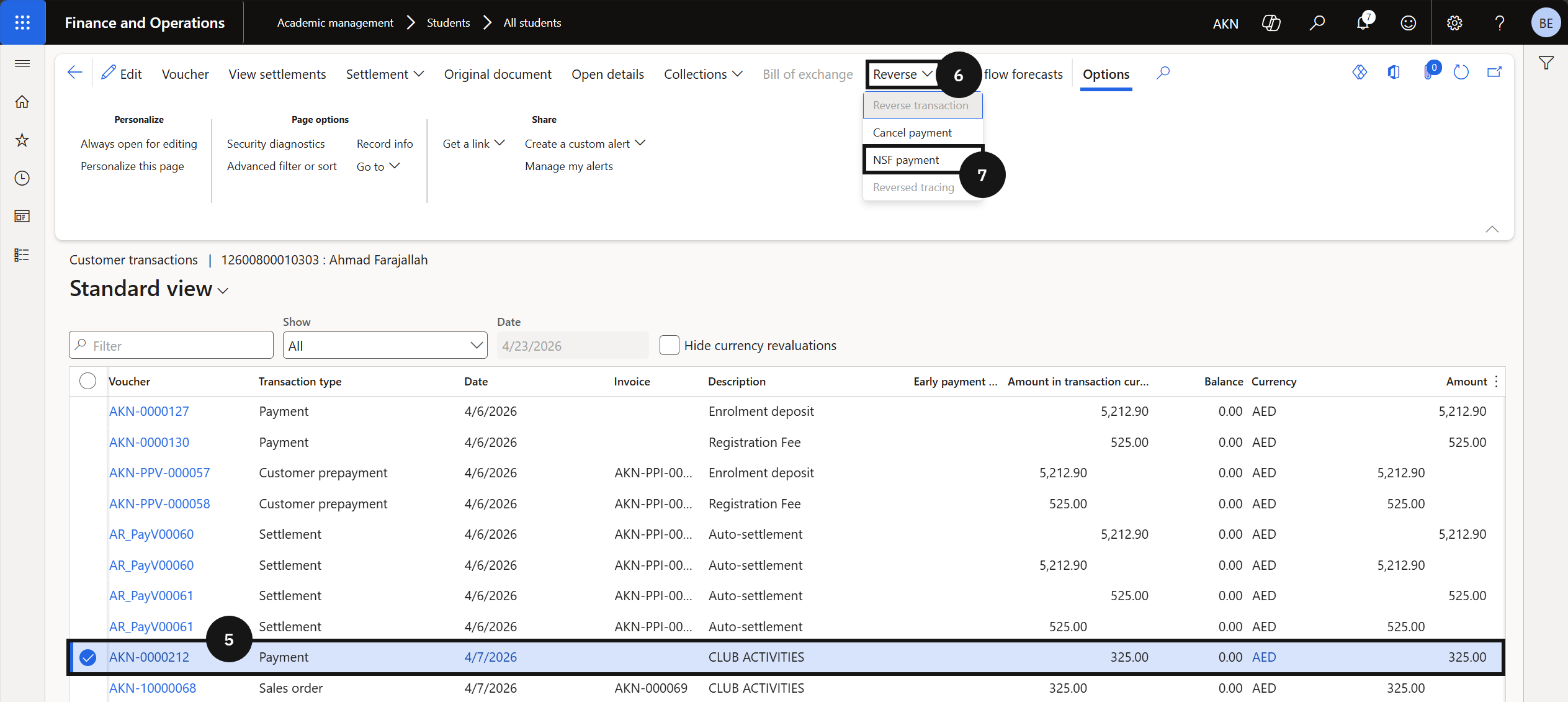
In Customer transactions, locate the Cheque Payment line (⑤) for the dishonoured cheque and select the row. Click Reverse in the Action Pane (⑥), then select NSF payment from the dropdown (⑦) — this reverses the original cheque transaction and initiates the NSF fee entry. Click OK on the confirmation prompt.
Select a reason code
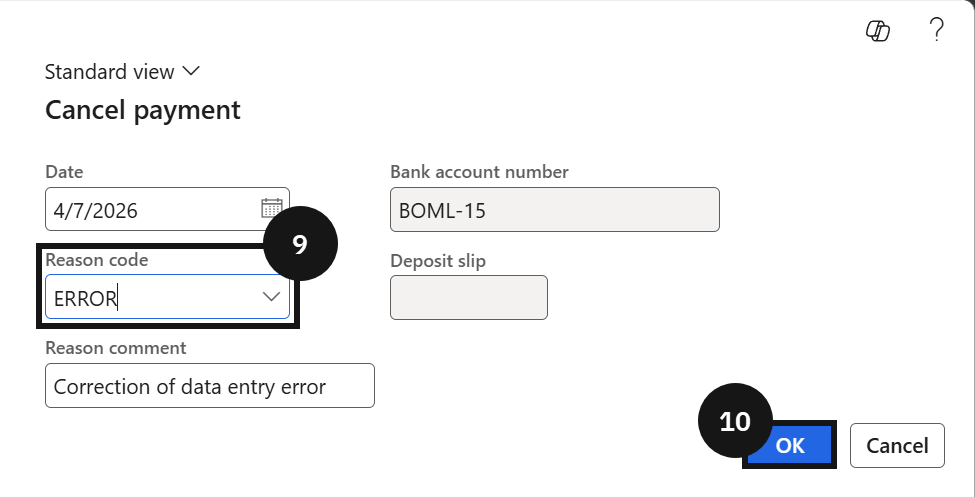
In the Cancel payment window, select a Reason code (⑨) that matches the return reason (e.g., Cheque returned – insufficient funds). Click OK (⑩).
Post the NSF journal
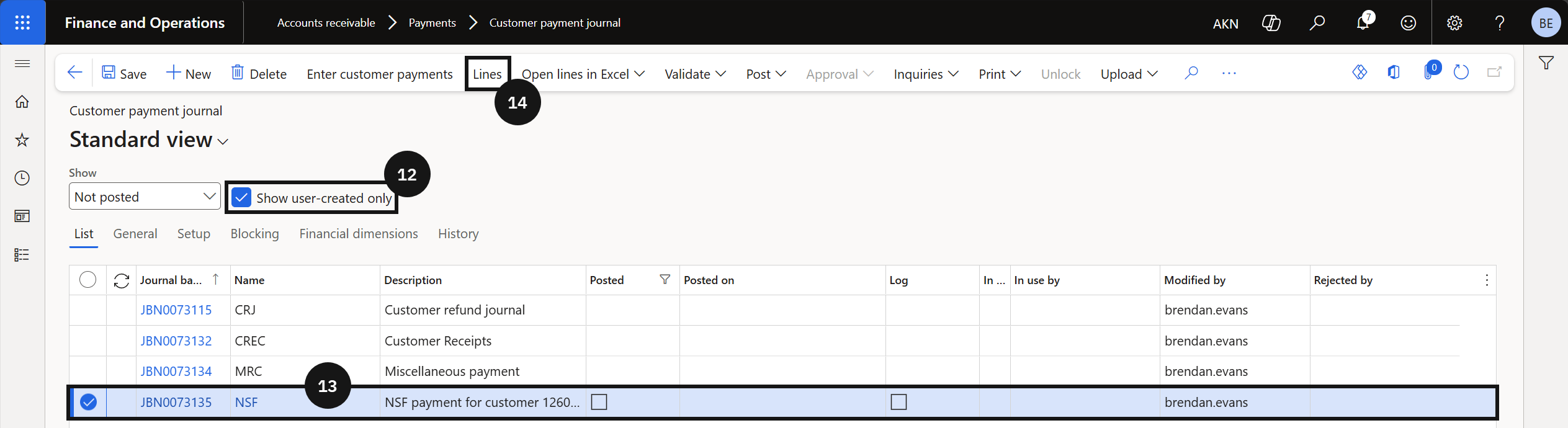
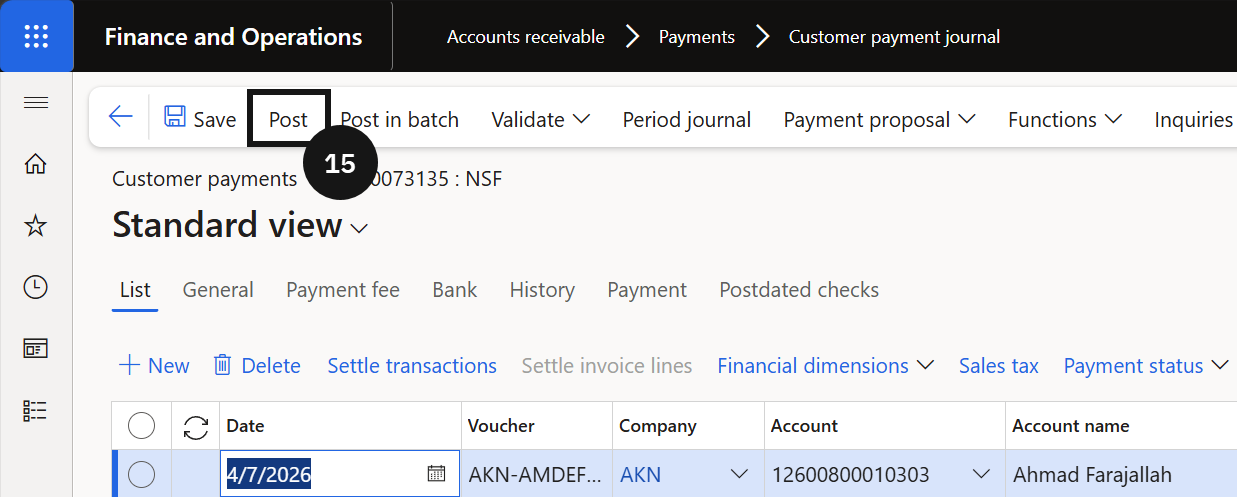
Navigate to Modules ▸ Accounts receivable ▸ Payments ▸ Customer payment journal. Enable Show user-created only (⑫). Locate and select the journal created for the NSF reversal (⑬). Click Lines in the Action Pane (⑭), then click Post (⑮).