Update Fee Structure Prices
Quick answer
- Filter for the tuition fee item in Released products, open Sell ▸ Sales price, filter by academic attributes, select the fee line, click Edit selected lines, enter the new price and From date, then Post.
- The effective date controls when the new price takes effect — changes can be configured in advance without affecting current billing.
When tuition fees or other fee item prices need to be updated — for example, at the start of a new academic year — make the change by editing the existing trade agreement line and submitting it through a new journal. The effective date controls when the new price takes effect.
Locate the price line
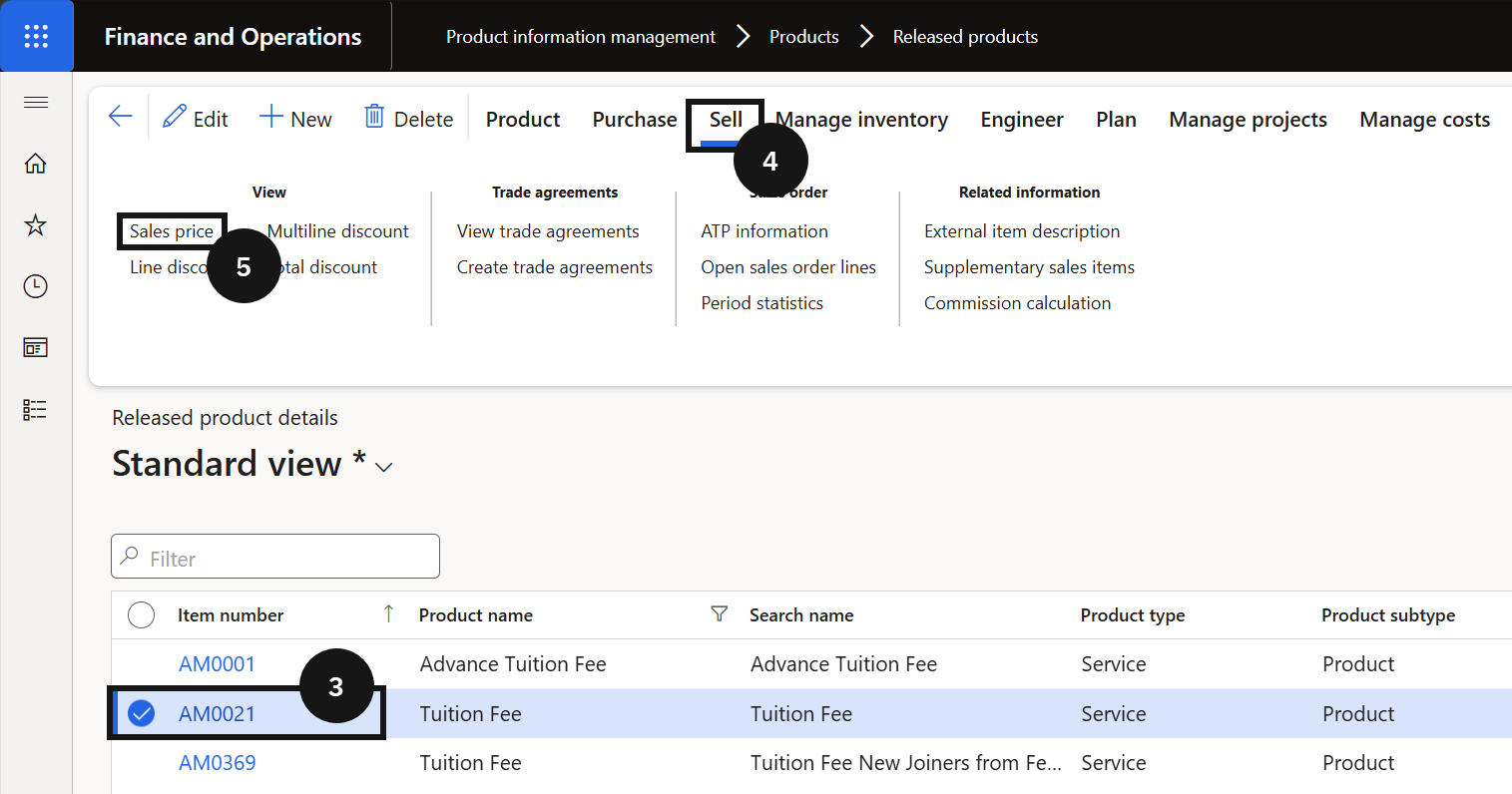
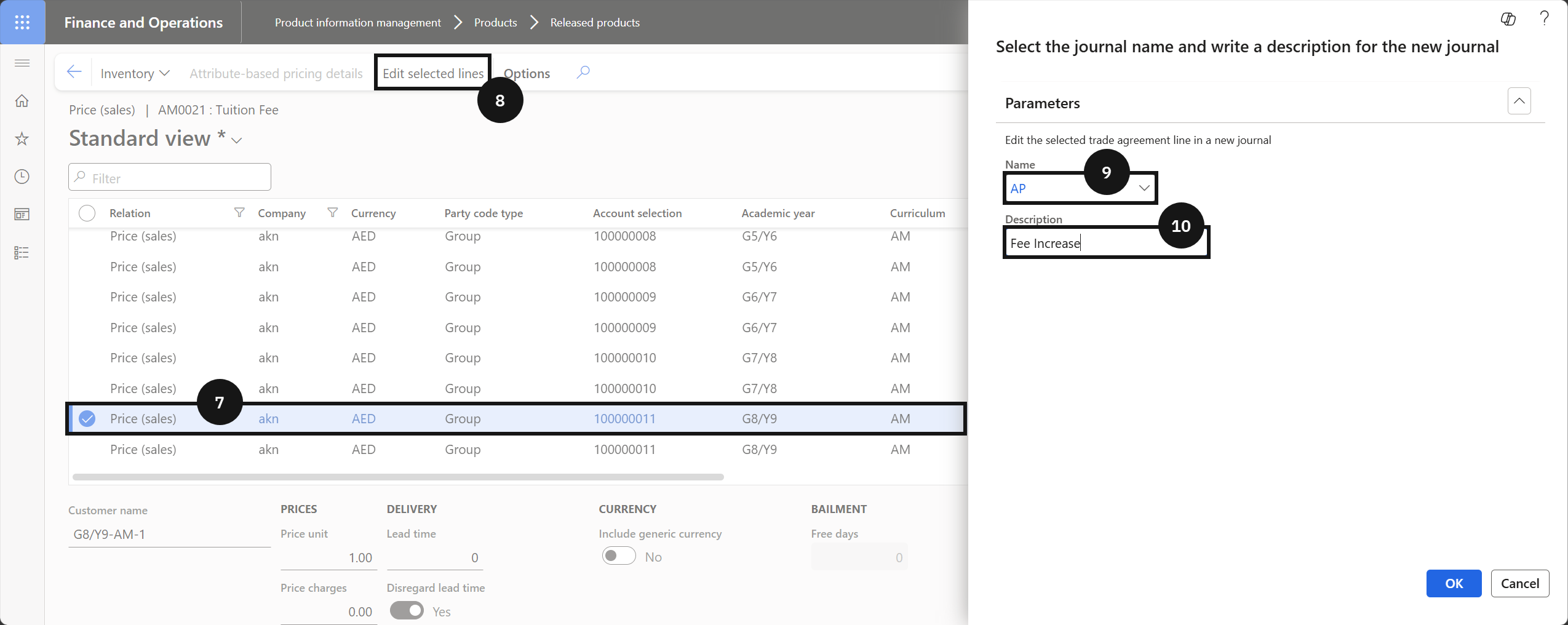
From the FNO dashboard, open Modules ▸ Product information management, expand Products, and click Released products. Filter by Product name and select the tuition fee item (③). Click Sell (④) from the Action Pane, then click Sales price (⑤). Filter by Company, Academic year, Curriculum, and Stream to find the relevant fee line. Select the line (⑦).
Edit the price and post
Click Edit selected lines (⑧) and complete the following:
- Name (⑨) — enter a name (e.g., Academic scale price).
- Description (⑩) — enter a description (e.g., Fee increase).
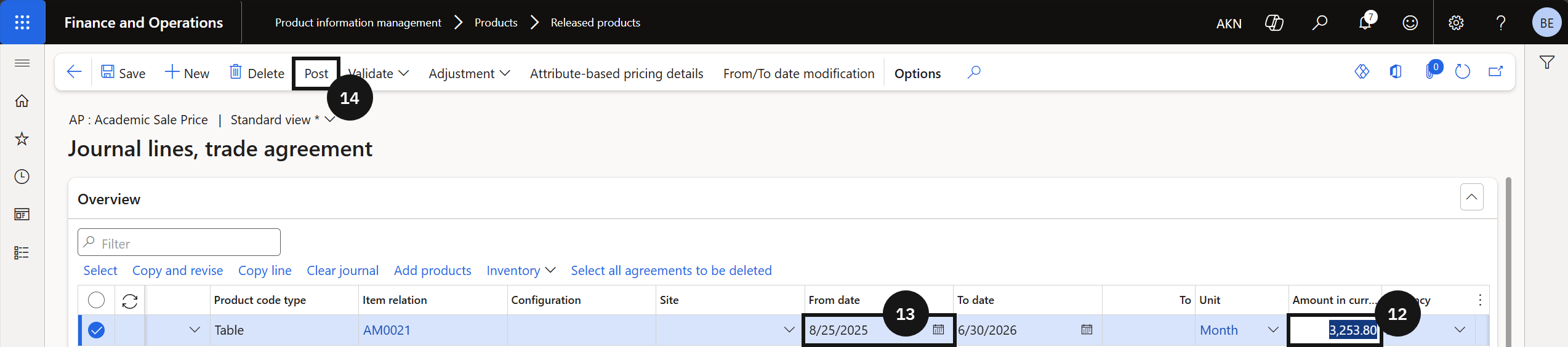
Click OK. Enter the new Sales price (or the yearly price if annual pricing is used for deposit calculations) (⑫). Enter the From date (⑬) for when the new price should take effect. Click Post (⑭).
Verify the update
Return to the fee item and confirm the updated price for the intended academic year and curriculum combination.