Settle Enrolment Deposits
Quick answer
- After posting fee invoices, open Academic Management ▸ Inquiries and reports ▸ Pre-admission fees ▸ Pre-admission deposits, click OK, and confirm deposit statuses have changed from Received to Settled.
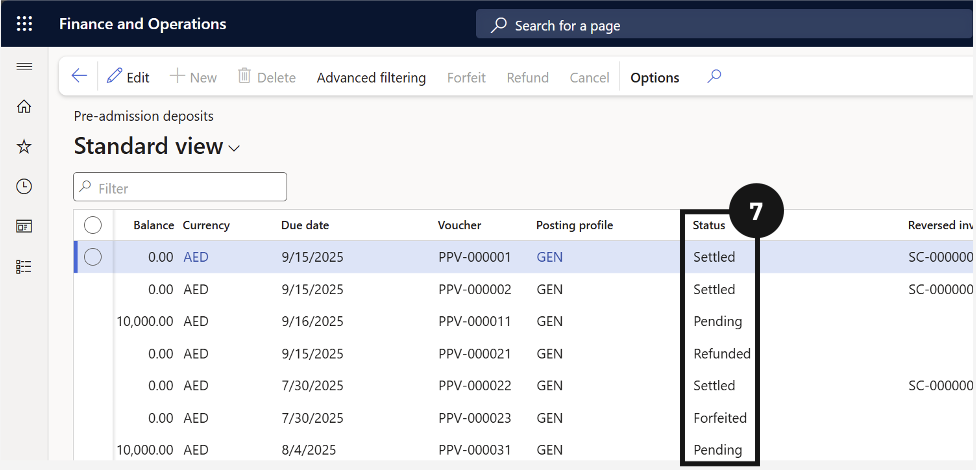
After fee invoices have been posted, the system automatically matches received enrolment deposits to the corresponding invoices. Confirm that deposit statuses update from Received to Settled to ensure reconciliation has completed correctly.
Open Pre-admission deposits
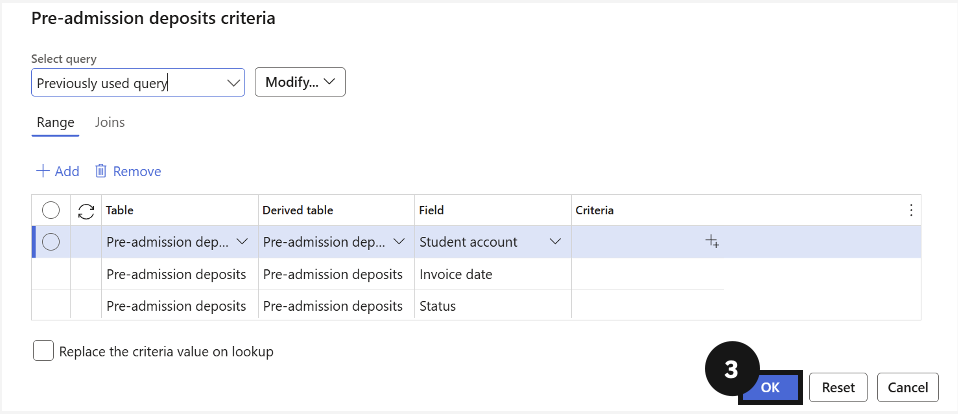
From the FNO dashboard, open Modules ▸ Academic Management, expand Inquiries and reports ▸ Pre-admission fees, and click Pre-admission deposits. Click OK (③) in the dialog to view all deposits.
Confirm settlement status
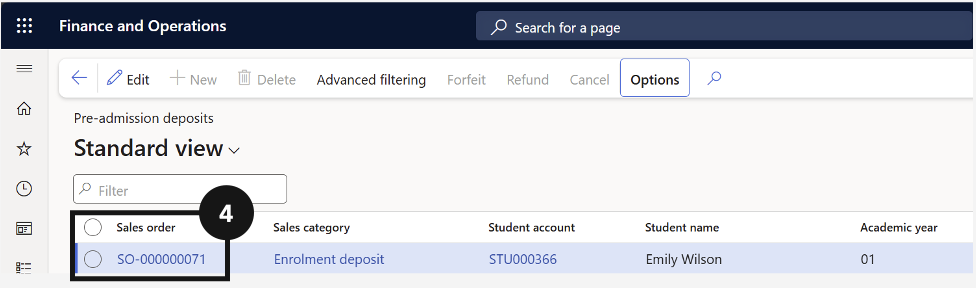
Click on the enrolment deposit Sales order to review (④). Deposits with status Received indicate payment was collected. After posting, the system automatically matches these to invoices — confirm the status has changed from Received to Settled (⑦).